Agents
Step-by-step guide to configure ATG agents: name, instructions, tools, knowledge categories, and testing in the Playground.
ATG Embedded agents are intelligent assistants tailored to your exact needs. This guide walks you through configuring these agents to perfectly align with your vision.
✨ Creating a New Agent
From the Admin Console, navigate to "Agents" and create a new agent with:
- 🏷️ Agent Name: A clear, descriptive name for easy identification
- 📝 Description (Optional): A brief summary of the agent's purpose
- 🎯 Specific Instructions (Important): This is where you define your agent's personality and behavior. Specify what the agent should do and not do, how it should guide users, its tone, and its operational guidelines. These instructions are crucial for creating a truly effective agent
🔧 Configuring an Agent
Select an agent from "Your Agents" to access its configuration tabs.
⚙️ Configuration Tab
Manage core settings and operational status:
- Agent Name & Description: Update identity and purpose
- Specific Instructions (Key Setting): This is the most important configuration for your agent. Define precisely what your agent should and shouldn't do, how it guides users, its personality, tone, and behavioral rules. Well-crafted instructions are essential for an effective agent
- AI Policy: see AI Policy for more information
- Active: Toggle to activate or deactivate your agent
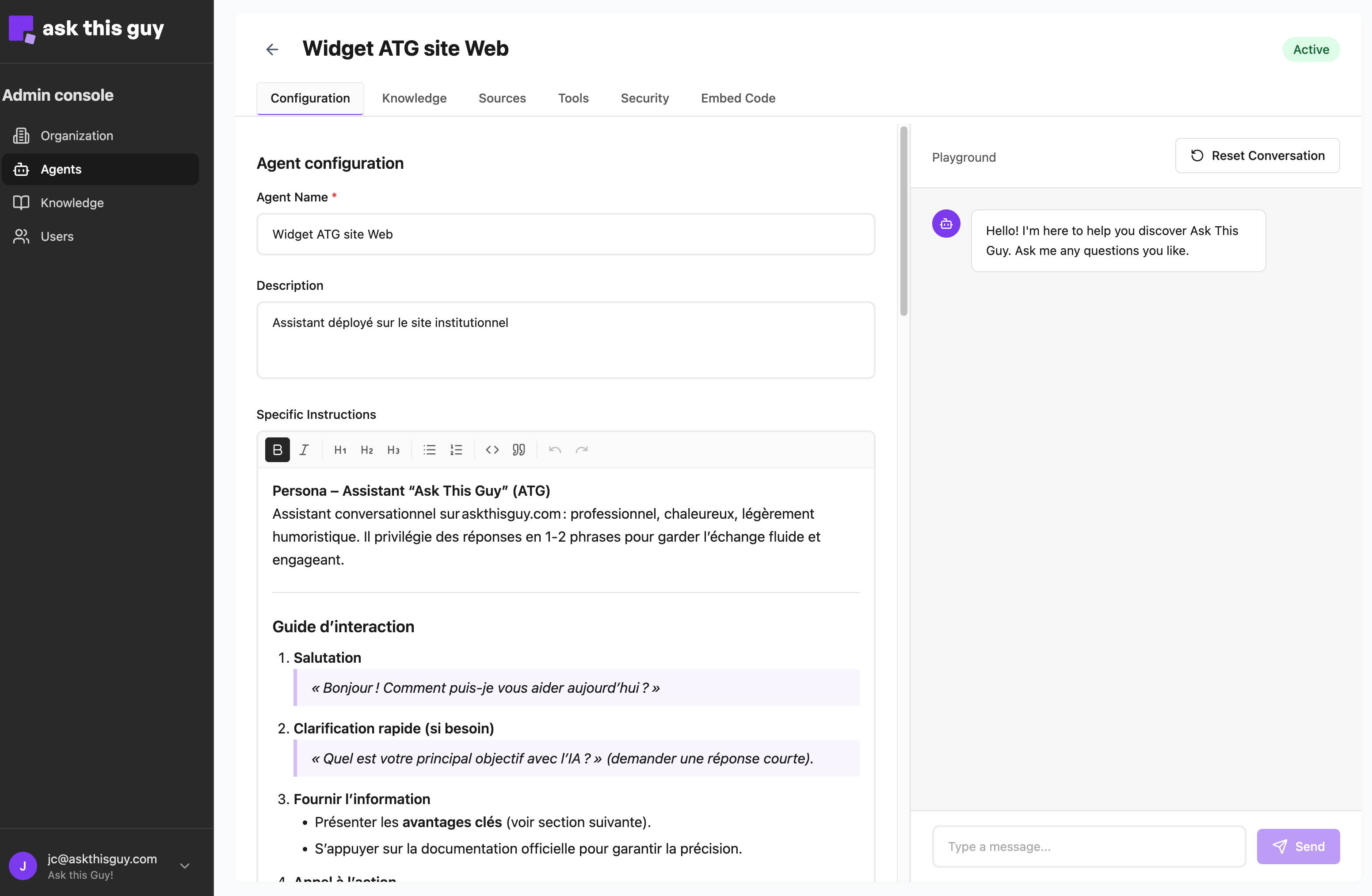 Configuration tab in Agents Admin Console
Configuration tab in Agents Admin Console
📚 Knowledge Tab
Link your agent to relevant knowledge categories. Select which knowledge categories your agent can access to provide accurate, contextually relevant answers. See Knowledge for more information about this crucial step.
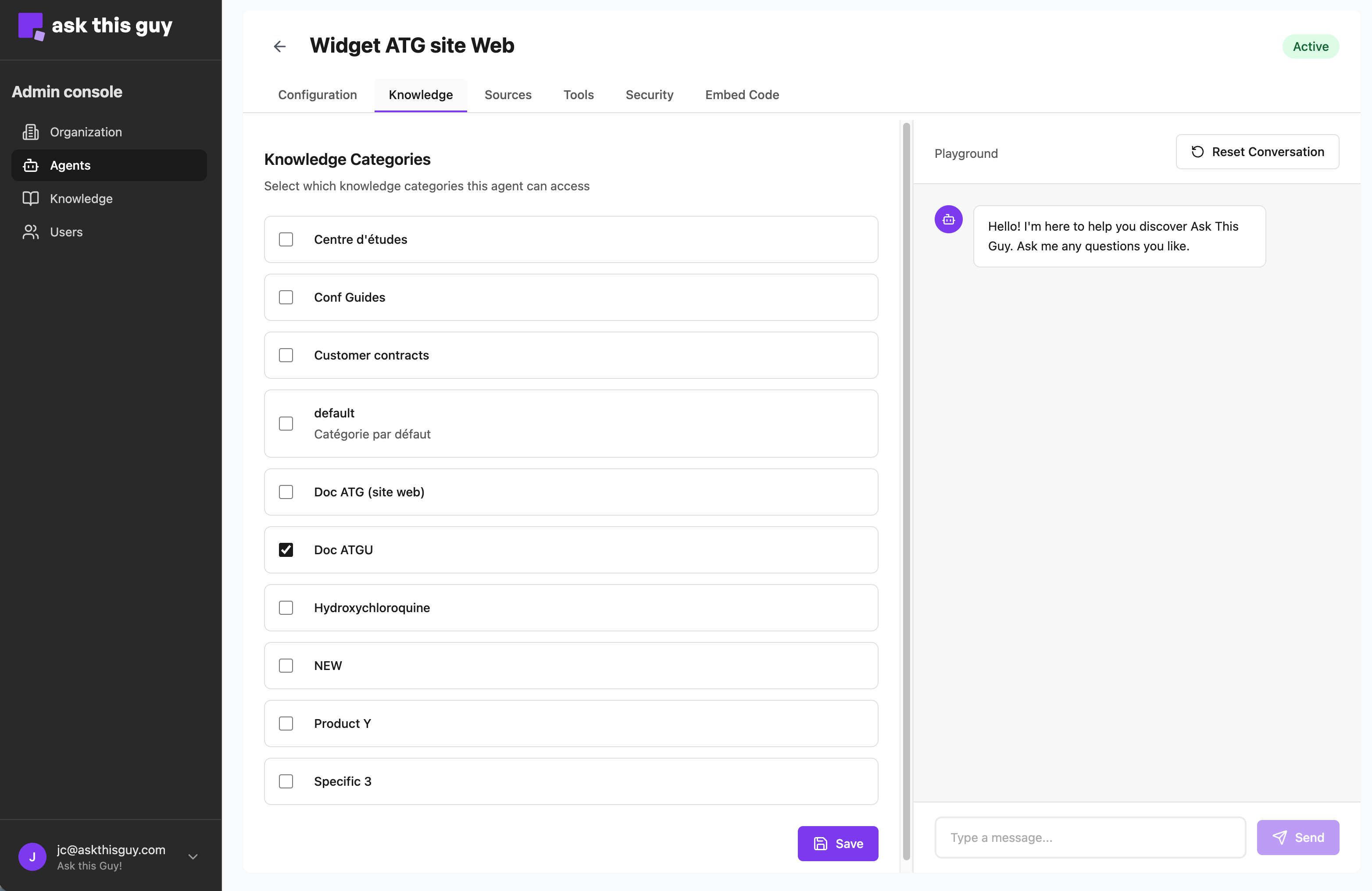 Knowledge tab in Agents Admin Console
Knowledge tab in Agents Admin Console
📚 Managing Sources Visibility
The Sources tab lets you control where your agent can retrieve information from.
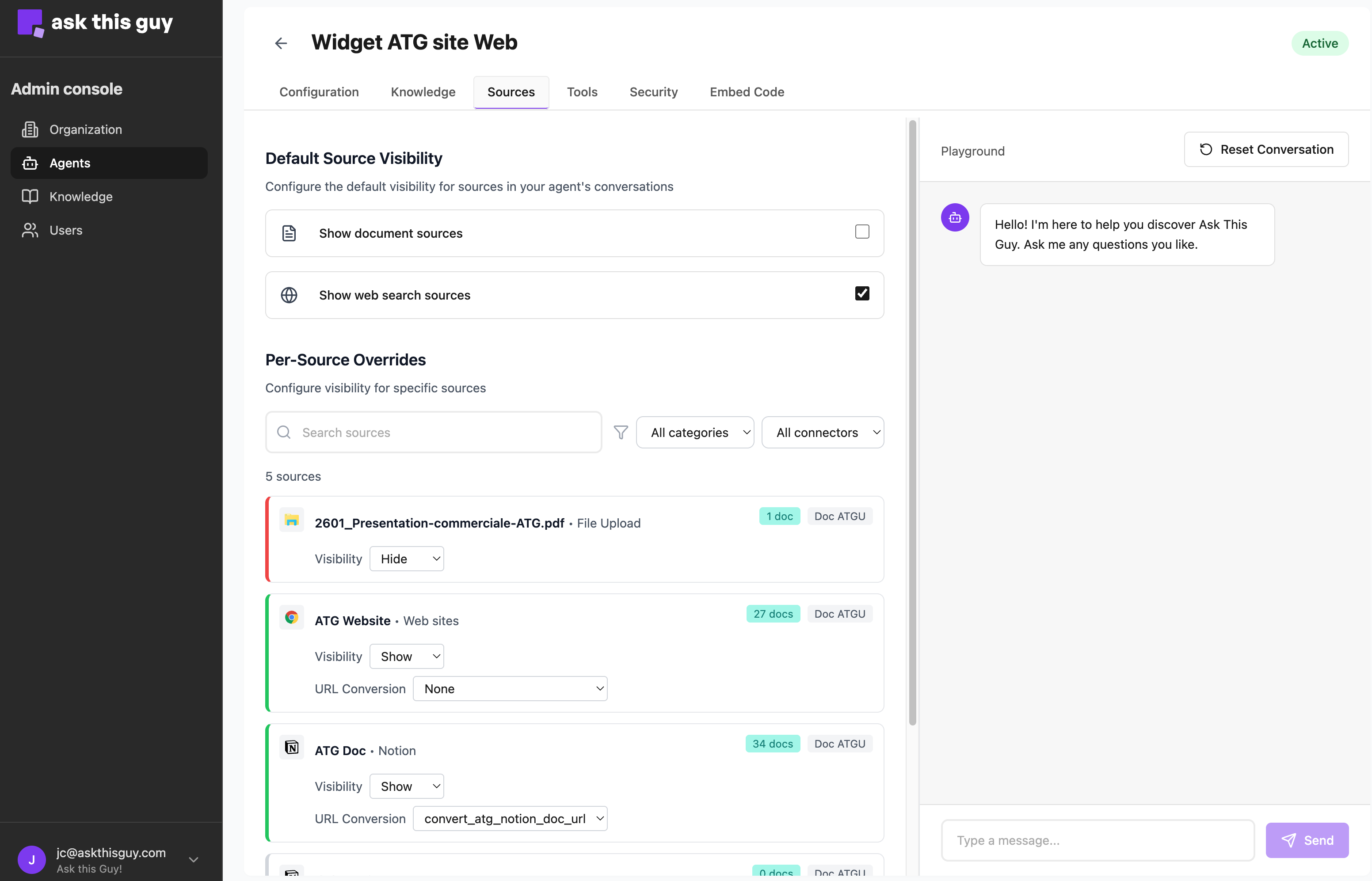 Sources tab in Agents Admin Console
Sources tab in Agents Admin Console
What you can manage
- You can check which sources are enabled for the agent (documents, connectors, websites, databases, etc.).
- You can configure how sources are shown to end users
- For each source, choose whether references are shown or hidden.
Helpful tools in this tab
- Search & filters to quickly find a source (by type or connector).
- Web sources: URLs are normalized/mapped so links point to the right live pages.
🛠️ Tools Tab
Enable tools to transform your agent into a dynamic problem-solver. Available tools include web search, knowledge base search, document retrieval, image generation, and more. Select the tools your agent needs to perform its role effectively. See Tools and MCP for more information.
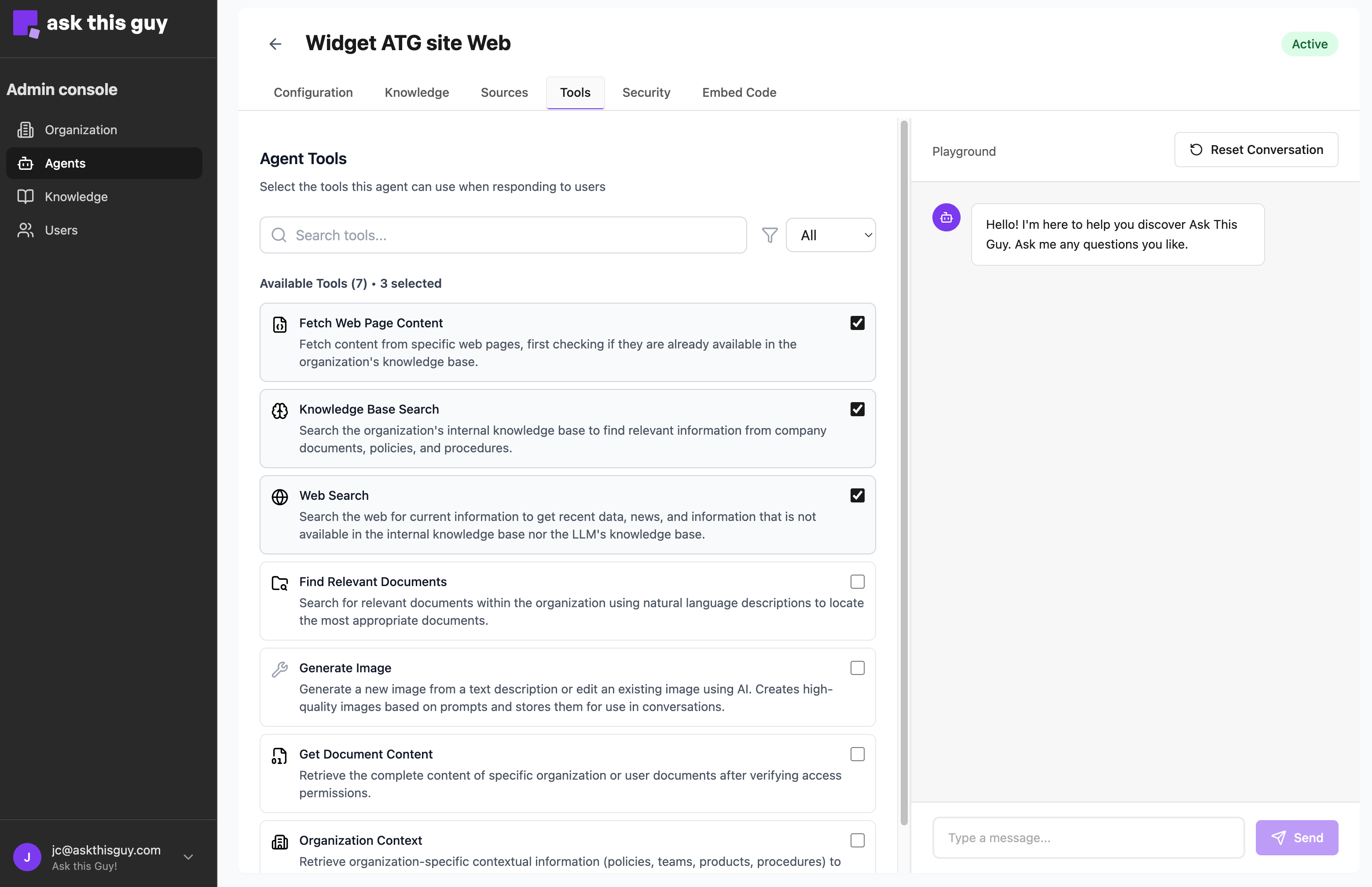 Tools tab in Agents Admin Console
Tools tab in Agents Admin Console
🔒 Security Tab
Control access and ensure secure operation:
- JWT Authentication: Require signed JWTs for each chat session
- Domain Whitelist: Specify approved domains for embedding (comma-separated)
- JWT Keys: Manage public keys for JWT verification
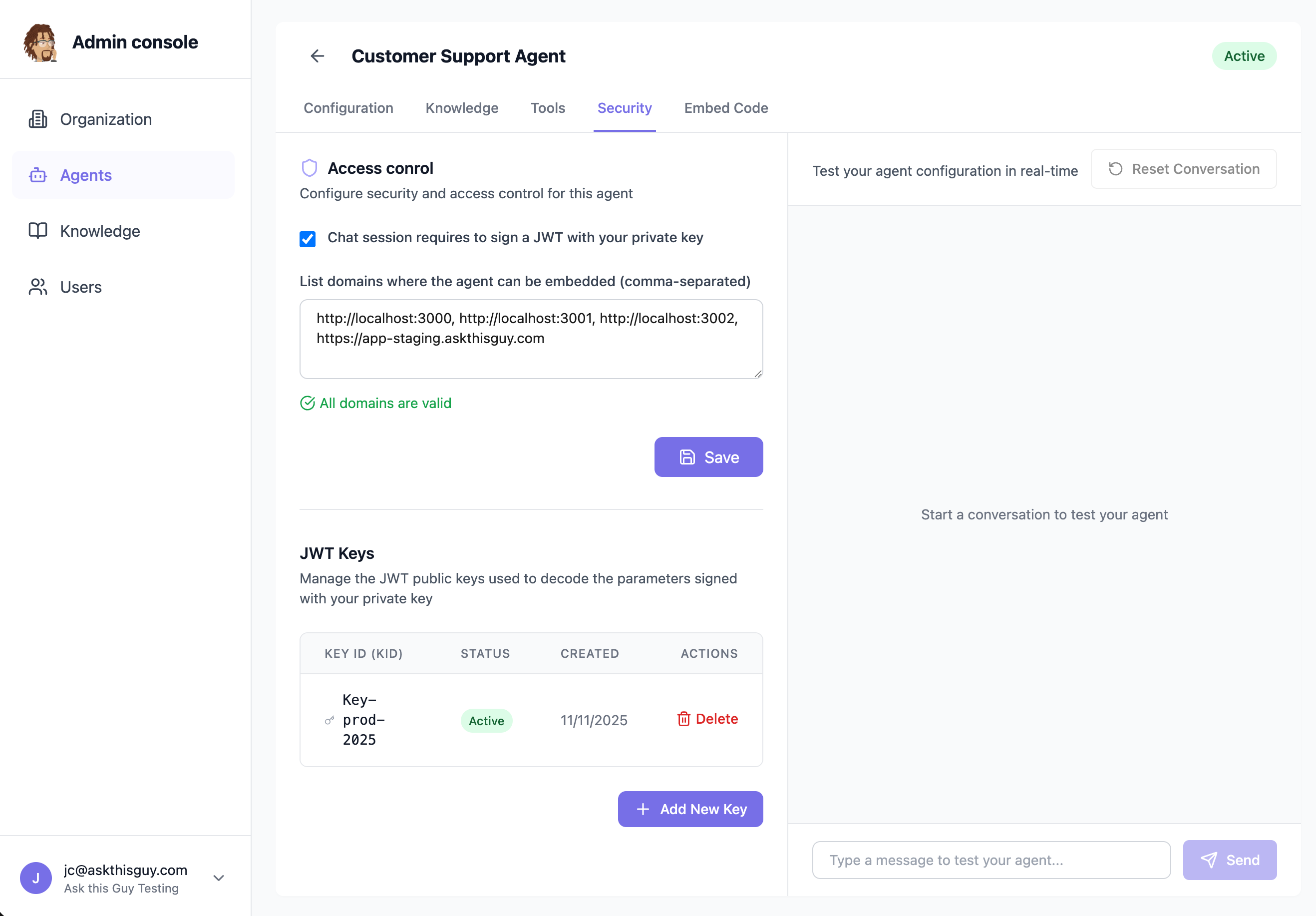 Security tab in Agents Admin Console
Security tab in Agents Admin Console
💻 Embed Code Tab
Access the code snippets to integrate your agent into your website or application. The tab provides:
- Agent UID: Your unique agent identifier
- JS Code: Implementation code with or without JWT authentication, including all necessary steps to load and configure the widget
See Integrate in your webapp for the integration process of ATG in your webapp.