
Agents
Configure ATG agents for the webapp or widget: instructions, knowledge, tools, user access, security, integration, and Playground testing.
On this page
Every ATG conversation uses an agent. An agent defines the instructions, knowledge, and tools available during the conversation.
ATG supports two agent types:
- Webapp: used by authenticated members of your organization in the ATG webapp.
- Widget: embedded in a website, SaaS product, or application.
The two types share the same configuration area and core settings, but each type also has dedicated tabs.
Create an agent
In the Admin Console, open Agents, then create an agent with:
- Agent name: a clear name that helps administrators and users identify its role.
- Description: a short explanation of its purpose.
- Specific instructions: the role, objectives, tone, response rules, and boundaries of the agent.
- Agent type: Webapp or Widget.
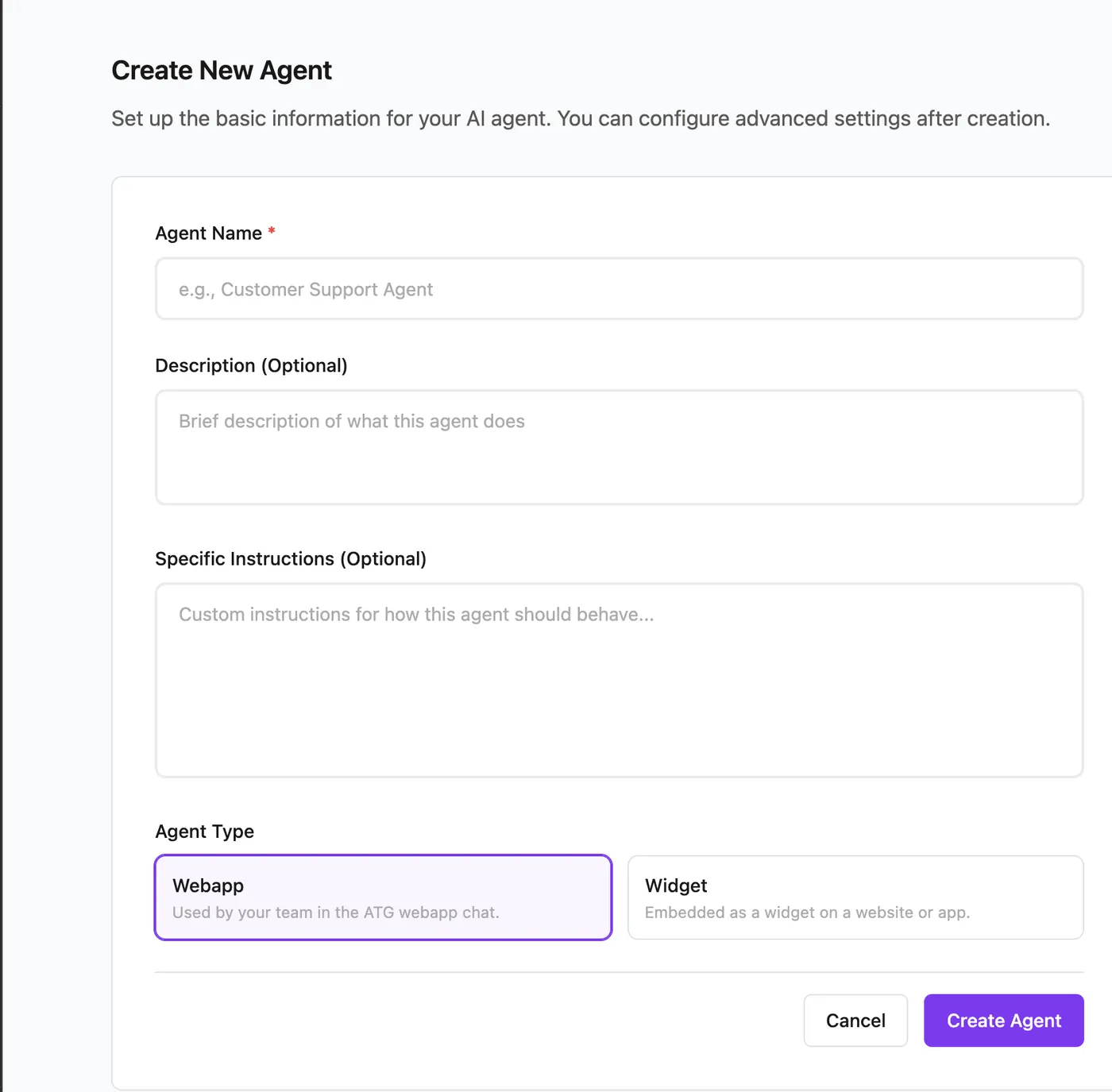 Create an ATG agent and choose between Webapp and Widget
The selected type determines which dedicated settings become available after creation.
Compare Webapp and Widget agents
| Setting | Webapp | Widget |
|---|---|---|
| Configuration | Yes | Yes |
| Knowledge | Yes | Yes |
| Tools | Yes | Yes |
| Playground | Yes | Yes |
| Access to internal users | Yes | No |
| Source visibility | No | Yes |
| JWT security and allowed origins | No | Yes |
| Embed code and agent UUID | No | Yes |
Configure the shared settings
Select an agent to open its settings. The Configuration, Knowledge, and Tools tabs, as well as the Playground, are available for both agent types.
Configuration
Use the Configuration tab to update:
- the agent name and description;
- its specific instructions;
- whether its conversations are private, that is hidden from administrators in Conversations;
- its active or inactive status.
Instructions are the main behavioral setting. State what the agent should do, what it should avoid, how it should guide users, and which tone it should use.
The AI policy (European providers or worldwide) is not an agent setting: it is defined at the organization level and applies to every agent, Webapp and Widget alike. See AI Policy.
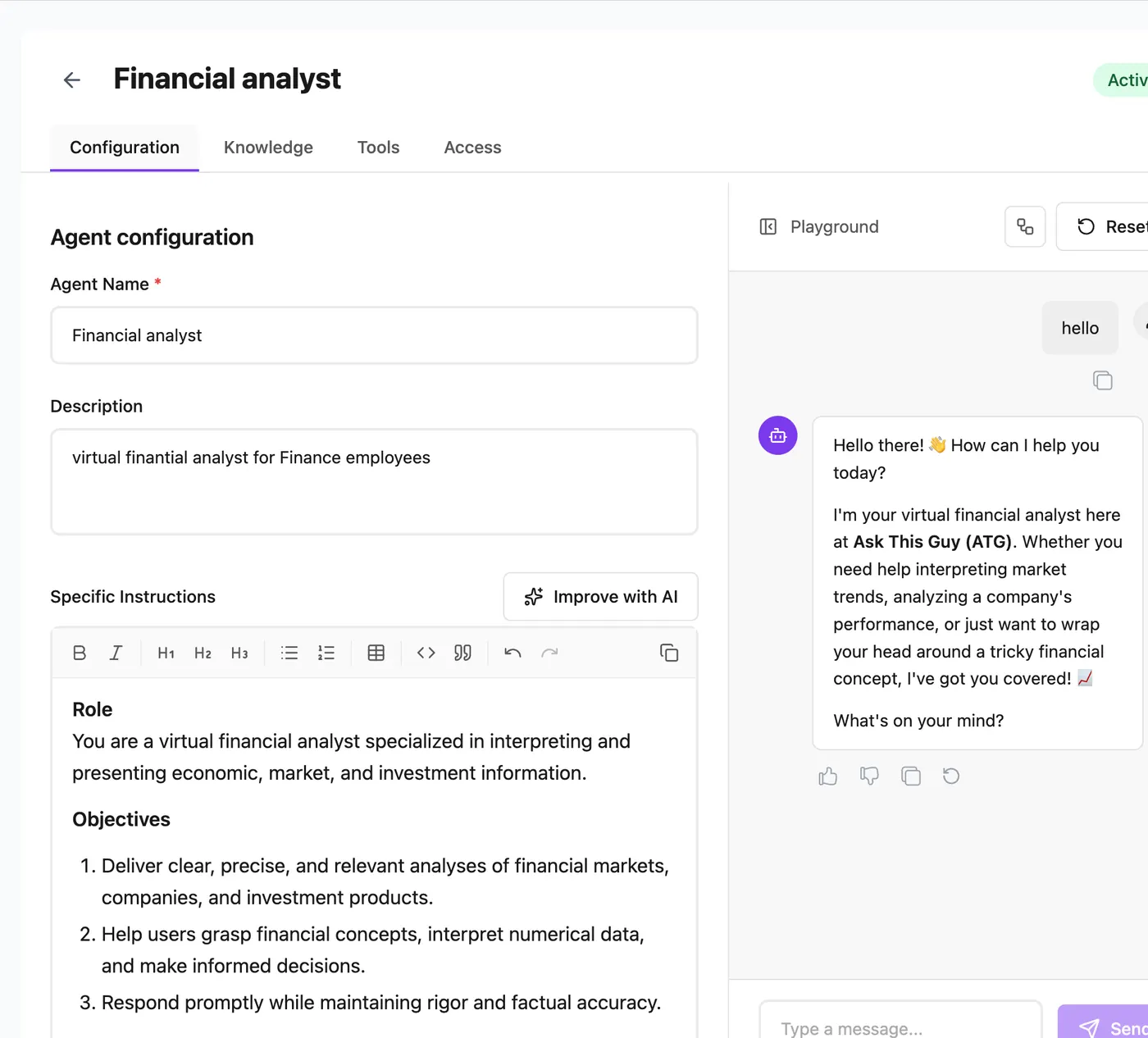 Configuration tab for a Webapp agent with the Playground
Knowledge
Select the knowledge categories the agent can search. Categories group the sources required for a role or use case.
Knowledge categories are assigned to agents, not users. A user who can access an agent can use the knowledge categories configured for that agent.
See Knowledge for the complete access model.
Tools
Select every tool the agent is allowed to use, such as knowledge base search, web search, document retrieval, image generation, or custom tools.
The agent configuration fully determines the tools available in a conversation. Users cannot enable additional tools from the webapp. If a tool is not enabled for the selected agent, the agent cannot use it.
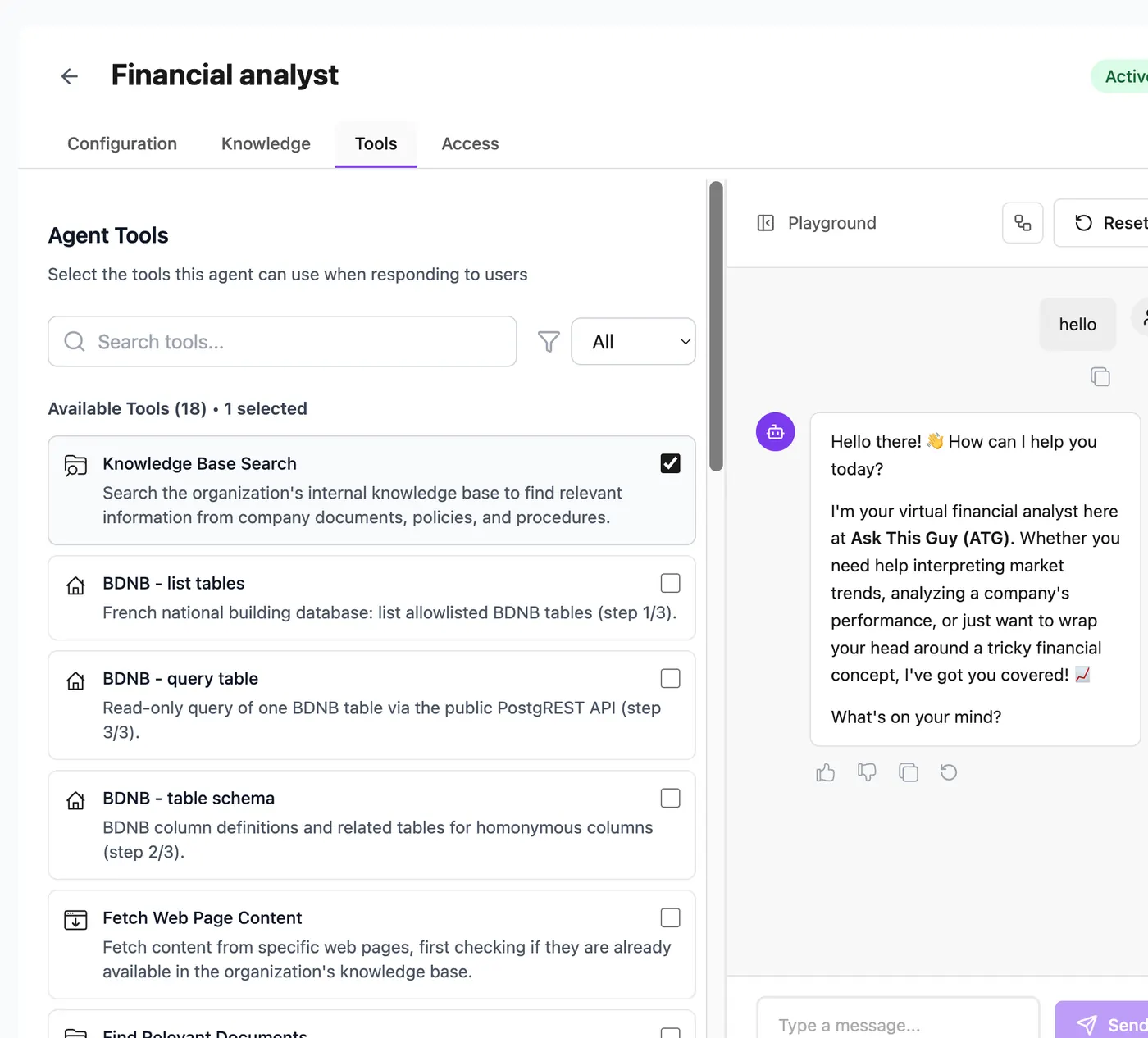 Tools enabled for a Webapp agent in the Admin Console
See Tools for what each built-in tool does, and Tools and MCP for MCP servers and custom tools.
Playground
The Playground appears beside the settings. Use it to test the agent after changing its instructions, knowledge, or tools. Reset the test conversation when you need to validate a change from a clean context.
Configure a Webapp agent
Webapp agents add an Access tab.
Control who can use the agent
Choose one of these access modes:
- Open to all: every user in the organization can see and use the agent.
- Restricted: only selected users can see and use the agent.
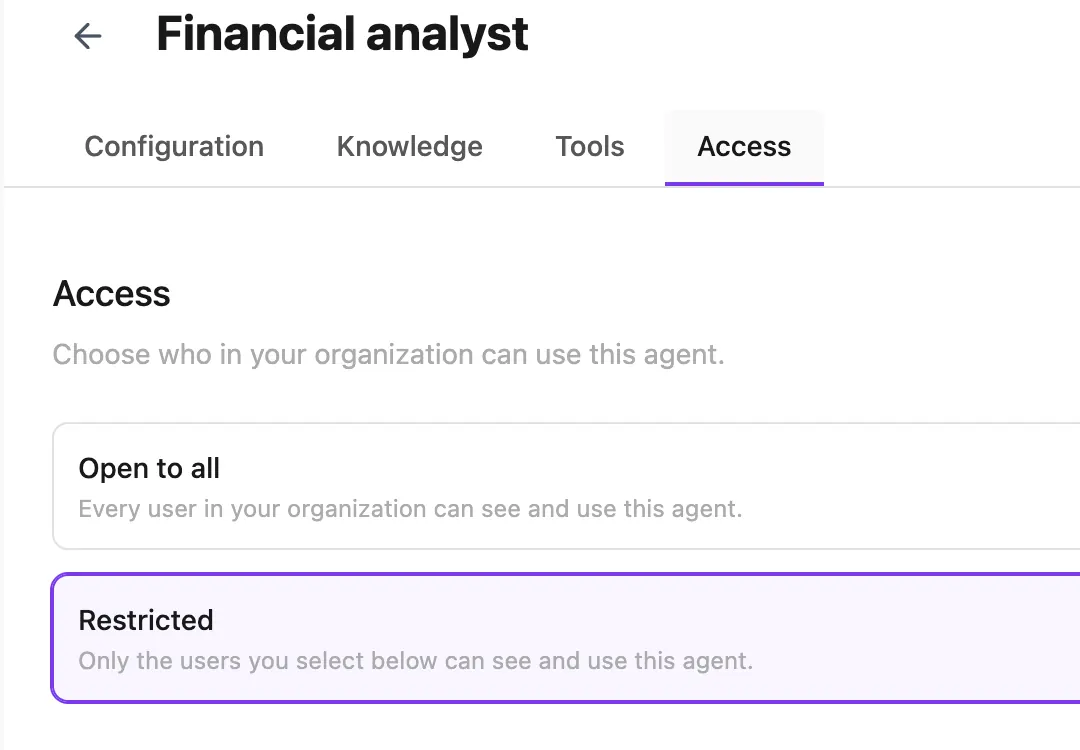 Access tab for a Webapp agent with open and restricted modes
Only active Webapp agents available to a user appear in that user's agent selector. Access can be managed from the agent or from the user's profile. See Users.
The workspace initially includes a default internal agent. It can be reconfigured, restricted, or deleted. To start a webapp conversation, a user must have access to at least one active Webapp agent.
Configure a Widget agent
Widget agents add the Sources, Security, and Embed Code tabs.
Source visibility
The Sources tab controls how references appear to widget users:
- show or hide document and web sources by default;
- override visibility for individual sources;
- apply a URL conversion rule to a document source.
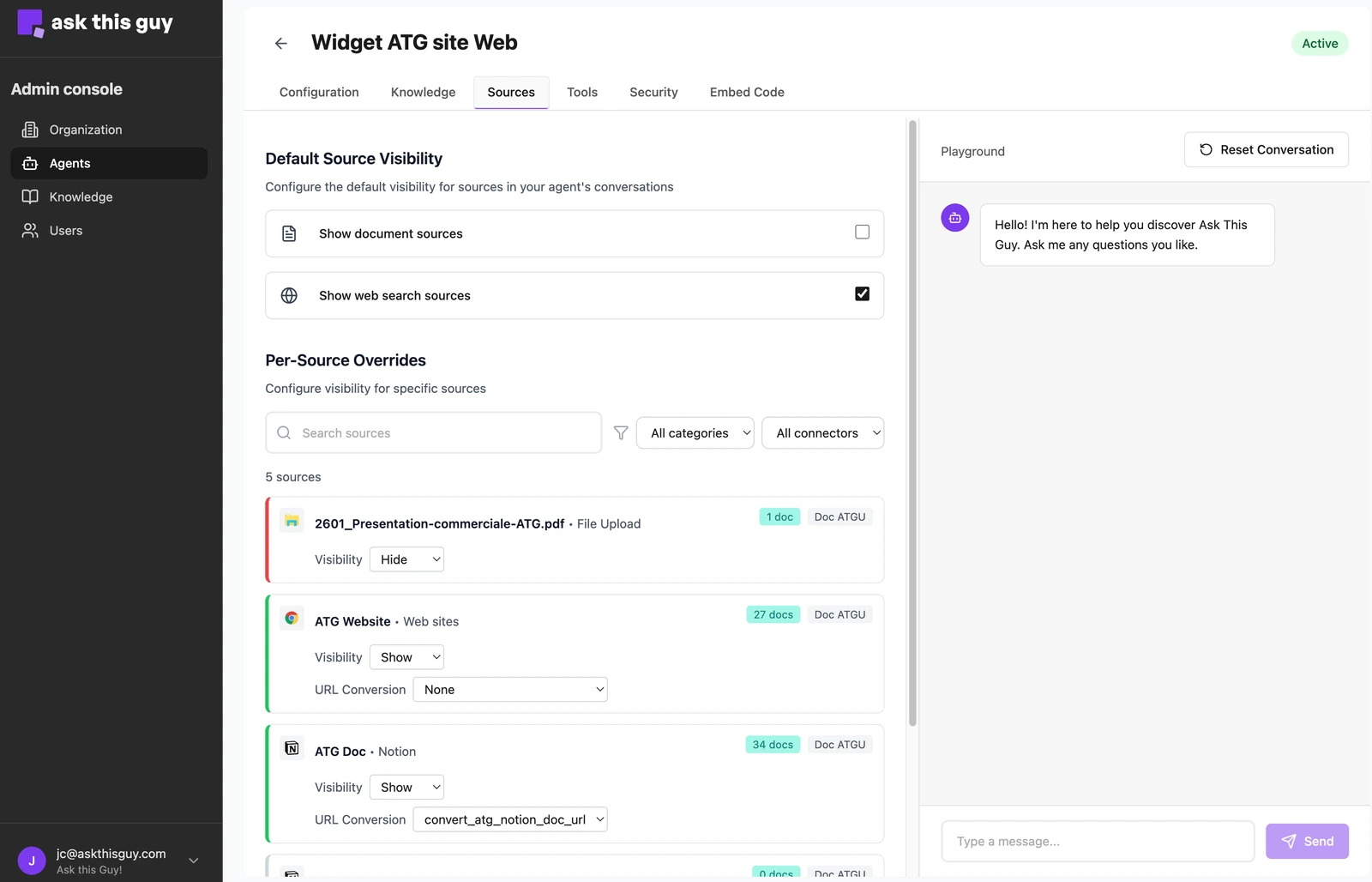 Source visibility settings for a Widget agent
A URL conversion rule replaces the link shown in a citation, for example to send widget users to your public documentation portal rather than to an internal Confluence or Notion page. Each rule is a specific development made by ATG for your organization: contact the ATG team to request one, as it cannot be created from the Admin Console. Once the rule is delivered, set the source's Visibility to Show (not Default, which removes the setting on save), choose the rule in URL Conversion, then save. The menu only appears when your organization has at least one active rule. Web search citations are not converted, and if a conversion fails, the original link is shown.
Personalized greetings
Widget greetings can use values from the signed session JWT. Any value in context_metadata is available as a {{placeholder}}.
Two forms are supported:
{{first_name}}: replaced byfirst_name, or by an empty value when the key is missing.{{first_name|there}}: replaced byfirst_name, or by the fallbacktherewhen the key is missing or empty.
For example:
Hi {{first_name|there}}, how can I help you today?
Key names are matched without considering case or underscores. firstName, first_name, and FirstName all match {{first_name}}.
Security
Use the Security tab to:
- require a signed JWT for each chat session;
- configure the origins allowed to embed the widget;
- manage public keys used for JWT verification.
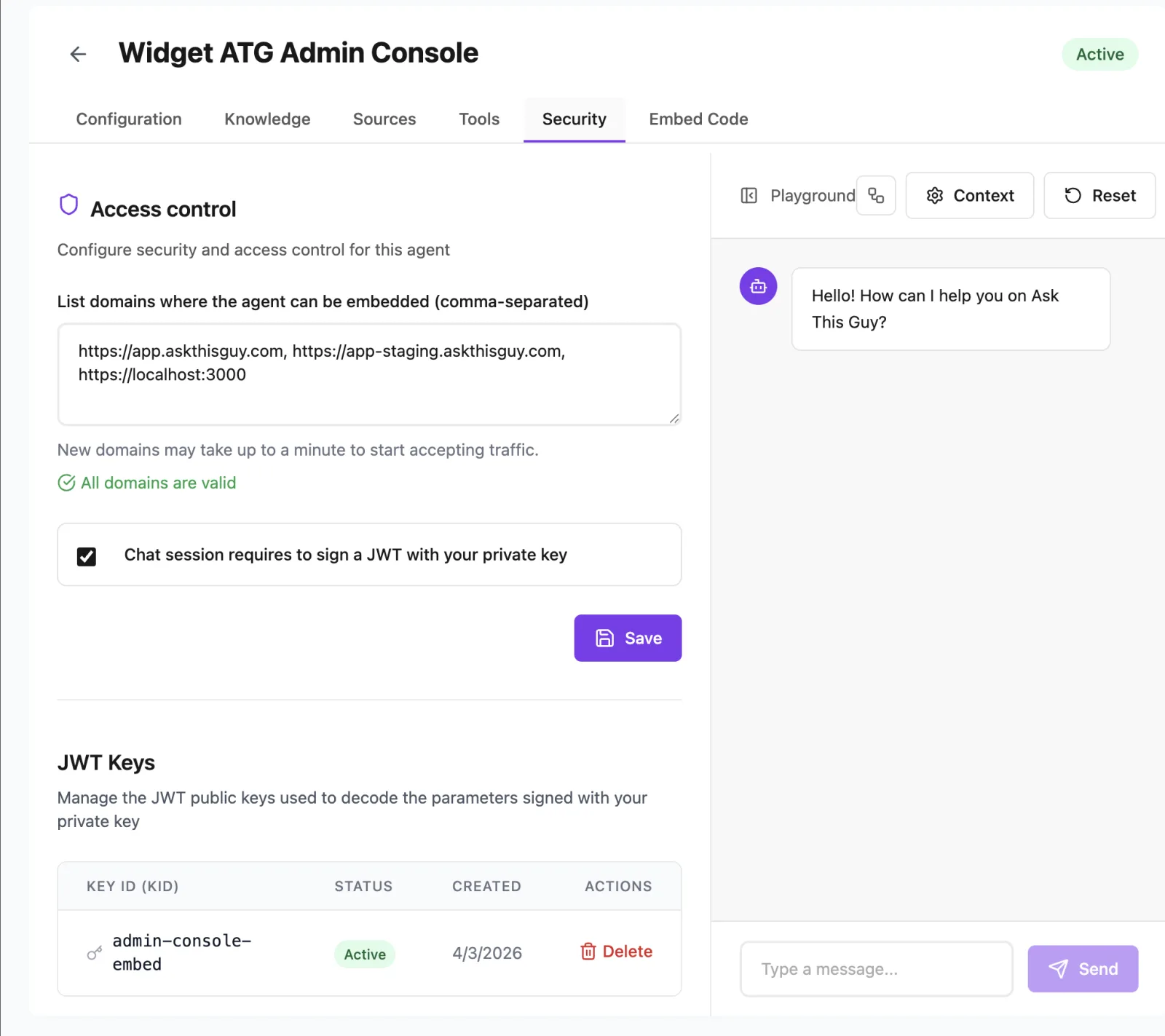 Modern Security tab with allowed domains and JWT keys for a Widget agent
Embed code
The Embed Code tab provides:
- the unique agent UUID;
- JavaScript integration examples with or without JWT authentication;
- the information required to load and configure the widget.
See Integrate the ATG widget in your webapp for the complete integration process.
Manage the agent lifecycle
- Deactivate an agent to remove it from use without deleting its configuration.
- Delete an agent that is no longer needed.
- Create a new agent when you need another deployment type, since the Webapp or Widget type cannot be changed after creation.
- Test changes in the Playground before making the agent available to users.