
Users
Manage ATG users, administrator privileges, invitations, onboarding, and access to Webapp agents.
On this page
The Users area lets administrators invite members, manage administrator privileges, and choose which Webapp agents each person can use.
Invite and onboard users
New users join an ATG organization by administrator invitation. They receive a validation email and complete the onboarding steps to activate their account.
After activation, give the user access to the Webapp agents required for their role. A user needs at least one active, accessible Webapp agent to start a conversation.
Understand the access model
ATG separates two types of permission:
- Administrator access: allows a user to manage users, agents, and organization settings.
- Agent access: determines which Webapp agents the user can see and select in a new conversation.
Knowledge categories are not assigned to users. Categories are configured on agents. When a user can access an agent, they can use the knowledge and tools configured for that agent.
Manage access from a user profile
Open a user from the list, then use Agent Access to select the agents available to that person. You can select all agents or choose them individually.
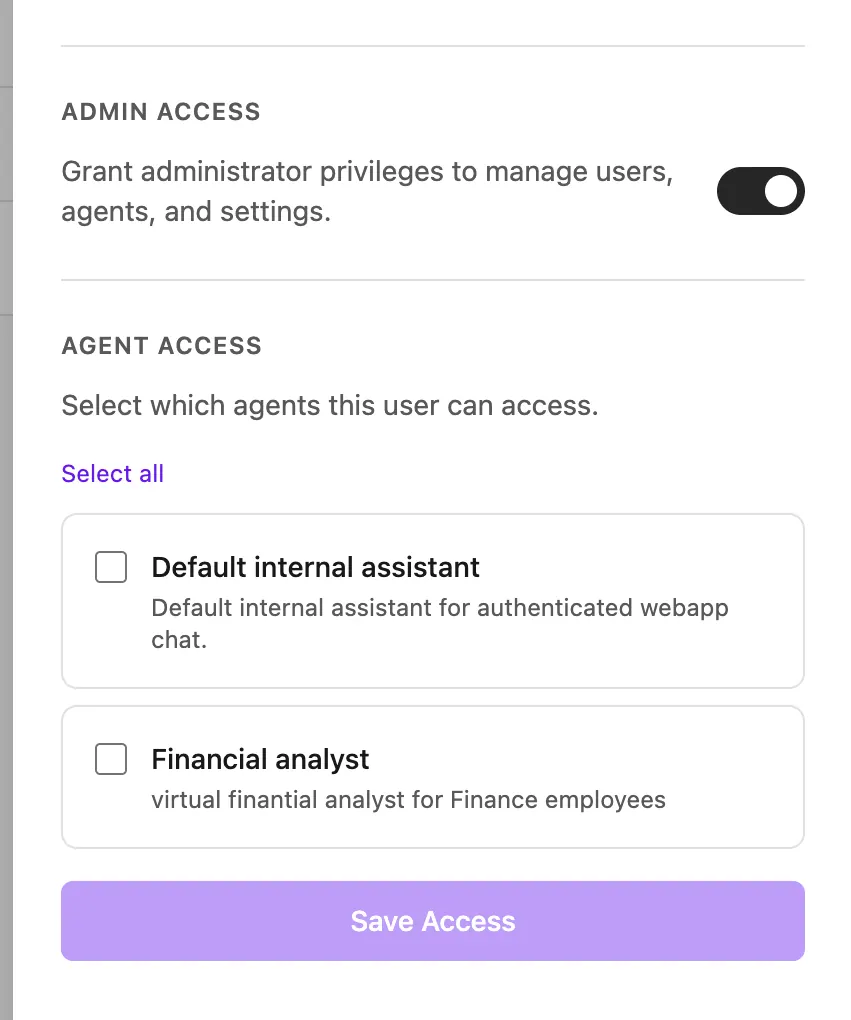
Save the changes when the selection is complete. Only active Webapp agents assigned to the user appear in their agent selector.
Manage access from an agent
You can manage the same relationship from the agent's Access tab:
- Open to all makes the agent available to every user in the organization.
- Restricted makes the agent available only to selected users.
Changes made from a user profile and changes made from an agent update the same access rules. See Agents.
Administrator privileges
Enable Admin Access only for people who need to manage the organization. Standard users can use their assigned Webapp agents but cannot change administrative settings.
Administrator privileges and agent access are independent. An administrator can still have a limited set of Webapp agents for normal conversations.
Best practices
- Apply least privilege: give each user only the agents required for their work.
- Use specialized agents: separate confidential or role-specific knowledge behind dedicated agents.
- Review access regularly: remove agents that are no longer relevant to a user's responsibilities.
- Handle onboarding and offboarding promptly: update agent access when someone joins, changes role, or leaves.
- Limit administrator access: reserve it for people who manage the workspace.
Example
For an organization with HR, Finance, and Engineering teams:
- create a Finance agent with finance knowledge and tools, then restrict it to the Finance team;
- create an HR agent with HR knowledge, then restrict it to authorized HR users;
- keep a general internal agent open to everyone for company-wide use cases.
This model protects specialized knowledge by controlling access to the agents that can use it.