
ATG WordPress plugin
Step-by-step guide to install the Ask This Guy chat widget on a WordPress site using the official plugin.
On this page
Overview
The ATG plugin lets you activate a chat agent on your WordPress site and configure it in a few clicks: choose the widget shape, where it appears, its branding, scope which pages it shows on, and more. Optionally, you can also secure chat sessions so they are only accessible to authenticated users on your site.
Prerequisites
- A WordPress site running WordPress 6.0 or later, PHP 7.4 or later. For signed mode, the PHP
opensslextension must be enabled (it is on virtually every production host). - A Widget agent UUID. Create an ATG agent and choose the Widget type. The type cannot be changed after creation. See Configure Agents. The UUID is available in the agent's Embed Code tab.
- Your WordPress site domains. In the ATG admin console, add your site domains (e.g.
https://yoursite.com,https://staging.yoursite.com) to the agent's allow-listed origins. The chat will only work on those domains.
Step 1: Download and install the plugin
Download the plugin ZIP: atg-chat-widget.zip
Then install it like any other WordPress plugin:
- In your WordPress admin, go to Plugins → Add New → Upload Plugin.
- Choose the
atg-chat-widget.zipfile you just downloaded and click Install Now. - Click Activate Plugin.
A new Settings → Ask This Guy Chat menu appears.
Step 2: Paste your agent UUID
- Go to Settings → Ask This Guy Chat.
- Paste your agent UUID into the Agent UUID field.
- Click Save Changes.
Visit your site front-end; the chat launcher should appear in the bottom-right corner.
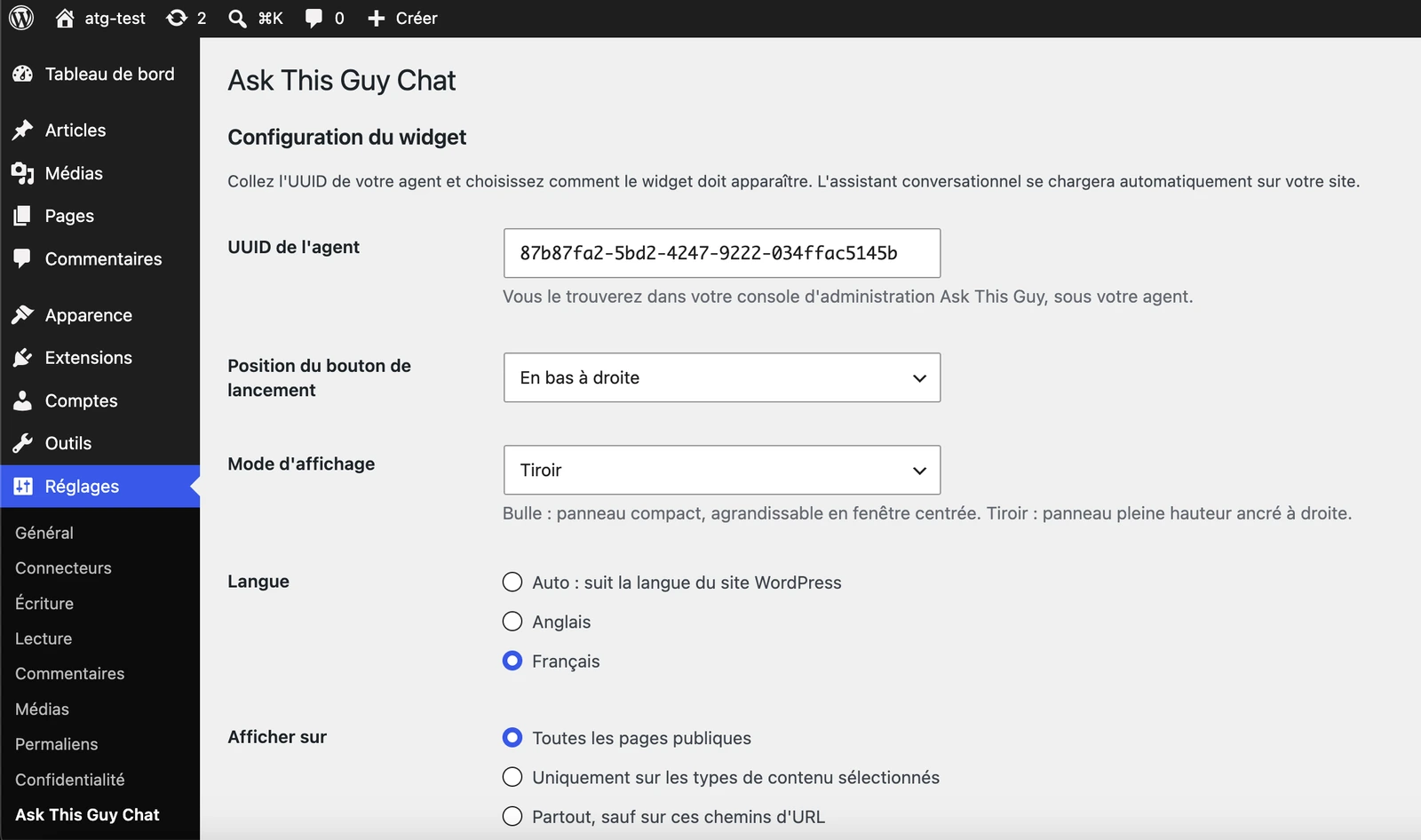 Ask This Guy Chat plugin settings page in the WordPress admin
Step 3: Configure display options
On the same settings page, you can refine where and how the widget appears:
| Setting | What it controls |
|---|---|
| Launcher position | Bottom-right (default), bottom-left, floating, or hidden. Hidden loads the widget without a launcher button so you can wire up your own trigger via the window.ATG JS API. |
| Display mode | Bubble (default): compact panel, expandable to a centered modal. Drawer: full-height panel anchored right. |
| Language | Auto-detect from the WordPress site locale, or force English / French. |
| Show on | Site-wide, restricted to selected post types, or everywhere except a list of URL paths. |
| Accessibility label | Override the launcher button's aria-label. |
| Theme overrides | Brand color, corner radius, font family, shadow. The full default theme JSON is shown as a reference you can paste-and-edit. |
Step 4 (optional): Enable signed mode to restrict chat sessions to authenticated users
This mode guarantees that the whole chat session is signed with a private/public key system. The widget signs a short-lived JWT so the chat is tied to a logged-in user. Anonymous visitors get no widget at all when signed mode is on, and any session is refused.
Privacy notice. Signed mode sends the WordPress user ID, roles, login, display name, and email to Ask This Guy. You should disclose this in your site's privacy policy before enabling it. The plugin's
readme.txtincludes a suggested clause you can copy.
To enable it:
- On the settings page, go to the Signed mode (advanced) section.
- Tick A JWT token will be signed with your private key to grant chat access to authenticated users.
- Click Save Changes. The plugin generates a private/public keypair.
- Copy the public key displayed below the toggle, along with the
kidshown next to it. - In your ATG admin console, under your agent's Signed parameters, register that public key with this
kid.
The private key never leaves your WordPress install. It lives in the standard wp_options table on your own database.
Rotating the signing key
Rotation happens in two phases, so the active key keeps signing while you register the new one in the ATG console. No chats break.
In Settings → Ask This Guy Chat → Rotate signing key:
- Click Stage new key. A new keypair is generated and a new
kidis shown, but the active key keeps signing chats. - Copy the new public key and register it in your ATG console, alongside the active key (don't remove the old one yet).
- Click Validate the new key. The plugin now signs new JWTs with the new
kid. You can then remove the old key from your ATG console.
If needed, Discard new key cancels the staged key: the active key keeps signing as before.