
Webapp
Use the ATG webapp: choose an agent for a new conversation, send messages, attach files, use prompts, and share a conversation with your organization.
On this page
The ATG webapp gives authenticated members of your organization access to AI agents configured for their work.
Go to app.askthisguy.com and sign in to start a conversation.
Start a conversation with an agent
Every conversation requires an agent. When you start a new chat:
- Open New chat.
- Open the agent selector in the message composer.
- Choose the agent that matches your task.
- Write your message and send it.
The selector only lists active Webapp agents that you are allowed to use. ATG preselects the agent you used most recently.
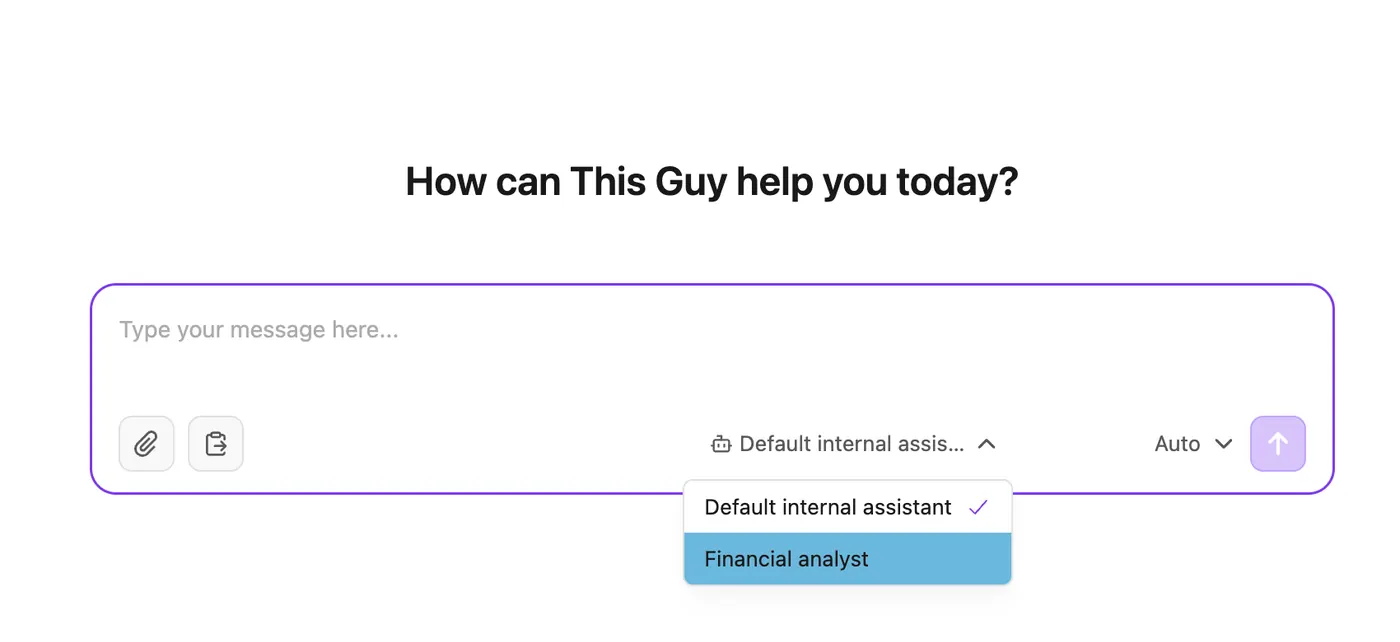 Choose an agent before starting a new conversation in the ATG webapp
What the selected agent controls
Your administrator configures each agent with:
- Instructions: its role, behavior, tone, and response rules.
- Knowledge: the knowledge categories and organizational sources it can search.
- Tools: the capabilities it can use, such as knowledge search, web search, document retrieval, image generation, sending an answer by email, or custom tools.
The agent configuration fully determines which tools are available. The webapp no longer provides buttons for users to enable Organization Knowledge or Web Search. You can describe the result you need, and the agent decides how to answer using only its enabled tools.
If the agent does not have a required tool or knowledge category, start a new conversation with another available agent or contact your administrator.
Add context to your request
The message composer also lets you:
- Attach files for the agent to analyze in the current conversation.
- Use predefined prompts created by your organization.
- Choose the response mode when this option is available.
Personal attachments are specific to the conversation. They are different from the organization's knowledge sources.
See Using Attachments for supported files and usage details.
Navigate the webapp
The sidebar gives you access to:
- New chat: start a conversation and choose an agent.
- Prompts: open the prompt library.
- Conversation history: reopen previous conversations with their original agent and context.
From your profile menu, you can change language, sign out, and open the Admin Console if you have administrator permissions.
Share a conversation
Conversation sharing passes an ATG conversation on to colleagues in the same organization, for review, alignment, or handing over a result. Only the conversation owner can start or stop sharing it.
- Open a conversation from your history.
- Select Share in the conversation header.
- In the share panel, choose Share with organization.
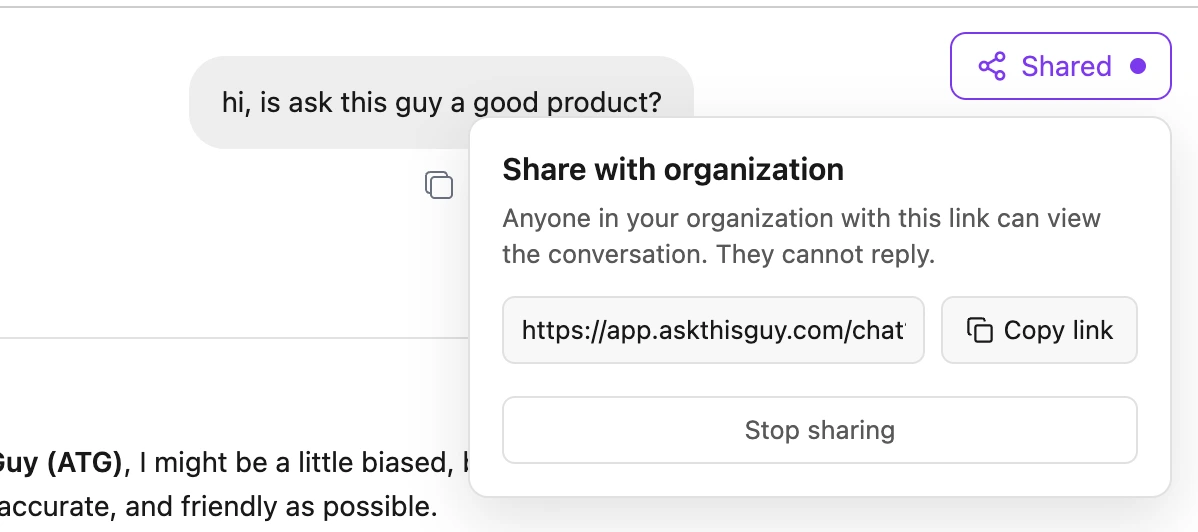
- Select Copy link, then send that link to the people concerned.
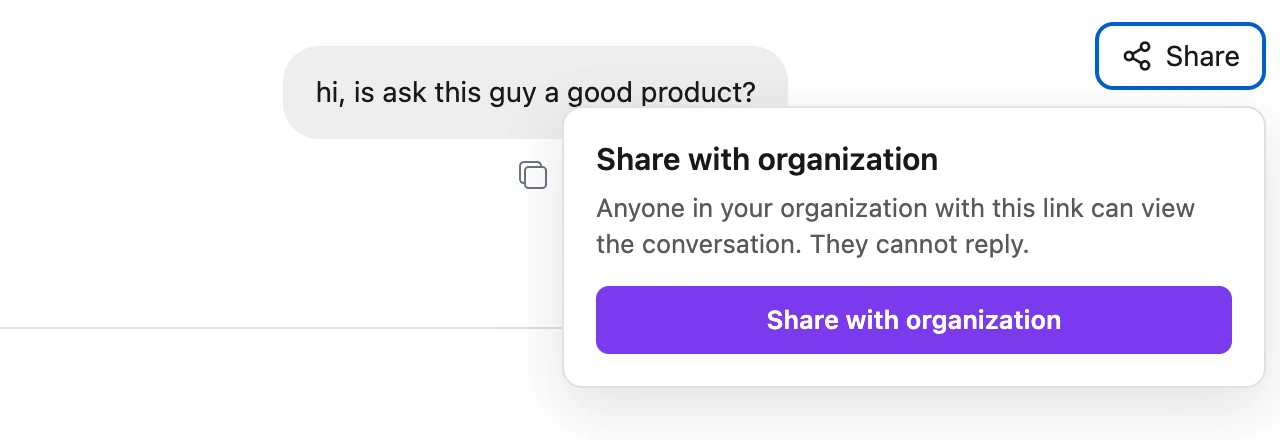
Once sharing is active, the button reads Shared. Reopen its menu at any time to copy the link again, or select Stop sharing to revoke access.
What the recipient sees
Anyone signed in to ATG, belonging to your organization and holding the link, opens the conversation in a dedicated read-only view. They can read the messages and see who shared the conversation, but they cannot reply, continue the discussion, or modify it. The shared conversation is not added to their history or sidebar.
Sharing rules
- Sharing covers every authenticated member of your organization. It is neither a per-person share nor a public link.
- The link does not work for someone who is not signed in, for an account without an organization, or for a member of another organization.
- Stop sharing revokes access immediately, including for people who already received the link. You can share again later: the same link works again as long as sharing is active.
- A deleted conversation, or one whose sharing has been stopped, is shown as unavailable.
- A link gives access to that single conversation, never to your history or to other conversations in the organization.
Before sharing, check that the conversation can be seen by your whole organization. Stop sharing as soon as that is no longer the case.
Get an answer by email
If the agent has the Email me tool, ask it for example "email me the summary" or "send me this report by email". The agent writes the subject and the body, sends the message to the address on your ATG profile, then confirms in the conversation. The email keeps the formatting (headings, lists, tables, links) and includes a link back to the chat.
The recipient is always you: the agent cannot email a colleague or an external contact. To pass a result on, share the conversation instead. Agents embedded on a website cannot send emails.
Get better answers
- Choose the agent whose role best matches your task.
- Give clear context, expected format, and relevant constraints.
- Attach the specific files needed for the request.
- Continue with follow-up questions inside the same conversation when you want to preserve context.
For more guidance, see: