
Configure voice mode
Enable voice mode to turn an ATG agent into an AI voice assistant and choose the voice that reads its answers.
On this page
Voice mode is configured separately for each agent. When enabled, it turns the agent into an AI voice assistant: users dictate their messages and hear its responses in the authenticated ATG webapp.
Enable voice mode
- In the Admin Console, open Agents.
- Select the agent you want to configure.
- Open the Configuration tab.
- Tick Voice mode: the agent can read answers aloud.
- Choose the Voice, or keep Default.
- Save the agent configuration.
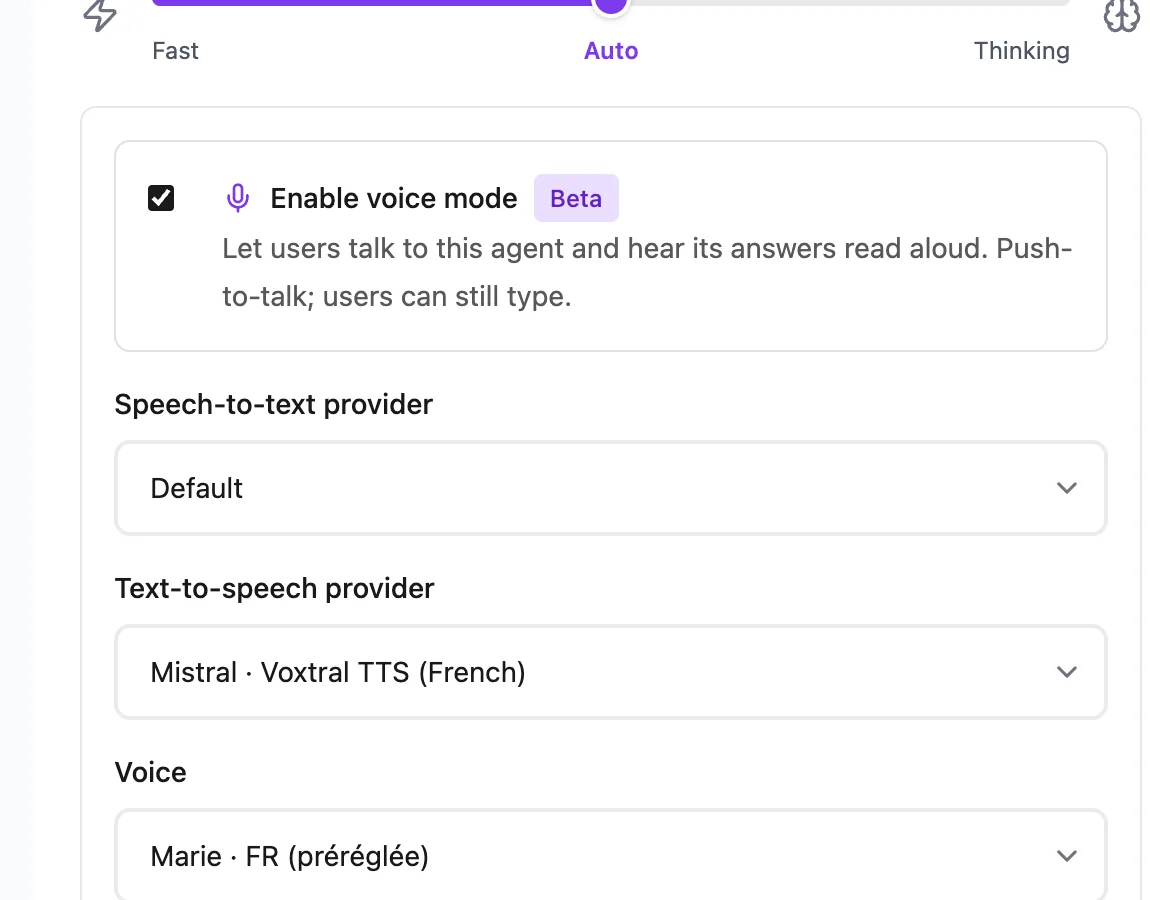
Voice mode is available for webapp agents. Once the agent is active and available to a user, a Speak microphone button appears in the webapp message field.
Choose the voice
You only choose the Voice used to read responses. Speech-to-text and text-to-speech models are no longer chosen agent by agent: they follow your organization's AI policy, like every other AI model. An organization that chose European providers therefore also uses European voice services.
The list of voices depends on that AI policy. The Default option uses the default voice of your policy's voice service. When selecting a specific voice, check that its language suits the agent's intended audience.
What enabling voice mode changes
For users of the configured agent:
- a microphone button becomes available in new and existing conversations;
- each recording is transcribed and prepared for automatic sending;
- a response to a dictated message is read aloud automatically;
- any completed response can also be played on demand.
Voice mode supplements the written chat. It does not disable typing, attachments, response modes, or other chat features, and it does not create a continuous real-time voice call.
Voice mode, voice chatbot, or voicebot?
Voice mode covers a specific need. Before rolling it out, check that it matches the expected use case.
- ATG voice mode: dictated messages and spoken responses, agent by agent, in the authenticated webapp. It is an internal AI voice agent backed by your knowledge and your tools.
- Voice chatbot on a public website: the ATG Embedded widget is not covered by this page. Do not assume that voice is available there. For website conversational agents, see the Website chatbot page.
- Voicebot or phone callbot: out of scope. Voice mode does not place phone calls and does not hold a continuous real-time audio conversation.
Validate the configuration
Test the feature with a user account that can access the agent:
- Confirm that Speak appears for the agent.
- Allow microphone access and record a short question.
- Check the transcription and the two-second automatic-send countdown.
- Cancel the countdown and confirm that the text remains editable.
- Send a voice message and confirm that the completed response is read aloud.
- Stop playback, then use Read aloud on a previous response.
Also test the experience in the browsers supported by your organization. Browser microphone permissions and autoplay policies can affect recording and playback.
Current constraints
- Each recording is limited to 60 seconds.
- Transcription and speech synthesis require a network connection.
- Users cannot choose the voice from the chat, and voice preferences are not stored per user.
- Speaking does not automatically interrupt audio already playing.
- The voices on offer depend on the organization's AI policy.
Do not make assumptions about how long audio clips are retained. Confirm your organization's privacy requirements and its AI policy, which determines the voice providers used, before rollout.
Share Use voice mode with your users for operating instructions and troubleshooting.