
Voice mode: use an AI voice agent
Use an ATG agent as an AI voice assistant: dictate messages, review the transcription, hear the answers, and replay previous responses in the webapp.
On this page
Voice mode lets you talk to an Ask This Guy agent like an AI voice assistant, instead of typing your entire message. Your conversation remains available in writing, and you can continue to use the keyboard, attach files, and choose a response mode as usual.
Check that voice mode is available
Select an agent. If voice mode is enabled for it, a microphone button labeled Speak appears below the message field.
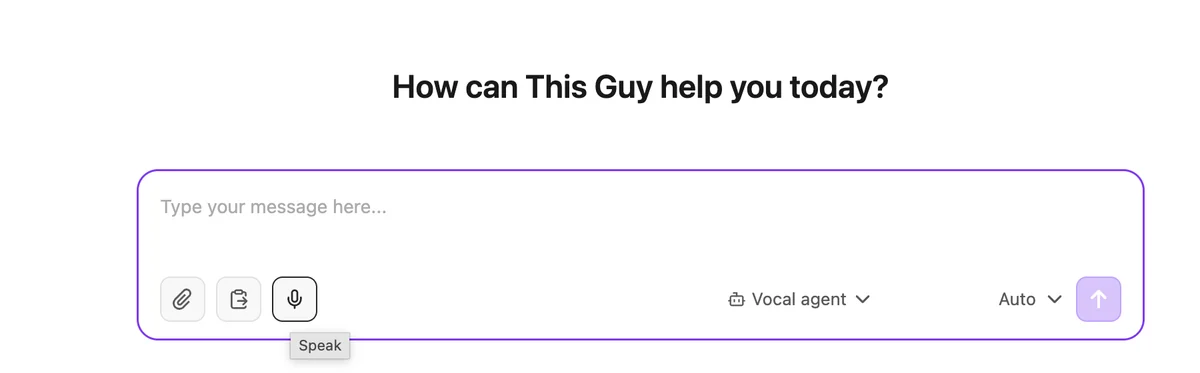
If the button is missing or unavailable, one of the following may apply:
- voice mode is not enabled for the selected agent or your organization;
- the browser does not support the required audio recording;
- the conversation is read-only or message input is temporarily disabled.
Dictate a message
- Select Speak. The button changes to a red stop button and a waveform shows that the microphone is listening.
- If this is your first recording, allow the browser to use your microphone.
- Speak naturally. The interface language helps the transcription service recognize the recording in the appropriate language.
- Finish by selecting the red stop button, or pause after speaking. Recording stops automatically about 1.5 seconds after silence is detected and is always limited to 60 seconds.
- Wait while Transcribing… is displayed. The recognized text is added to the message field.
The transcript is ordinary text. It is appended to anything already in the field, so you can combine typing and dictation or record several successive segments.
Review or cancel automatic sending
After transcription, ATG displays Sending in 2s, then Sending in 1s.
- Do nothing to send the message automatically.
- Select Cancel to keep the transcript in the field and edit, complete, send, or discard it yourself.
- Select the microphone again to cancel the countdown and start another dictation.
Always review names, numbers, sensitive information, and technical references before sending them.
Hear the agent's response
When at least part of a sent message was dictated, ATG treats it as a voice turn and reads the agent's completed response aloud automatically. Editing or completing the transcript with the keyboard does not disable this behavior.
While the agent is working, brief spoken updates may announce activities such as searching the knowledge base, browsing the web, consulting documents or data, or preparing a chart. If the operation takes longer, ATG may also ask you to wait a little longer. Each type of update is spoken only once per response.
The audio bar shows Preparing audio… during speech synthesis and Playing… during playback. Select Stop to interrupt playback and clear any queued audio. If response generation fails, automatic playback is canceled.
The spoken version is adapted for natural listening: Markdown markers, table separators, code blocks, images, and technical source markers are omitted. Link labels may be read, while the complete formatted response and its sources remain visible on screen.
Listen to any response on demand
Every completed agent response has a Read aloud action. You can use it even when the original question was typed, or to replay an older response in the conversation.
Selecting Read aloud prepares and starts the audio. Select the square stop button to interrupt it. Starting another response replaces the audio already playing, so only one response is read at a time.
Allow microphone access
Your browser asks for microphone access on first use. The recording indicator remains active only while you are speaking, and the microphone stream stops when the recording ends. The audio clip is then sent for transcription.
If access is blocked, ATG asks you to allow the microphone in your browser. Open the browser's site permissions, enable microphone access for ATG, and start a new recording.
Current limitations
- Voice mode may not be enabled for every organization or agent.
- A single recording can last up to 60 seconds.
- Transcription and speech synthesis require a network connection and do not work offline.
- Voice mode uses separate recordings and reads the completed answer; it is not a continuous, real-time audio conversation.
- The voice is configured for the agent by an administrator, and the voice services follow the organization's AI policy. Users cannot change them from the chat.
- There is no voice preference stored for each user.
- Speaking does not automatically interrupt playback. Select Stop before using the microphone.
- If the browser blocks automatic playback, use Read aloud on the completed response.
Troubleshooting
| Situation | What to do |
|---|---|
| The microphone does not appear | Select another voice-enabled agent or ask your administrator to enable voice mode. |
| Microphone access is blocked | Allow microphone access in the browser's site settings, then start a new recording. |
| ATG cannot transcribe the audio | Check your connection, reduce background noise, and try again. |
| Playback does not start automatically | Select Read aloud below the completed response. |
| You need to correct the transcript | Select Cancel during the two-second sending countdown. |
Frequently asked questions about voice mode
No. Voice mode works inside the ATG webapp: you dictate a message, the agent answers, and its response is read aloud. It does not place phone calls and does not hold a continuous real-time audio conversation, unlike a voicebot or a contact-center callbot.
Voice mode runs in the authenticated webapp, with an AI voice agent connected to your internal knowledge and your tools. A website voice chatbot serves anonymous visitors. The ATG Embedded widget is not covered by this page: do not assume that voice is available there. See also the Website chatbot page.
No. An administrator enables it agent by agent in the Admin Console. If the Speak button does not appear, select another voice-enabled agent or ask your administrator to enable it.
Yes. After transcription, ATG shows a two-second countdown. Select Cancel during that delay: the dictated text stays in the message field and can be edited like any written message.
For configuration details, see Configure voice mode for an agent.