
Improvement Tracker
Turn every poor answer into a tracked task: thumb-downs land automatically on a board where you categorize, assign and close the fixes your agents need.
On this page
Why an Improvement Tracker?
An agent only gets good if someone keeps improving it. Once it is in production, though, user feedback is easily lost: an answer rated "Poor response" stays buried in a conversation, nobody keeps a list, nobody knows whether it was handled, and the same flaw can come back for weeks without anyone connecting the dots.
The Improvement Tracker turns every piece of feedback into a tracked task:
- every answer rated "Poor response" lands there automatically;
- you add your own findings while reviewing conversations;
- each task is categorized by the kind of fix it needs, assigned to someone and followed until it is resolved;
- the same problem seen in several conversations is grouped into a single task.
You always know what still needs fixing, and who is on it.
Who can use it?
- Organization administrators, for every agent.
- Agent Owners, for the agents assigned to them only. See Agent Owners.
The board is in the Improvement Tracker menu of the admin console.
Where do tasks come from?
Automatically, from thumb-downs
When someone clicks Poor response (thumbs down) under an agent's answer, in the chat, the widget or the playground, a task is created:
- with status Open, unassigned and without categories;
- linked to the conversation's agent;
- titled with the user's question;
- described with the comment left with the rating, if any.
The rated answer is attached to the task with the badge "Thumb-down that created this task".
Manually, from the board
Click New task, enter at least a Title, then Create task.
Manually, from a conversation
While reviewing a conversation in Conversations, a Track as improvement button appears under each agent answer, including failed answers. Use it to create a task for that message or to attach it to an existing task.
The board
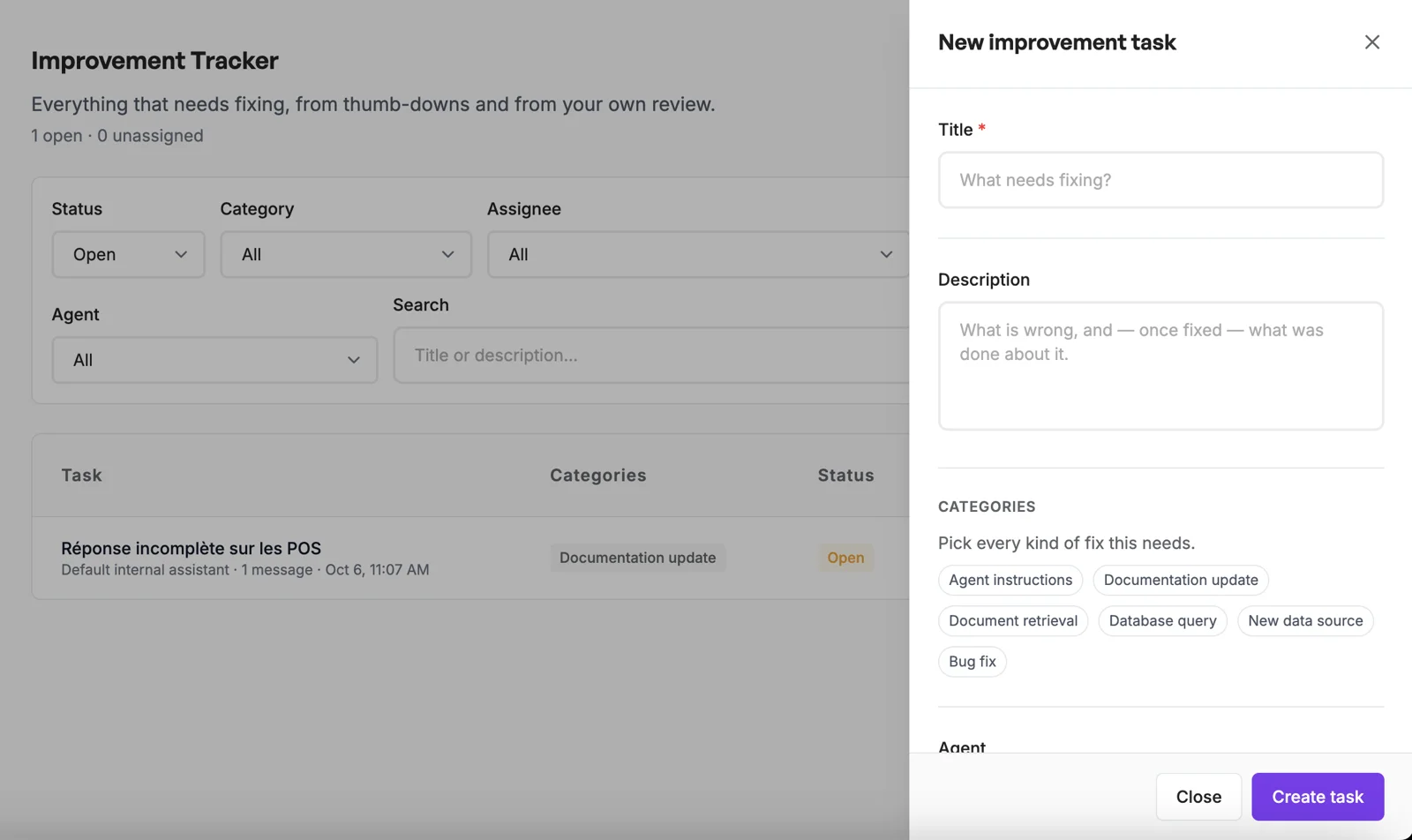 The Improvement Tracker with the new task panel open
For each task, the board shows:
- Task: the title, the agent, the number of attached messages and the date;
- Categories: the kinds of fix selected;
- Status: Open, Resolved or Dismissed;
- Assignee: the person in charge;
- Raised by: the person who gave the thumb-down, or who created the task.
A counter at the top shows how many tasks are open and unassigned.
By default, only Open tasks are shown. Change the Status filter to see resolved or dismissed tasks. You can also filter by Category, Assignee (including "Unassigned"), Origin and Agent, or search the title and description.
Click a task to open its detail panel. Copy link to this task lets you share it with a colleague who has access.
Working on a task
- Open the task from the board.
- Read the linked messages: for each one, the question, the answer, the user's comment and who rated it. Open in Conversations shows the full conversation.
- Refine the title and description if needed: what is wrong, then what was done.
- Pick one or more categories:
| Category | When to use it |
|---|---|
| Agent instructions | The agent's instructions need to change. |
| Documentation update | A document is missing, wrong or outdated. |
| Document retrieval | The answer relied on the wrong documents. |
| Database query | A database query returned the wrong data. |
| New data source | No source covers the question. |
| Bug fix | A platform malfunction. |
- Assign someone in the Assignee field. They receive an email with a direct link to the task.
- Close it: set the Status to Resolved (fixed) or Dismissed (nothing to fix), and explain why in the Why field.
- Click Save.
Attaching more examples to a task
The same problem often shows up in several conversations. To document it in a single task:
- Open the conversation in Conversations.
- Under the relevant answer, click Track as improvement, then Link to an existing task.
- Search for and choose the task among the open tasks.
The Track as improvement icon turns orange when the message is already cited by an open task.
To remove a message from a task, click Unlink in the task panel. The message and the conversation are not changed.
Business rules
Access and scope
- Tasks are only visible within your organization.
- An Owner only sees the tasks of their agents. They must link every task they create to one of their agents, and can only attach messages from their agents' conversations.
- An administrator can create a task that is not about any specific agent.
- Administrators and Owners have the same actions on the tasks in their scope: create, edit, assign, link or unlink messages, change the status, delete.
Automatic creation
- One automatic task per rated answer: if the rating goes from negative to positive and back to negative, no new task is created.
- A Dismissed task that came from a thumb-down does not come back, even if the answer is rated negatively again.
- A Good response rating never creates or removes a task.
- Automatic creation sends no email. Categories are never filled in automatically.
Tasks and messages
- The title is required.
- A task can cite as many messages as needed, and the same message can be cited by several tasks.
- A new task always starts as Open. A task's agent cannot be changed after creation.
- Setting a task back to Open clears its closing note.
Assignment and notifications
- The Assignee field lists the organization's administrators and Agent Owners.
- The assignee receives an email, in their language, only when the task is newly assigned to them. No email when you assign yourself or remove the assignee.
- No other event (new task, status change) sends a notification.
Deletion
- Delete permanently removes the task, after confirmation. There is no archive.
- Prefer the Dismissed status to keep a record of the decision: after a deletion, a new negative rating on the same answer can create a task again.