
Conversations
Review your agents' conversations in read-only mode: user questions, agent answers, reasoning steps, cited sources and feedback. Find a conversation, audit an answer, and keep an agent's conversations private.
On this page
Conversations lets you review, message by message, the conversations your agents have had with users. You see what the user asked, how the agent answered, which steps it took and which sources it cited, without taking part in the conversation.
Use it to investigate a poor answer, check an agent's citations, or understand how an agent behaves with real users.
Who can use it?
- Administrators review the conversations of every agent in the organization, including conversations users never shared, except those of agents whose conversations are private.
- Agent Owners review their own agents' conversations only, private ones included.
Find a conversation
- In the Admin Console, open Conversations.
- Narrow the list with the filters: agent, date range, sentiment, tags, feedback, source, or a text search.
- Click a conversation card to open it.
Each card shows an AI-generated summary of the conversation, so you can check it is the right one before opening it. Some links in Insights open this list already filtered by agent and date range.
What the list contains:
- By default, the last 7 days. Widen the date range to find older conversations.
- Only conversations with at least one user message.
- Never agent evaluation runs or deleted conversations.
- Playground conversations are hidden by default: change the source filter to show them.
Read a conversation
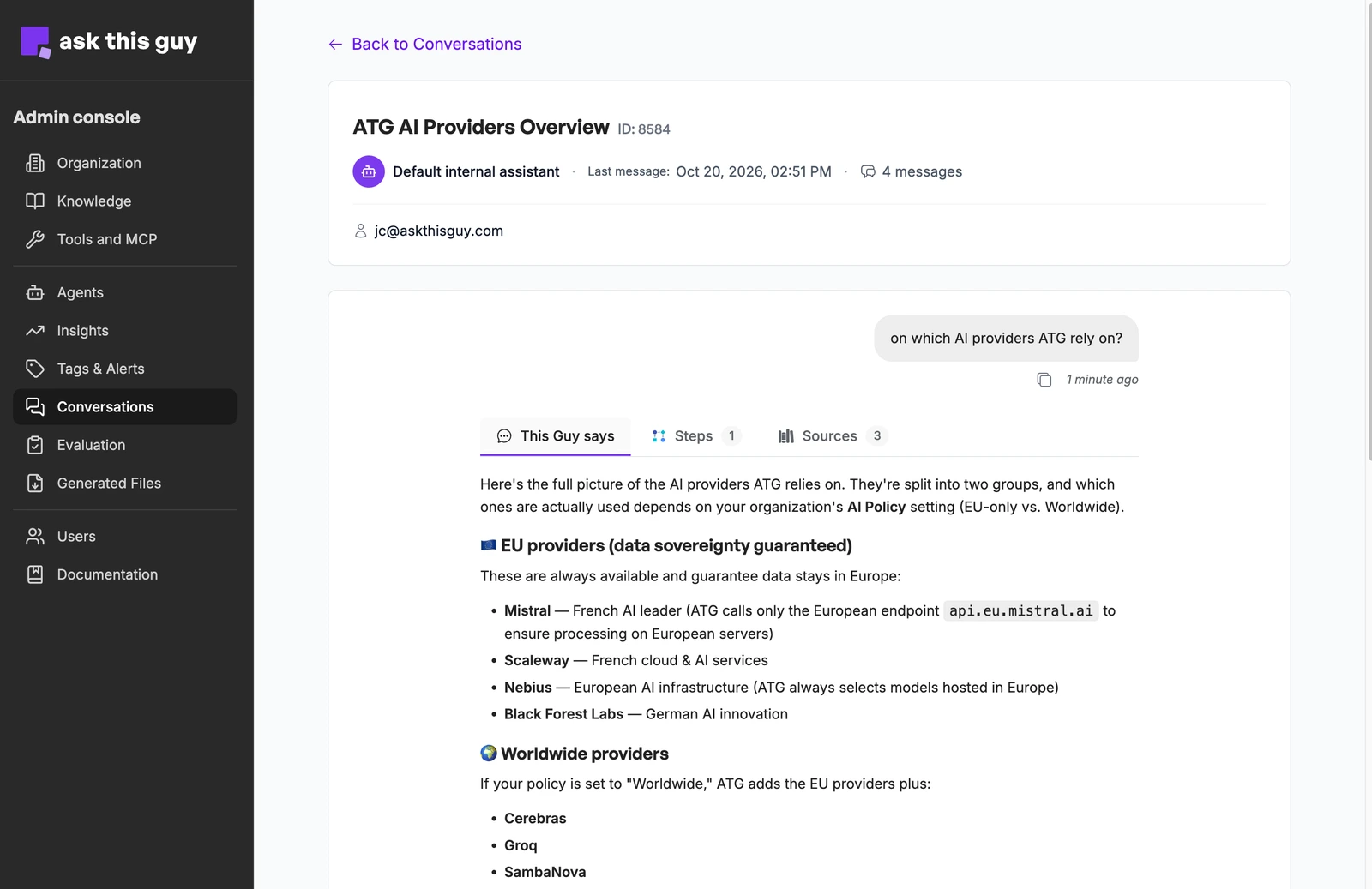 Detail of a conversation in the Admin Console: header with agent, last message date, message count and user email, then the user's question and the agent's answer with its Steps and Sources tabs
Header
- Title and ID: the conversation's name, or
Conversation #<id>when it has none. - Agent that handled the conversation.
- Last message: date and time of the latest activity.
- Number of messages.
- Sentiment: Positive, Negative or Neutral, detected automatically, when available.
- Feedback: number of thumbs up and thumbs down left by users, if any.
- Tags applied by your Tags & Alerts rules, if any.
- User: for a webapp conversation, the user's email. For a widget conversation, the visitor context passed by your integration (for example name, email or current page, depending on your integration).
Messages
The conversation is displayed in chronological order, the same way as in the chat:
- user messages, with their attachments;
- under each agent answer, three tabs: This Guy says (the answer), Steps (the tools the agent used, such as knowledge search, web search or file export) and Sources (the documents and web pages cited). The number next to Steps and Sources counts their entries;
- for a widget conversation, a highlight on user messages when the visitor's context changed between two messages, for example after navigating to another page.
In a long conversation, scroll up to load older messages.
What you can do
| Action | Available |
|---|---|
| Read the messages | Yes |
| Copy a message | Yes |
| See the details of a negative rating | Yes: click the thumbs-down icon on the rated message |
| Turn an answer into a task | Yes, with Track as improvement under each answer, if the Improvement Tracker is enabled |
| Rate an answer or change a rating | No |
| Reply or continue the conversation | No |
| Rename or delete the conversation | No |
| Play answers aloud | No |
Keep an agent's conversations private
When an agent handles exchanges that administrators should not read, make its conversations private:
- In Agents, open the agent.
- In the Configuration tab, tick Private conversations.
The agent's past and future conversations are then hidden from administrators. Its Owners keep access to their content.
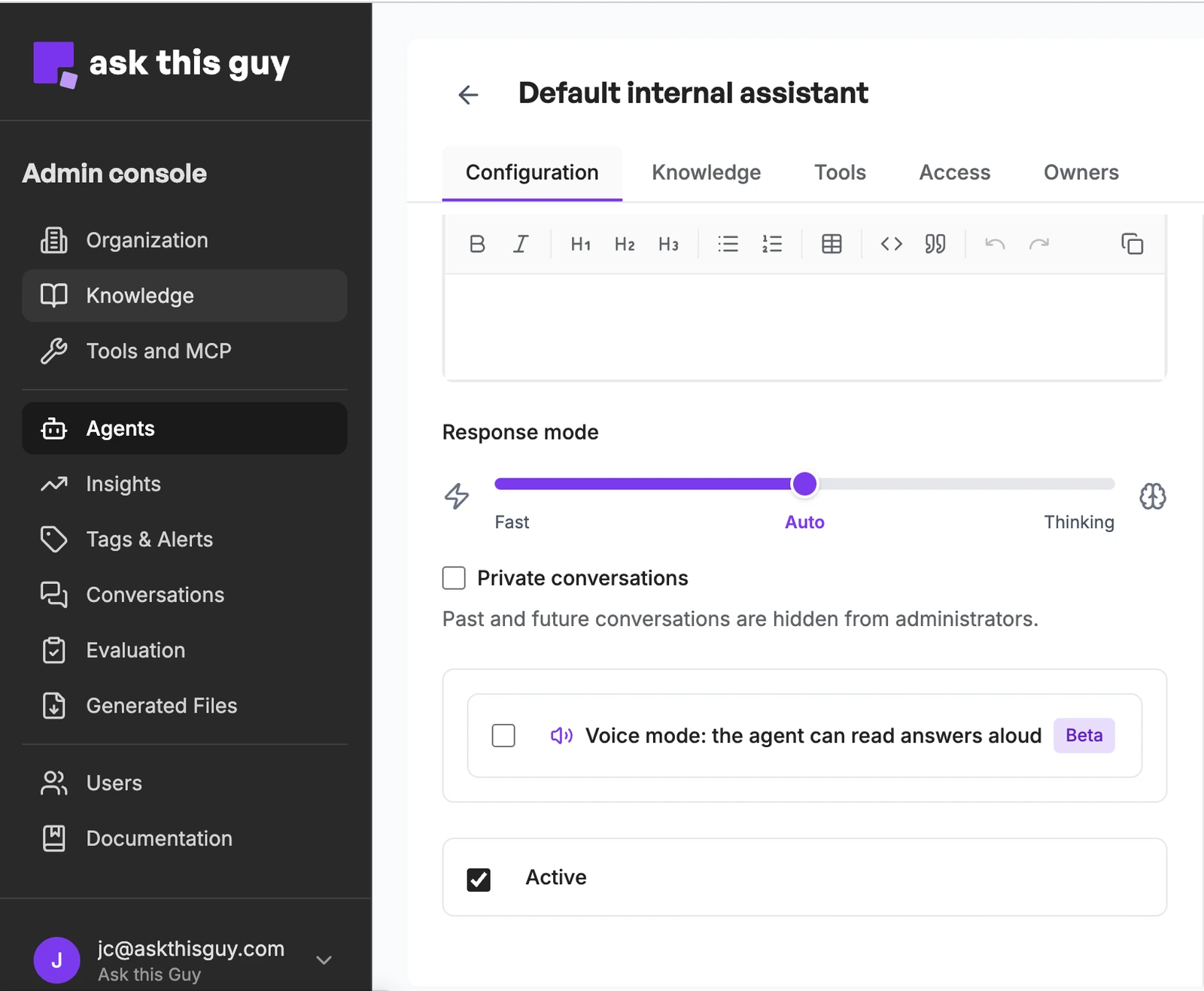 Private conversations option in an agent's Configuration tab, under the response mode and above voice mode
Privacy and good practice
- Opening a conversation does not notify the user.
- Reviewing a conversation does not let you write in it or act on the user's behalf.
- The detail view shows the full content of the exchanges, the steps and the sources, and for widget conversations the visitor context, which may contain personal data supplied by your integration. Limit the administrator and Owner roles to people who need this access.
- For a colleague who only needs to read one conversation, the user can share it with the organization instead.
If a conversation does not load
| Situation | What you see |
|---|---|
| Messages are loading | A spinner |
| You do not have access to the conversation, it belongs to another organization, or it was deleted | An error while loading the messages |
| The conversation has no user message | It does not appear in the list |