
Generate AI images in chat
Create or edit an image from a text prompt in an ATG conversation: prerequisites, example requests, aspect ratios, editing an existing image, and where generated files are saved.
On this page
The Generate Image tool lets you create an illustration, or modify an existing image, by describing what you want in a conversation with an ATG agent. The image appears directly in the agent's reply and is saved in your personal files. Use it for marketing visuals, concept art, illustrations for a presentation, or a new version of an image you already have.
Before you start
Image generation is available when:
- your administrator has enabled Generate Image for the organization and assigned it to the agent you select (see For administrators);
- you are signed in to the webapp, in a regular conversation;
- to edit an image, that image is in your My Files.
If the selected agent does not have the tool, it cannot produce images. Start a new conversation with another agent, or ask your administrator to assign the tool.
Generate an image
- Start a new chat with an agent that has Generate Image.
- Describe the image you want, for example:
- "Generate an image of a modern office with a team working around a screen."
- "Draw a flat-style illustration of a rocket for a product launch slide."
- Send your message. The agent calls the tool and displays the image in its reply.
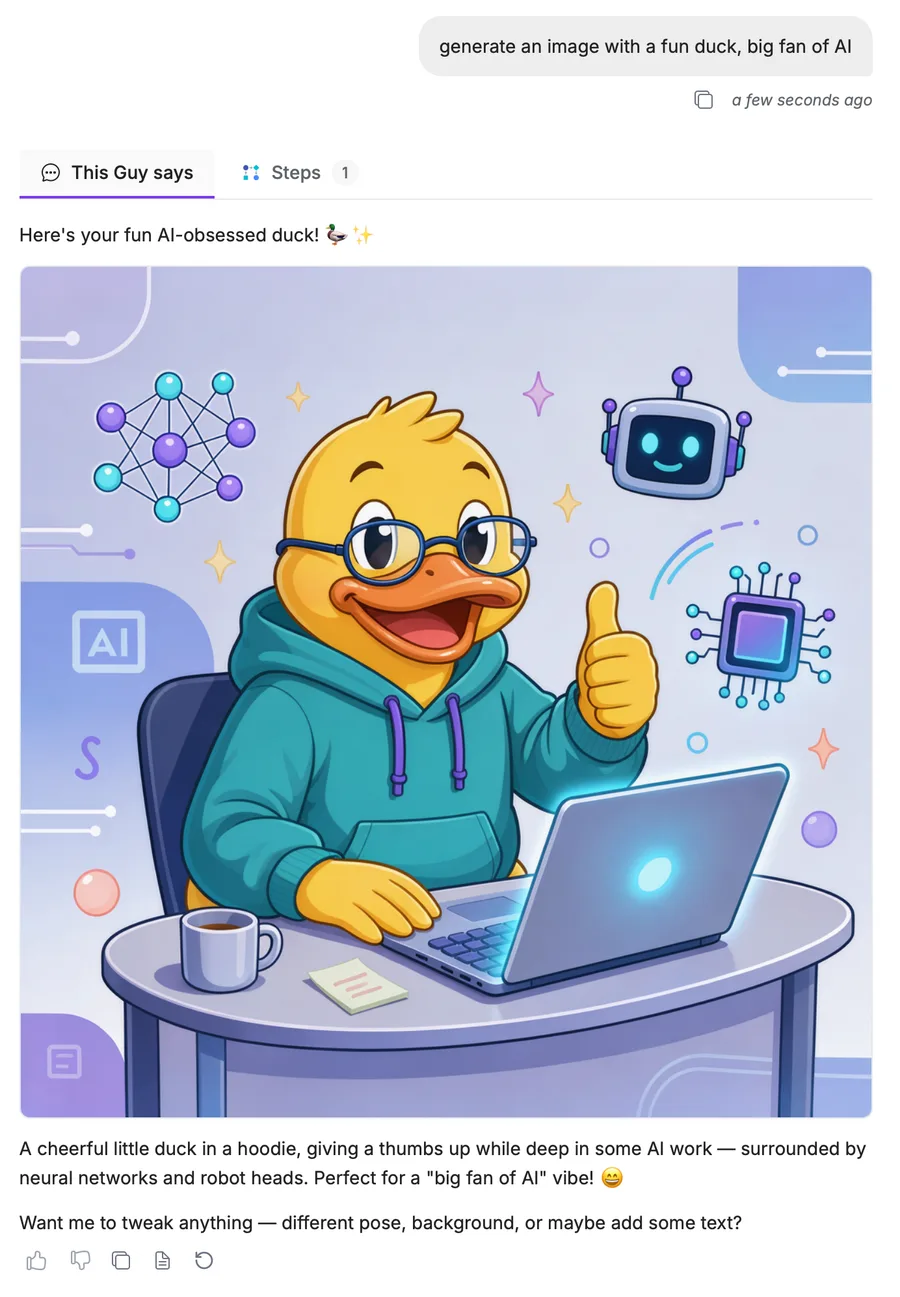
The more precise the description, the closer the result: say what the image shows, its style (photo, flat illustration, sketch), its main colors, and what it is for. To adjust the result, simply follow up in the same conversation ("same image, with a blue background").
Choose the format of a new image
Ask for the format in your message, in plain words ("in 16:9 for a slide", "vertical format for a story"). The agent passes it to the tool.
| Orientation | Available aspect ratios |
|---|---|
| Square | 1:1 |
| Landscape | 3:2, 4:3, 16:9, 21:9 |
| Portrait | 2:3, 3:4, 9:16, 9:21 |
Images are produced as PNG by default. Ask for JPEG if you need it. You can also give the file a name ("name the file product-launch-visual").
Edit an existing image
You can ask the agent to modify an image instead of creating a new one:
- An image generated earlier in the conversation: ask for the change directly, for example "Make the background darker and remove the text."
- An image from your personal files: click the paperclip icon, open My Files, attach the image, then describe the change. See Using Attachments.
The source must be an image file stored in your own My Files (one you uploaded or one ATG generated for you). Documents from your organization's knowledge base and files belonging to other users cannot be edited.
When you edit an image, the aspect ratio you request is not applied: only new images use it.
Where generated images are saved
Each generated or edited image is saved as a file in your My Files and stays visible in the conversation thread. You can attach it again later, in this conversation or another one, to reuse or edit it.
These files belong to you, within your organization. They are not added to the organization's knowledge base.
Charts: use the native rendering instead
Do not use image generation to represent your data. When you need a chart from figures, query results or a table, ask the agent for a chart or a table: ATG renders it directly in the conversation from the actual data. An AI-generated picture of a chart would not reflect your figures reliably.
Privacy and AI policy
- Image generation follows your organization's AI policy, like every other ATG feature that calls an AI model.
- Your prompts may be kept in operational logs used to monitor the service. Treat them as you would any message containing sensitive information.
Troubleshooting
| Situation | What to do |
|---|---|
| The agent answers in text without creating an image | The agent does not have Generate Image. Choose another agent or contact your administrator. |
| An error message appears and no image is created | Rephrase your request with a clear description, then try again. If the error persists, contact your administrator. |
| The agent refuses to edit an image | Check that the file is an image, that it is in your My Files, and that you attached it to the conversation. |
| The image is created but does not appear in the reply | Open My Files from the attachment menu: the file is saved there. |
For administrators
- In the Admin Console, open Tools and MCP.
- Enable Generate Image for the organization if it is not already active (it is active by default for new organizations).
- Open the target Webapp agent, then its Tools tab.
- Select Generate Image and save.
Users chatting with that agent can then ask for images. Assign the tool only to agents and audiences for which AI-generated visuals are appropriate. For the full list of built-in tools, see Tools and Agents.