Agent evaluation
Test your AI agents systematically with question sets. Run evaluations, track results over time, and identify improvement opportunities to ensure reliable agent responses.
What is Agent Evaluation?
Agent Evaluation helps you test how your agent responds to a large set of questions.
Use it for:
- Quality assurance before launching your agent
- Identifying areas where your agent needs improvement
- Regression testing after making changes to your knowledge base
- Benchmarking agent performance over time
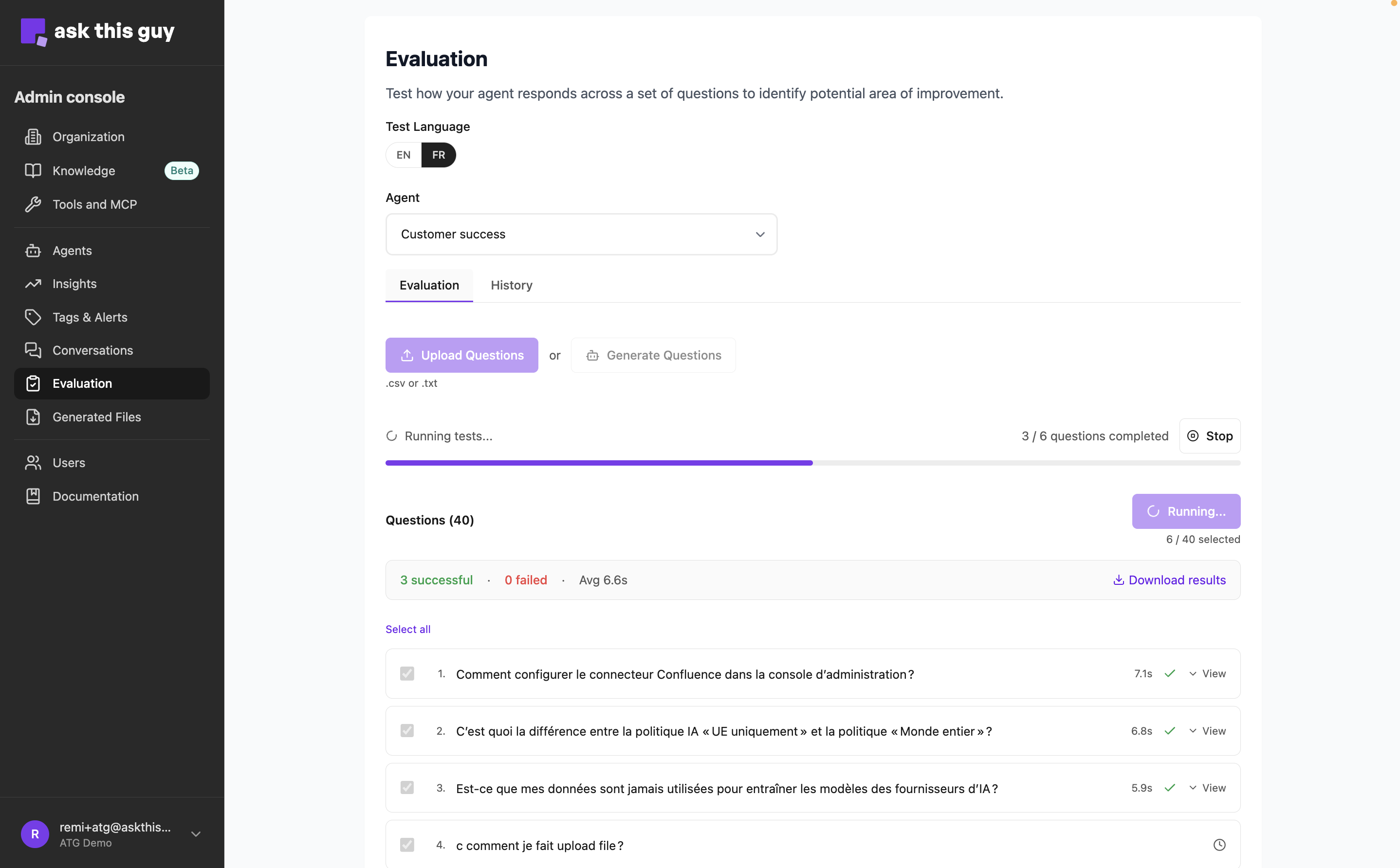 Agent Evaluation Interface
Getting Started
1. Select an Agent
Choose which agent you want to evaluate from the Agent dropdown at the top of the page.
2. Choose Test Language
Select the language for your test questions:
- EN - English
- FR - French
Your set of questions in english and in french are separate and the agent will respond in the same language as the question.
Adding Questions
You can:
- type your questions manually
- import a file of questions
- ask the platform to generate questions for you
Uploading Questions
Supported formats: CSV or TXT files
- Click Upload Questions
- Select a
.csvor.txtfile from your computer - Questions should be one per line/row
- For CSV files, use only the first column (delete any extra columns)
- If your question already exists in your set it will simply not be added so you don't have duplicates
Important notes:
- Maximum 50 questions per test run
- If uploading from spreadsheet software (Excel, Numbers), export as CSV first
- Files are automatically saved to your question set
Option B: Generate Questions
Let the system automatically generate questions from your agent's knowledge base:
- Click Generate Questions
- Choose the number of questions (5-50)
- Select content types to include (documents, files, web sources)
- Review the generated questions
- Select which ones to keep and click Add Selected
To give you a complete picture of your agent's performance, the evaluation feature generates a mix of relevant and off-topic questions. This helps you see how well your agent handles queries that fall outside its intended scope.
Managing Your Question Set
Once you have questions loaded, you can:
- Select/deselect questions using checkboxes (only selected questions will run)
- Edit question text by clicking on it
- Delete questions you don't need
- Add new questions manually using the "+ Add Question" button
Download Questions
Export your questions as a CSV file using the Download Questions button. Useful for:
- Backing up your question set
- Sharing with team members
- Editing in bulk using a spreadsheet
Running Tests
Start a Test
- Ensure you have questions selected (checkboxes checked)
- Click the Run Test button
- Watch real-time progress as each question is answered
- Results appear one by one as they complete
Maximum: 50 questions per run You can only run one evaluation at a time for a specific agent across your organisation.
During Test Execution
You'll see:
- Progress bar showing completion status
- Live results appearing as each question finishes
- Execution time for each response
- Success/failure indicators
Stop a Running Test
If you need to stop a test before completion:
- Click the Stop button in the progress area
- Wait for the system to safely stop processing
- Partial results will be preserved
Understanding Results
For Each Question-Response Pair
Click any question to expand and view:
Response Details:
- Full agent response (with markdown formatting)
- Execution time (how long it took to generate)
- Tools used (search, document retrieval, etc.)
- Sources cited (documents or web pages)
Feedback Options:
- Thumbs up - Good response
- Thumbs down - Problematic response (add details about why)
Feedback Details
When you mark a response as negative, you can add specific notes:
- What was wrong with the response
- What you expected instead
- Any patterns you notice
This feedback helps you identify:
- Knowledge gaps in your agent
- Questions that need better training data
- Common failure patterns
Export Results
Download test results as CSV using the Download Results button.
The export includes:
- Question text
- Agent response
- Success/failure status
- Execution time
- Error messages (if any)
- Feedback ratings
History Tab
View Past Test Runs
Switch to the History tab to see all previous evaluations:
Run List View:
- Date and time of each run
- Status (Completed, Stopped, In Progress, Error)
- Total questions tested
- Success/failure counts
Run Details View:
- Click any run to see detailed results
- Expand individual question-response pairs
- Add feedback to past responses
- Export specific run results as CSV
Pagination
- Runs list: 10 runs per page
- Run details: 50 results per page
Use the pagination controls at the bottom to navigate through larger result sets.
Best Practices
Creating Effective Question Sets
- Cover different topics from your knowledge base
- Include edge cases and tricky questions
- Mix simple and complex questions
- Test common user queries
Regular Testing Schedule
Consider running evaluations:
- Before major releases or updates
- After adding new content to knowledge base
- When users report issues with specific topics
- Monthly for quality monitoring
Troubleshooting
"Maximum of 50 questions reached"
You've selected too many questions. Uncheck some questions or split into multiple test runs.
"Test already running"
Another test is in progress. Wait for it to complete or stop it first.
File Upload Errors
"Invalid file type"
- Use only
.csvor.txtfiles - If using spreadsheet software, export as CSV
"Multiple columns detected"
- Delete all columns except the first (questions) column
- Or save as plain text (.txt) with one question per line
"No questions found"
- Check that your file isn't empty
- Ensure each row contains text
Cannot See Results
If a test is running but you don't see results:
- Check the History tab
- Look for the in-progress run
- Click Reconnect to resume viewing live results
Limits and Constraints
- Max questions per run: 50
- Max questions stored: 100 per agent
- File size: Reasonable CSV/TXT files only
- Concurrent runs: One test per agent at a time