 Google Drive
Approximate time to complete: 5-10 minutes, excluding prerequisites
Approximate time to complete: 5-10 minutes, excluding prerequisites
Before you begin
To connect ATG to Google Drive, you will need to:
- 1. Enable the Google Drive API: this will allow your GCP Service Account to use Google Drive.
- 2. Setup the Service account in your GCP Cloud Console: this will create a Service Account linked to your Google Drive.
- 3. Create keys for the Service account: this will allow you to create a key for your service account, and generate a JSON file you can export to ATG.
- 4. Share content to ATG: this will allow you to choose which drive(s) and content you authorize ATG to have access to.
- 5. Connect Google Drive in ATG: this will allow you to setup the connector and chose which folders will be accessible to ATG users.
1. Enable the Google Drive API
Navigate to Google Cloud Console
Go to https://console.cloud.google.com/
Go to Enabled APIs & services section
Open the navigation menu:
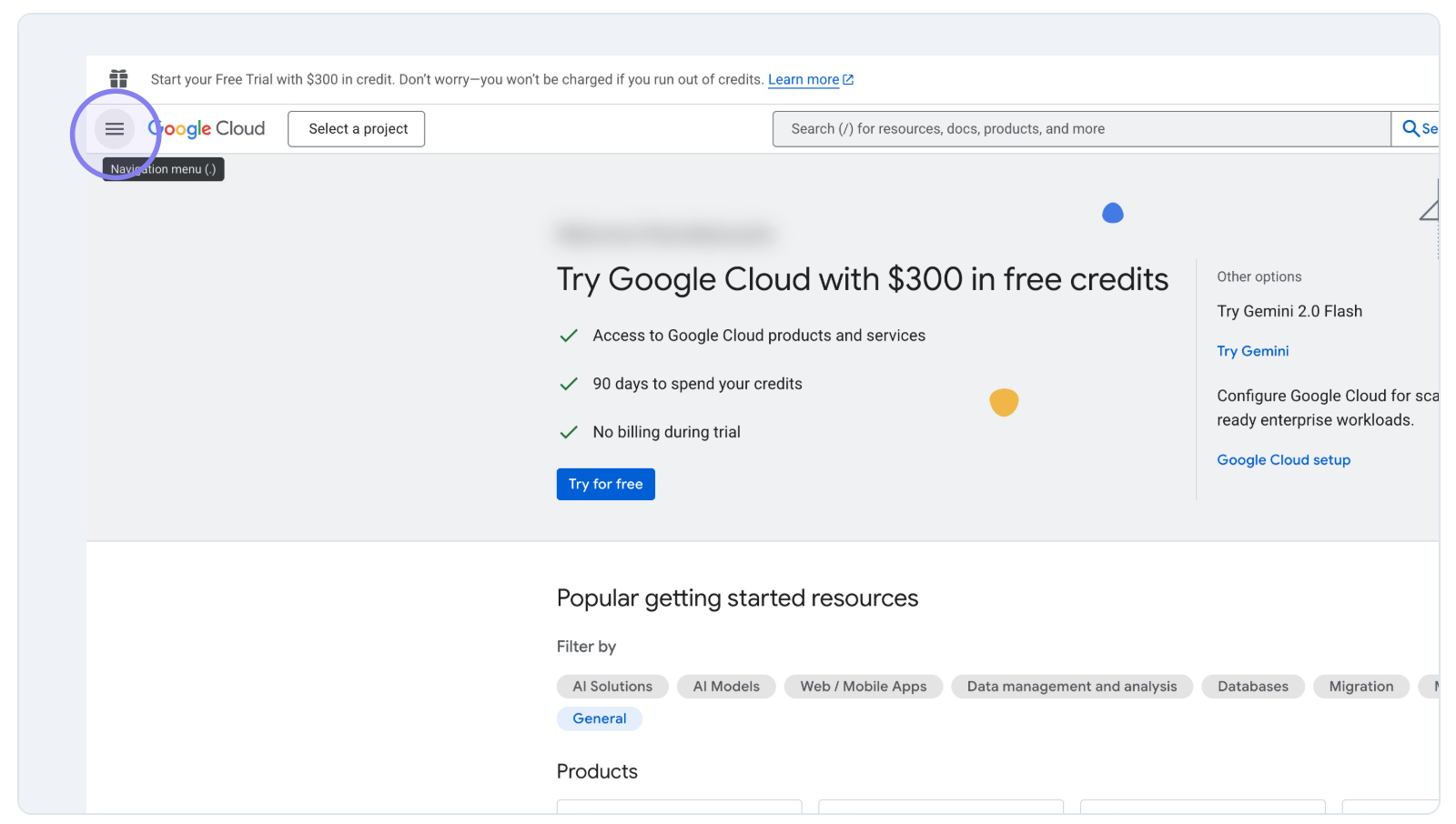 Google Cloud Console navigation menu
Select API & Services, then "Enabled APIs & services":
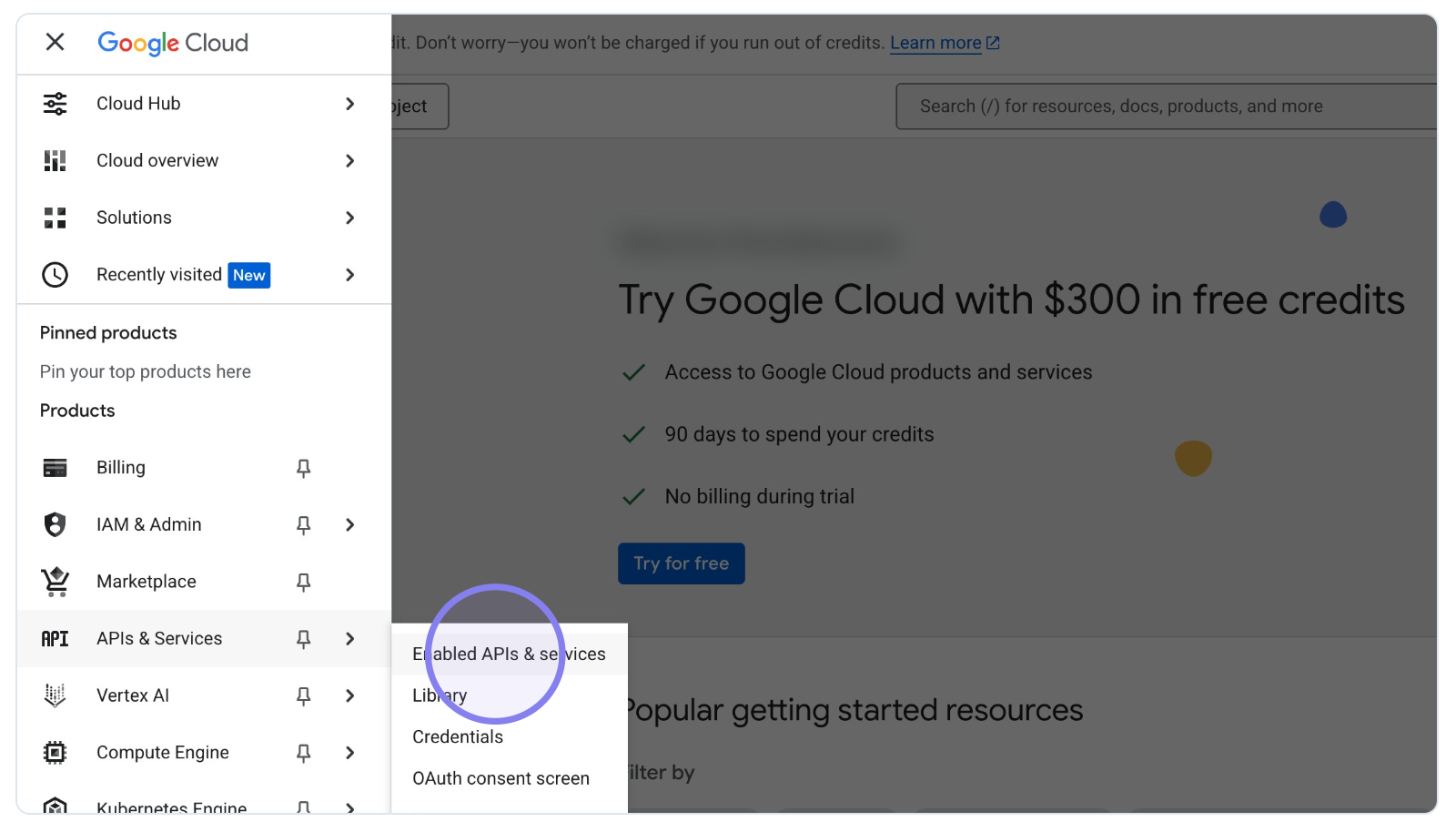 Google Cloud Console Enabled APIs & services section
Select a Project
Click on 'Select a project' button:
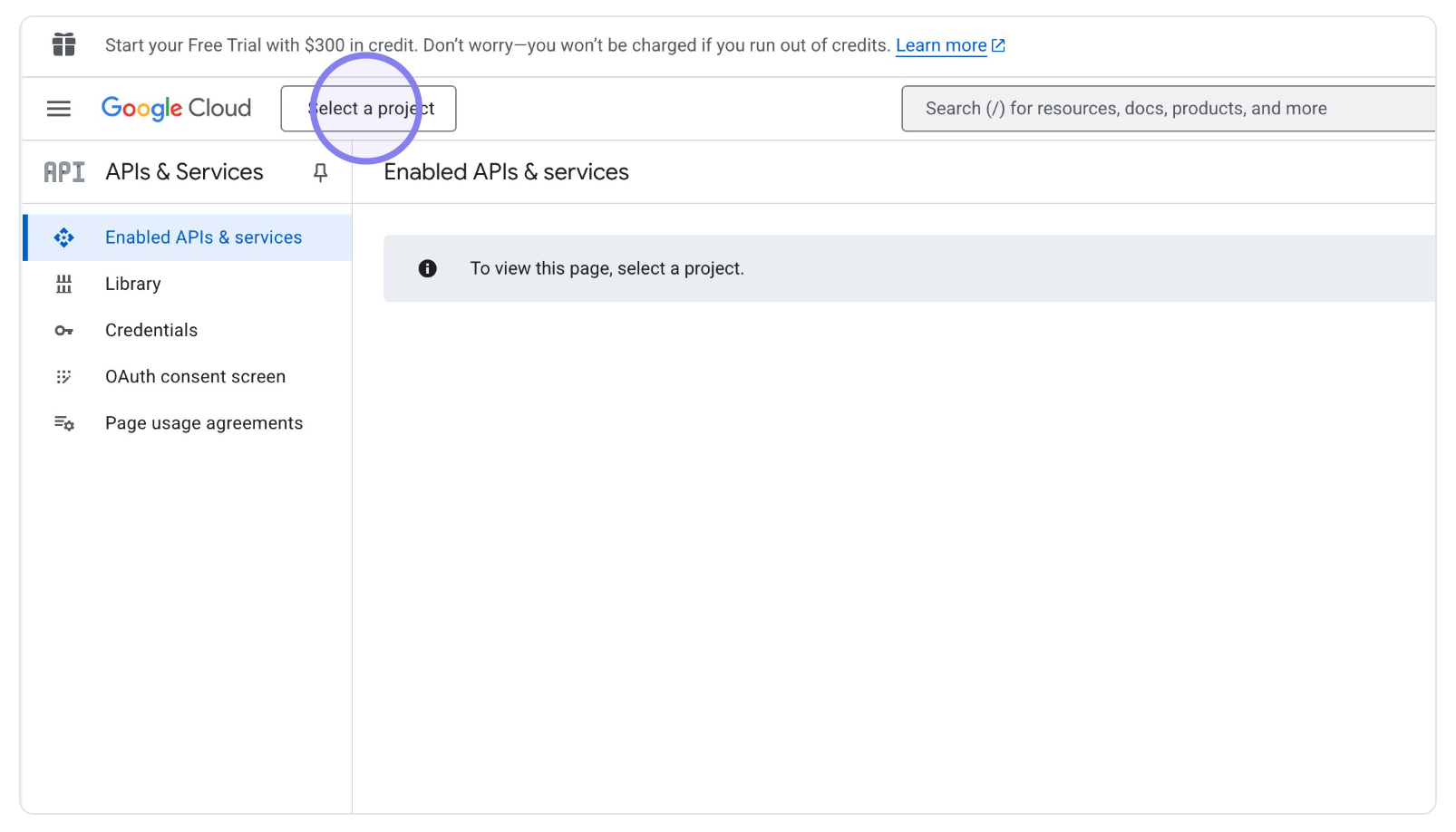 Google Cloud Console Select a project button
If no project was previously created, click on ‘Create project’:
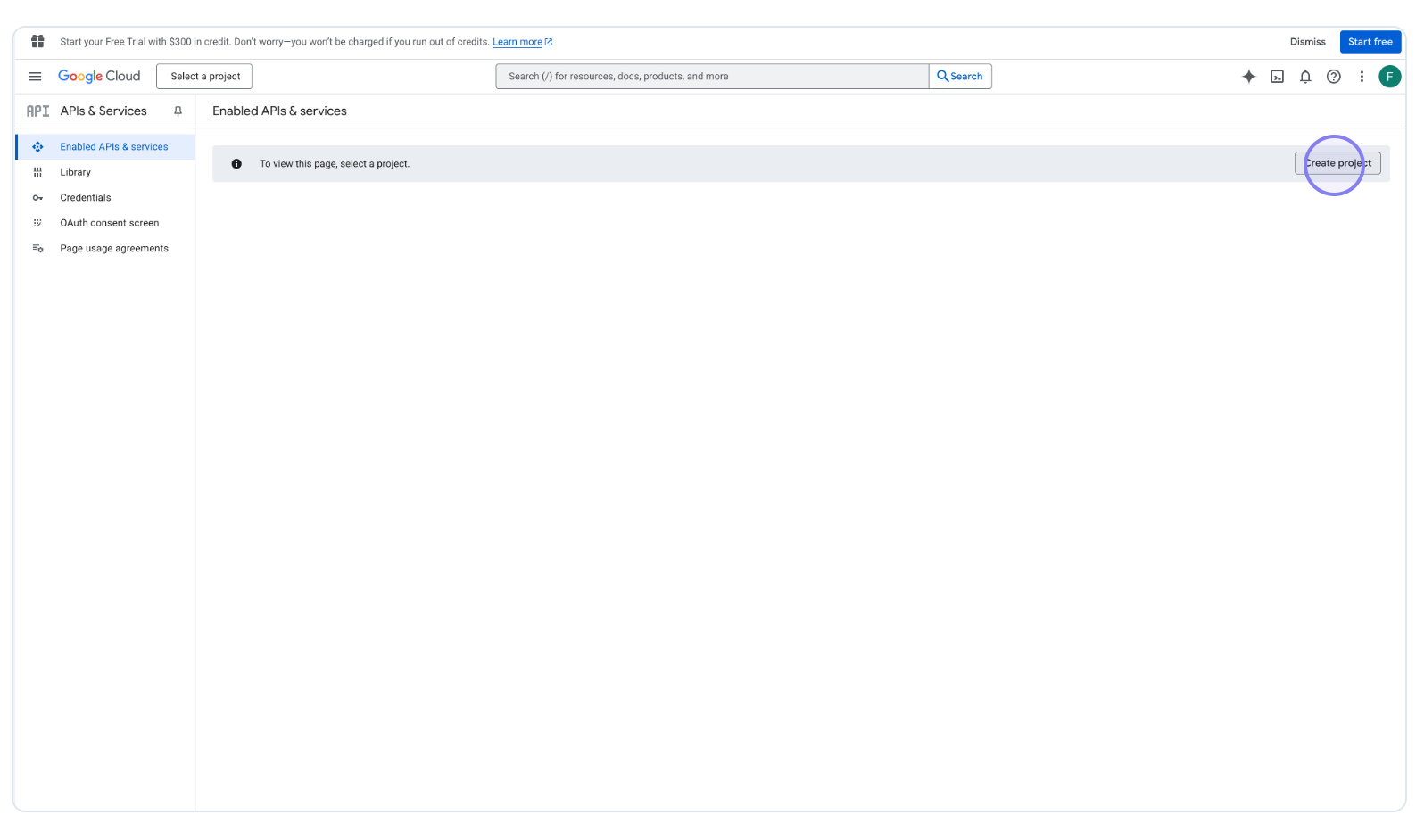 Google Cloud Console Create project button
Create your Project (if not done before)
Enter a project name, select your organization, and choose a location for your project. Then click on 'Create':
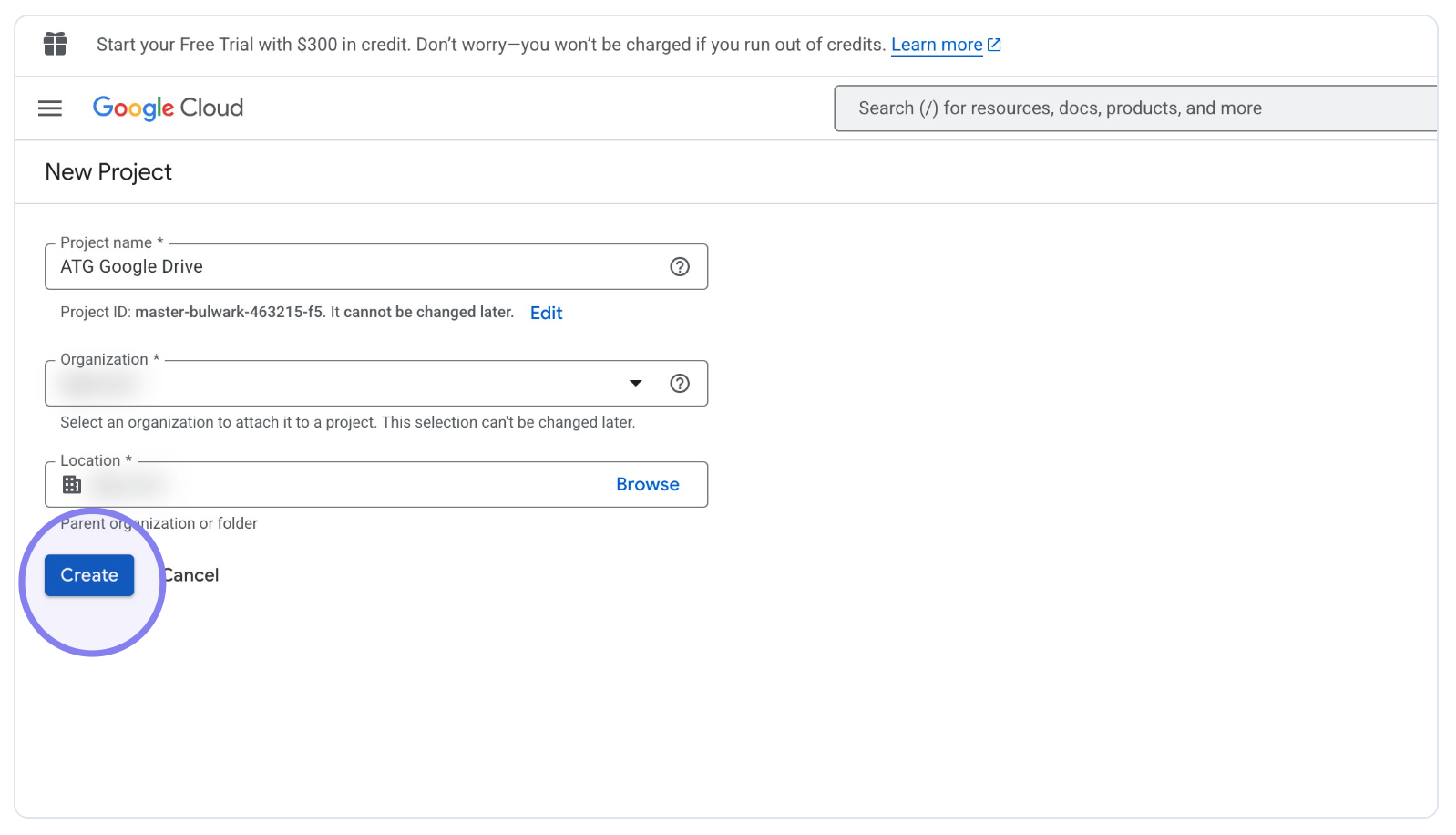 Google Cloud Console 'Create project' Menu
Open "APIs & Services"
Click on 'Enabled APIs and services' on the left menu:
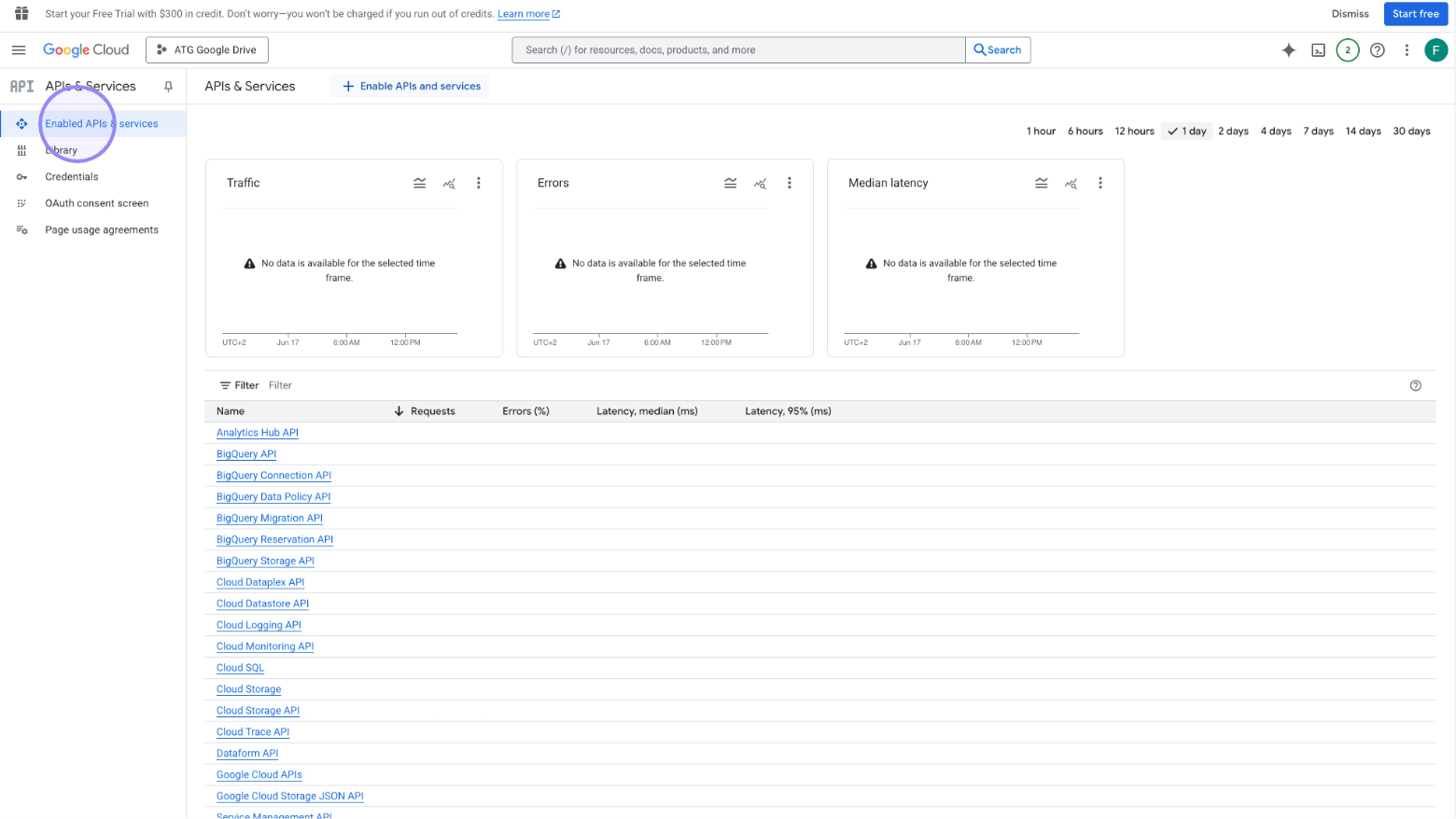 Google Cloud Console 'Enabled APIs and services' Menu
Enable APIs and services
Click on the '+ Enable APIs and services' button:
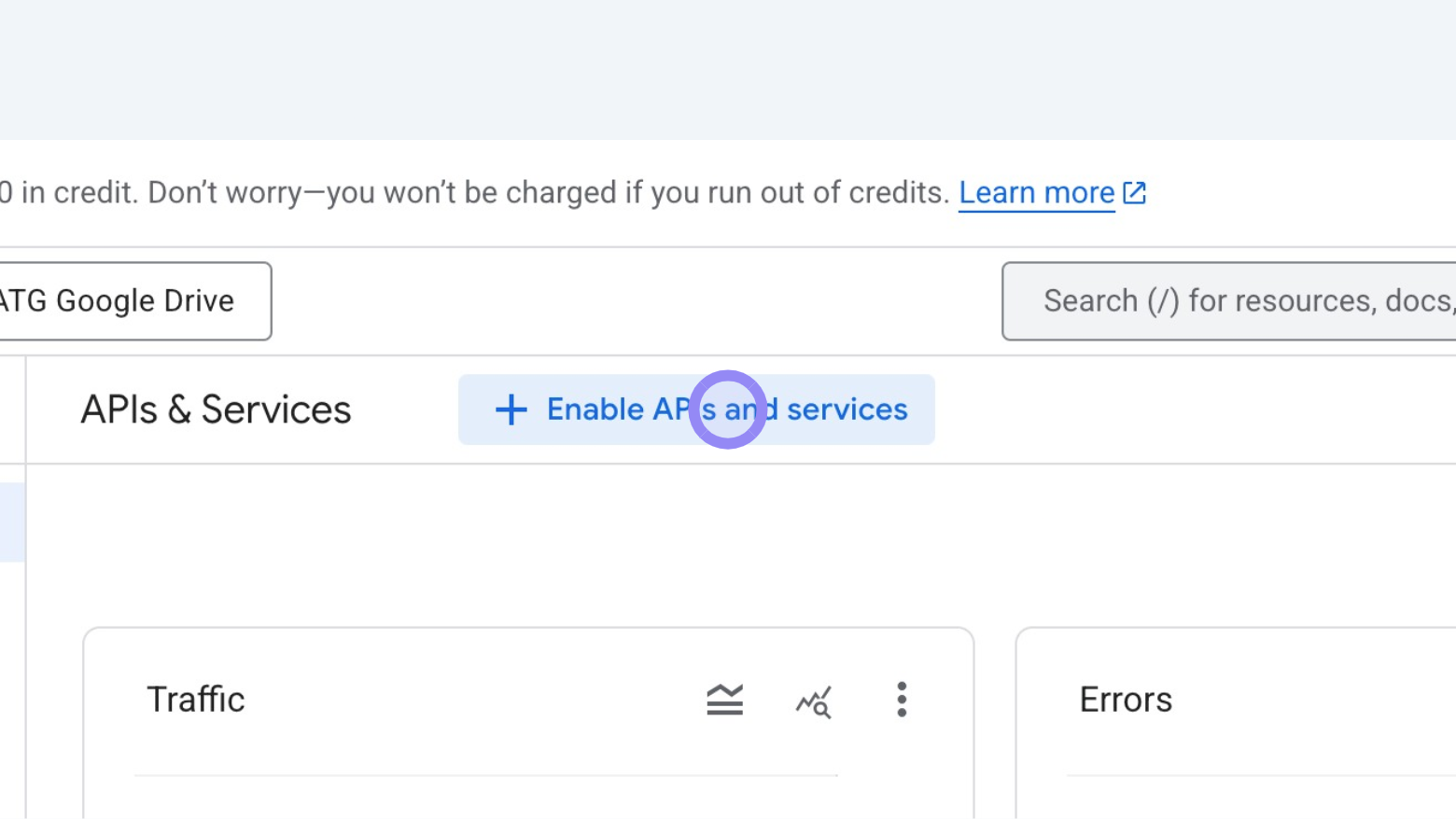 Google Cloud Console 'Enable APIs and services' Button
Search for Google Drive API
Type 'google drive' in the search bar and press Enter, select 'google drive api' from the list of results:
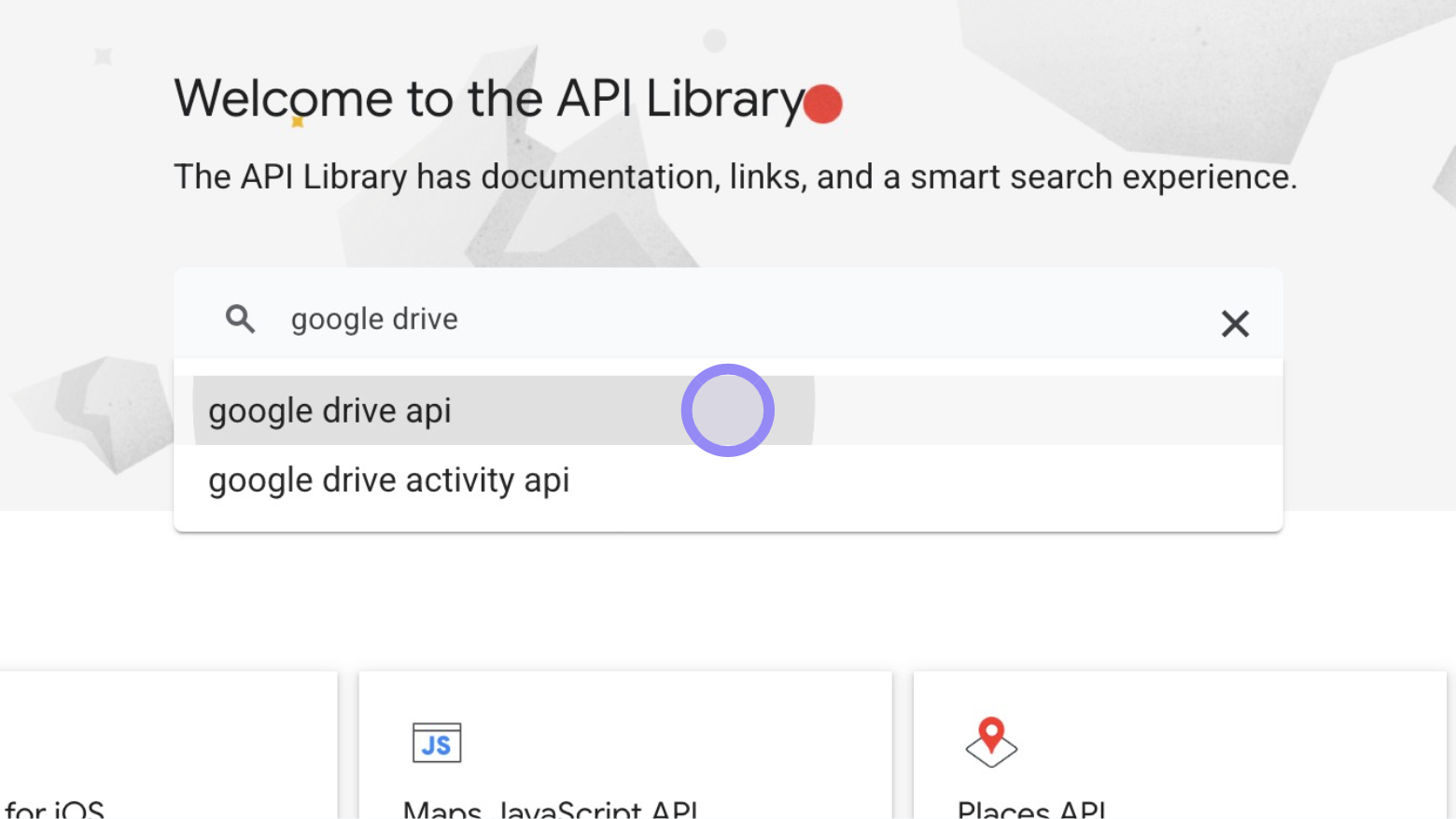 Google Cloud Console 'Google Drive API' Search Result
Select Google Drive API:
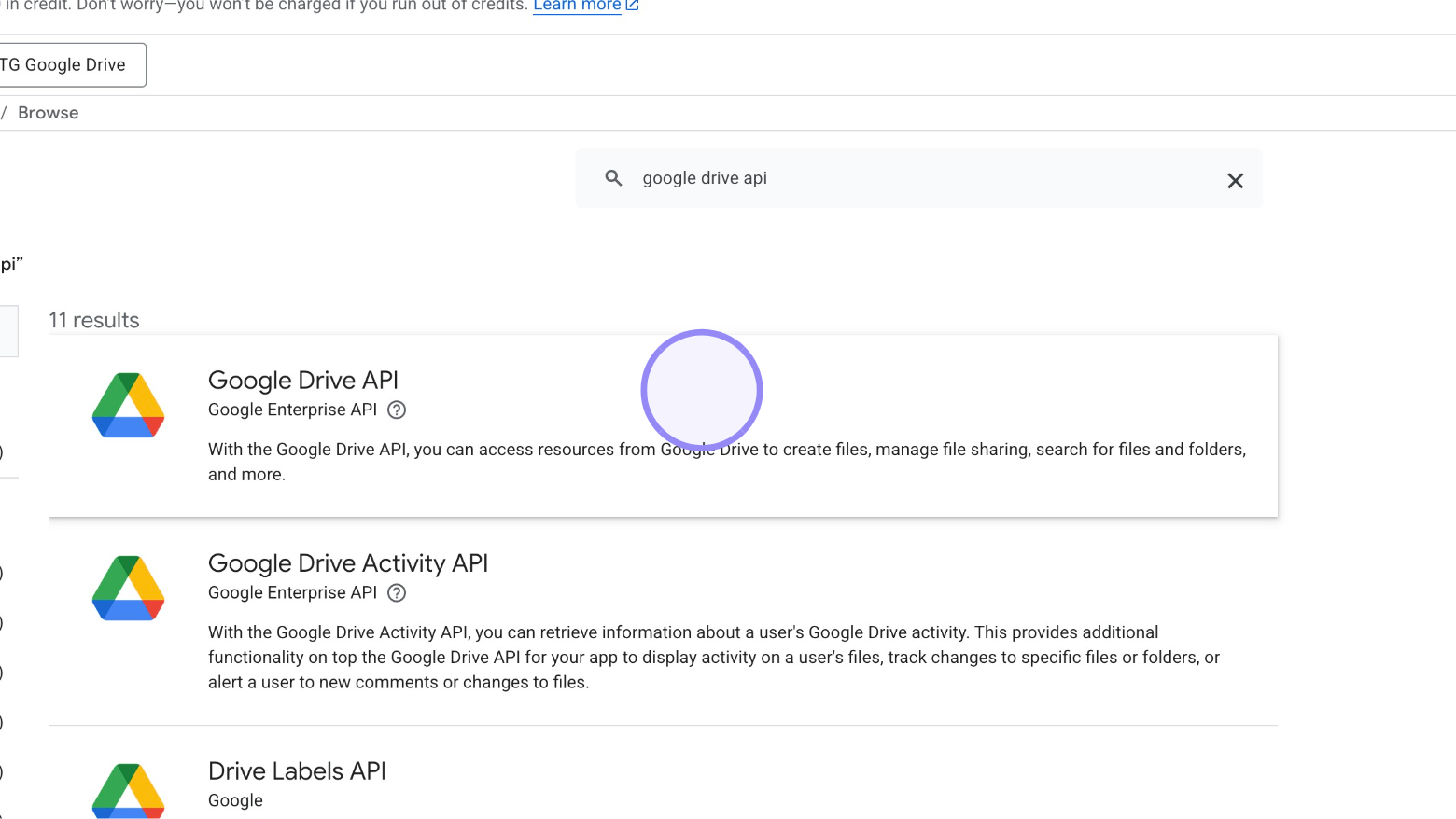 Google Cloud Console 'Google Drive API' Selection
Enable Google Drive API
Click on the 'Enable' button to activate the Google Drive API:
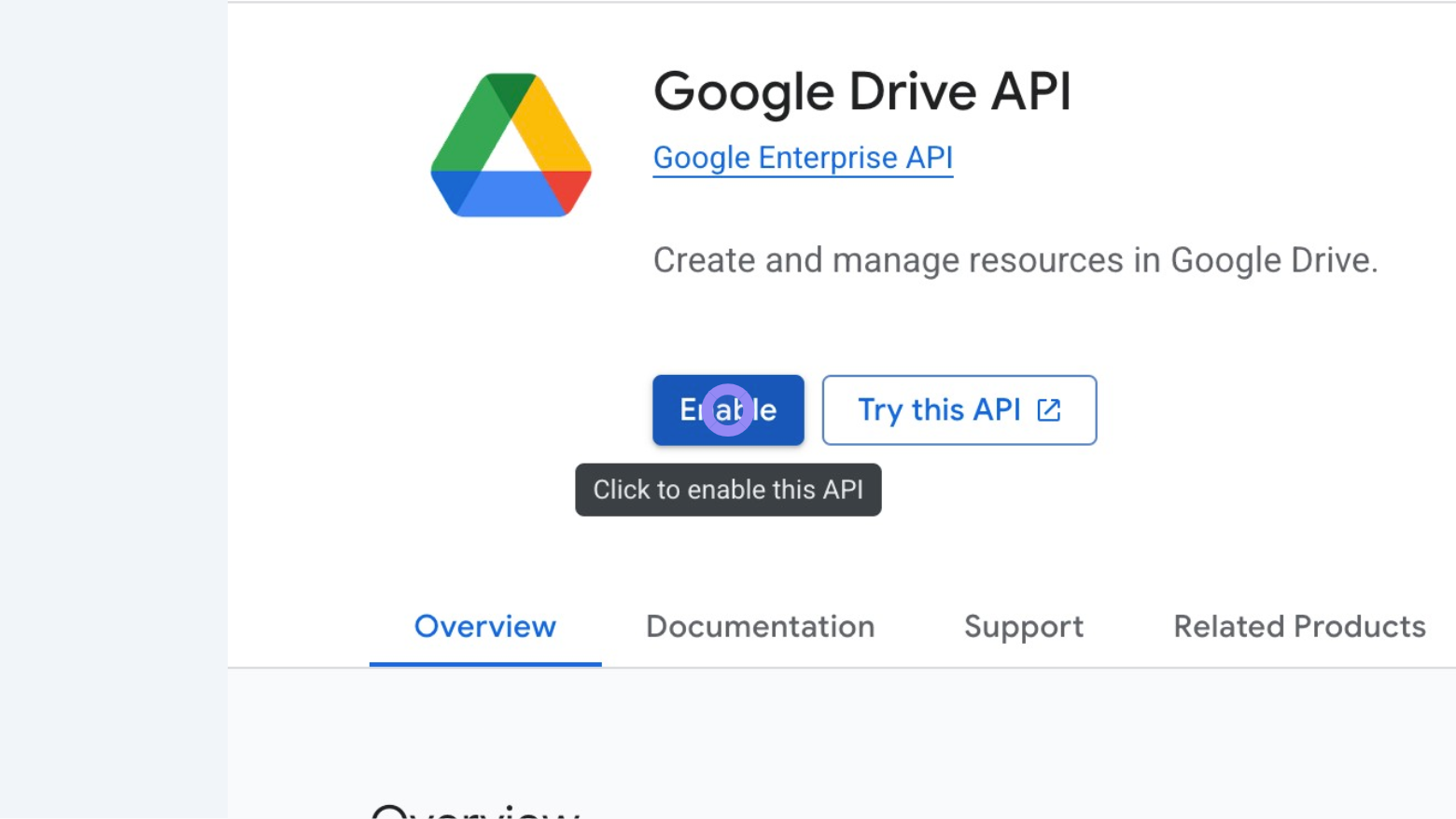 Google Cloud Console 'Google Drive API' Enable Button
2. Setup the Service account in your GCP Cloud Console
Navigate to Google Cloud Console
Come back to the 'Open API & services' section in the navigation menu and click on "Credentials":
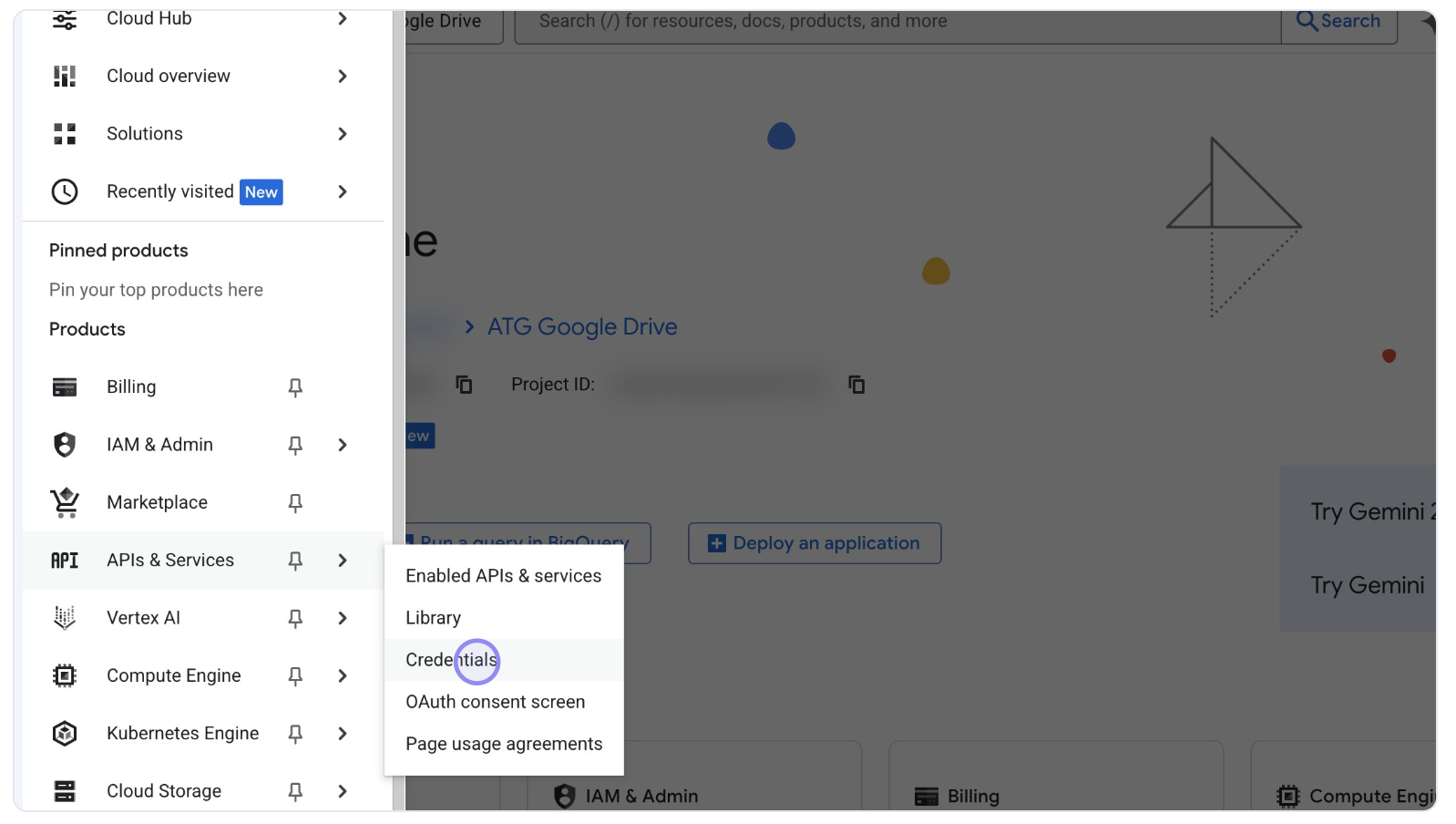 Google Cloud Console 'Open API & services' Credentials Menu
Create Credentials
Click on the '+ Create credentials' button:
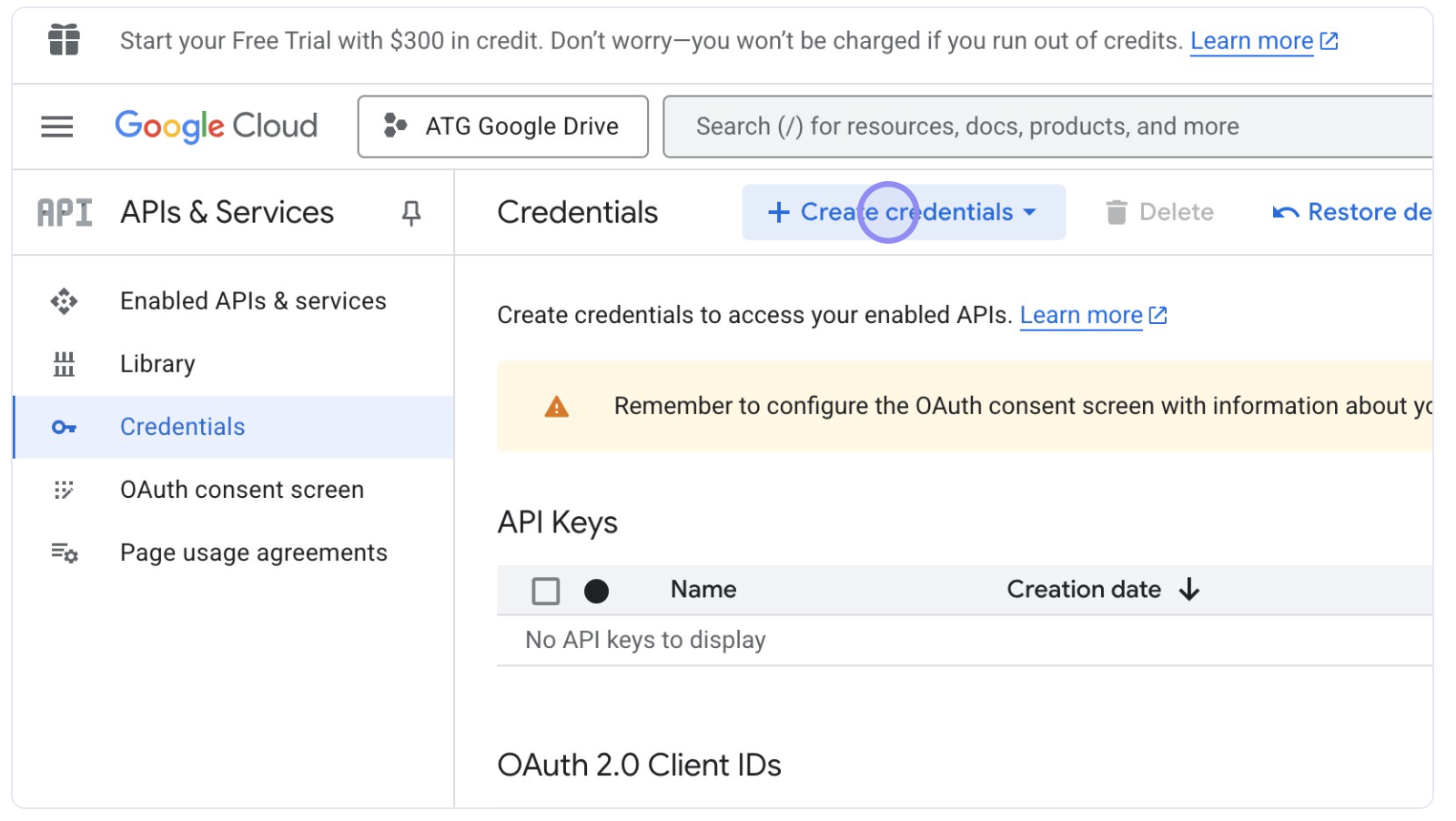 Google Cloud Console '+ Create credentials' Button
Select ‘Service account’:
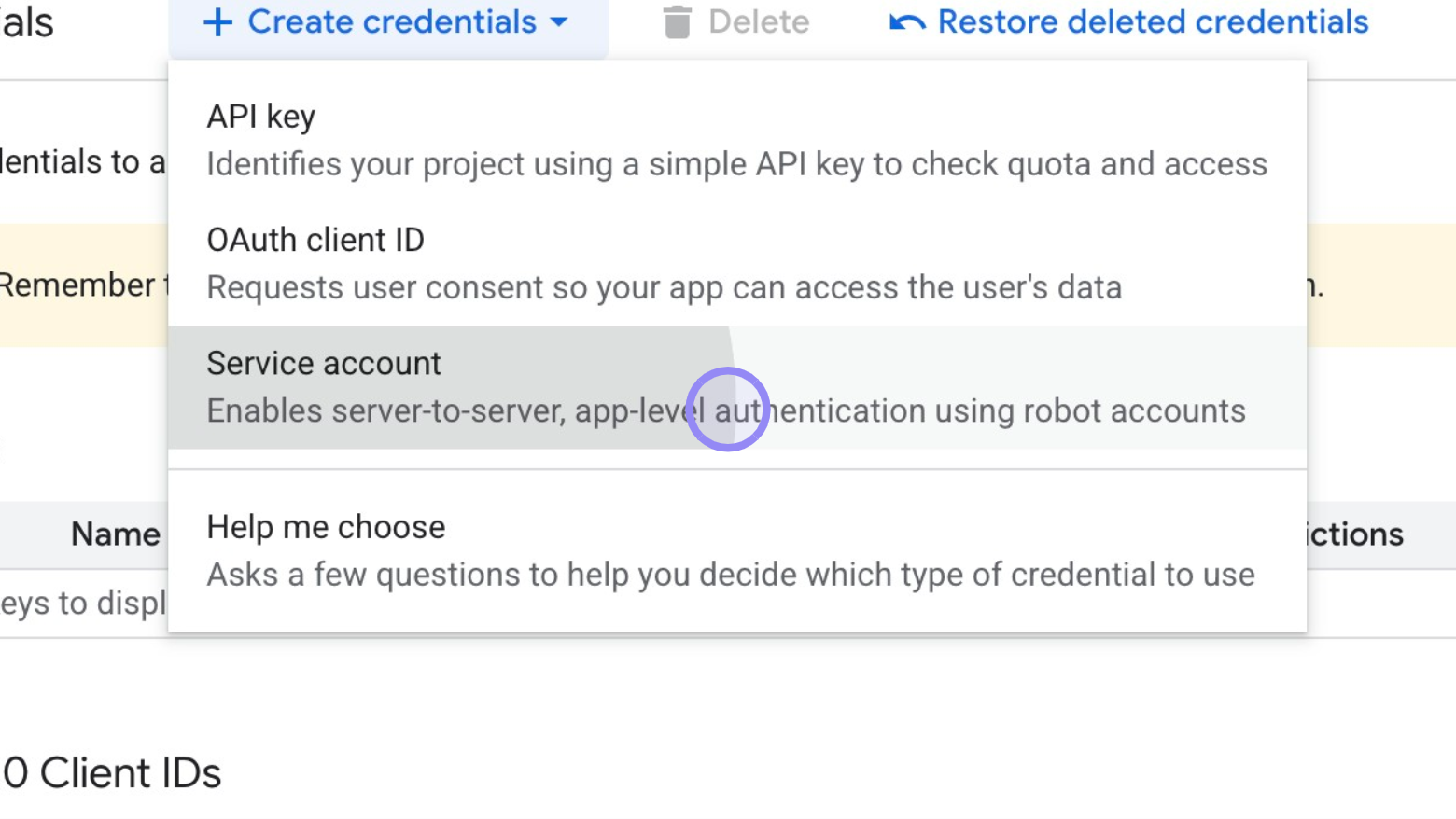 Google Cloud Console 'Service account' Selection
Create the service account.
Enter a Service account name and (optionally) Service account description:
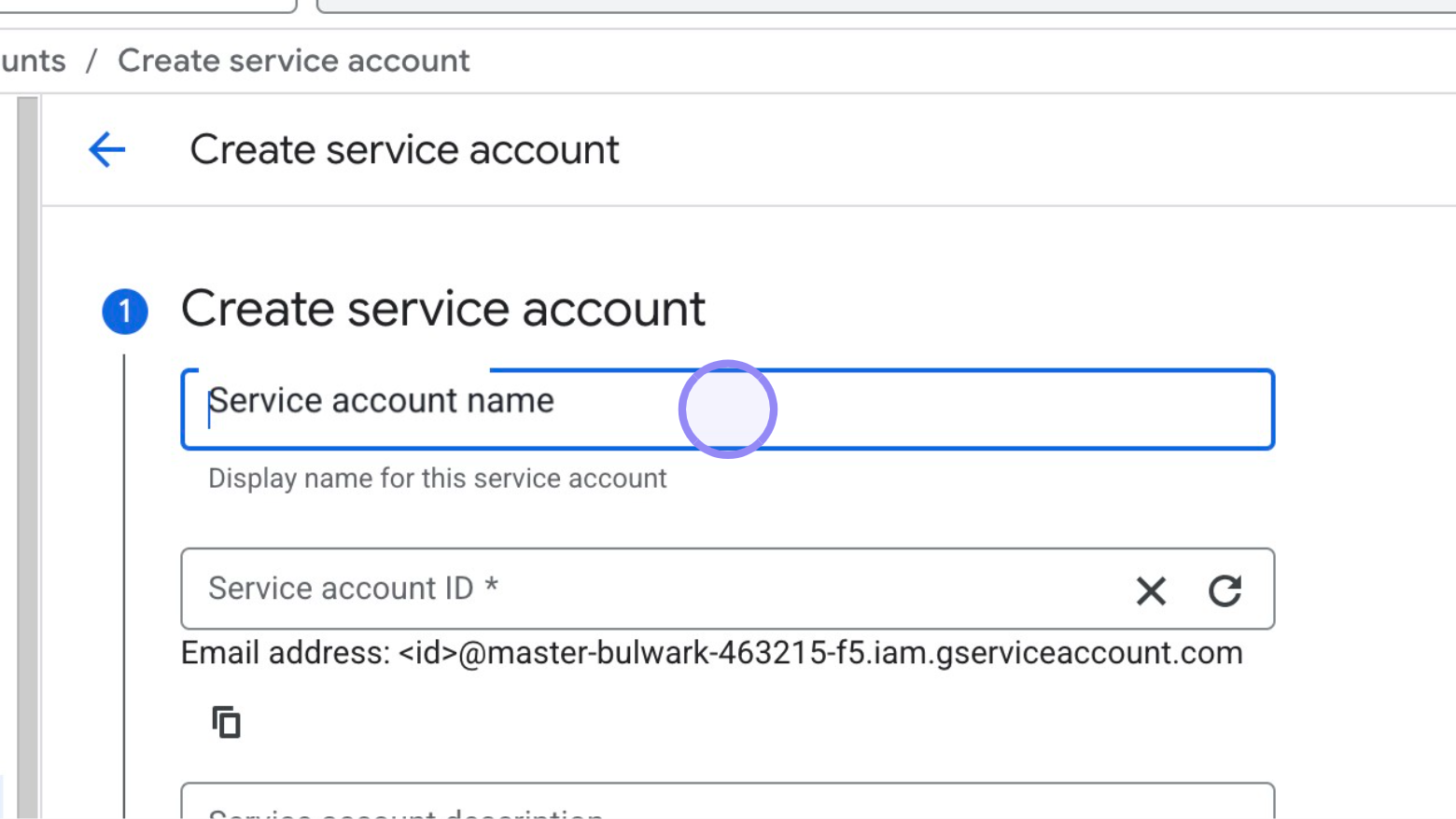 Google Cloud Console 'Create service account' Menu
Click on 'Create' and continue:
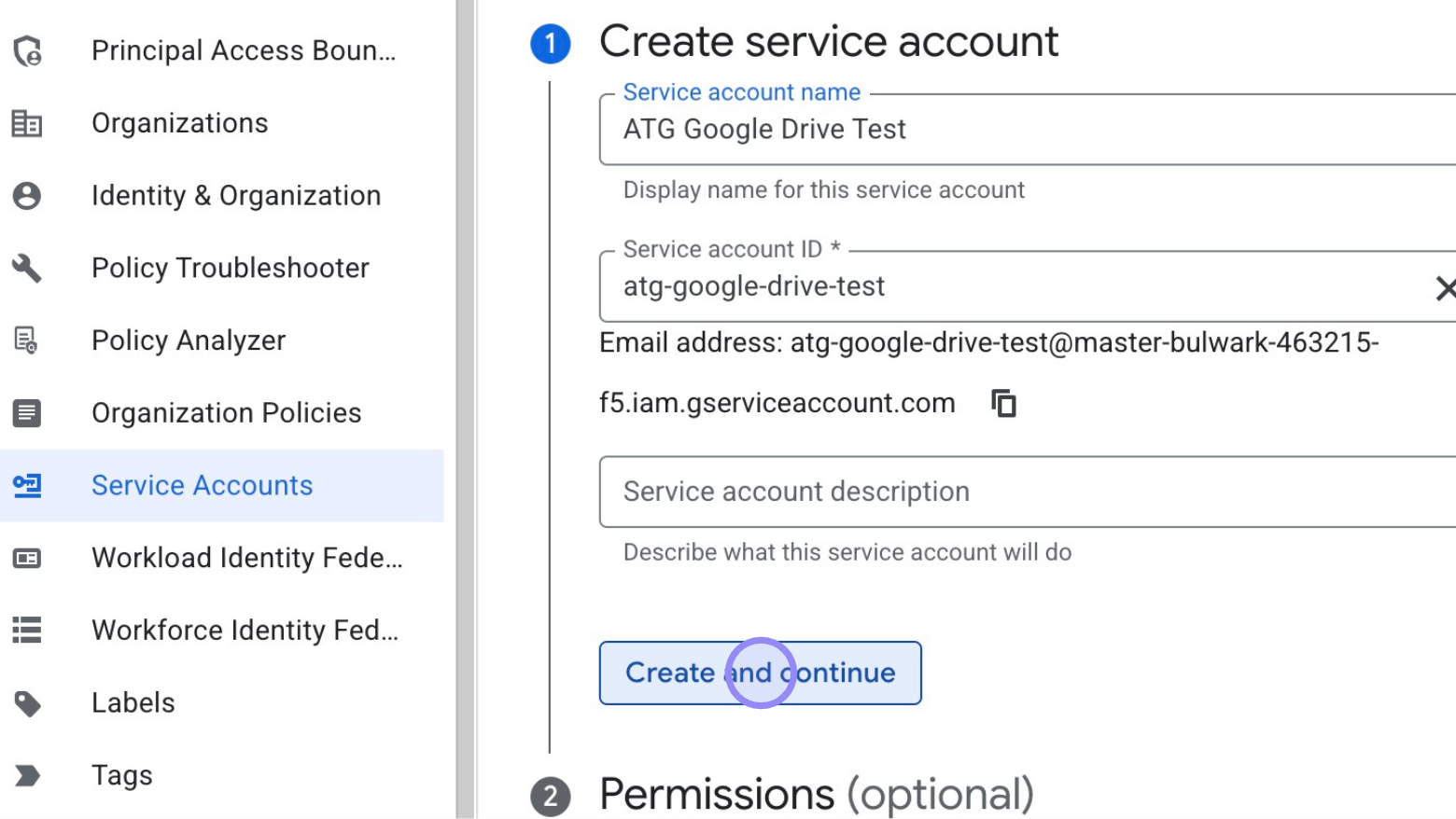 Google Cloud Console 'Create service account' Menu
Choose the role to grant access to the service account, click ‘Select a role’.
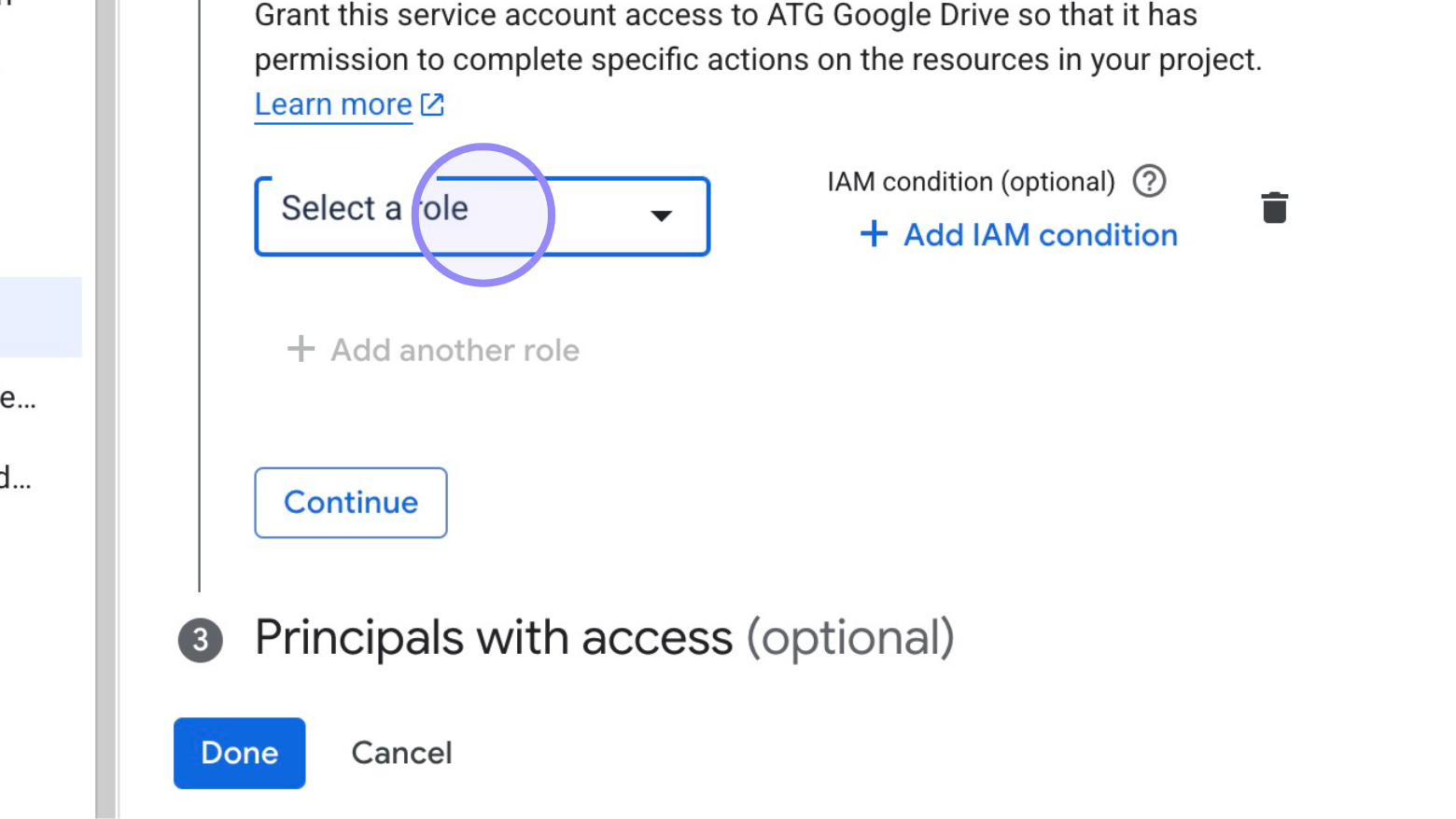 Google Cloud Console 'Select role' Menu
You can choose 'Viewer' role to grant read-only access to the service account.
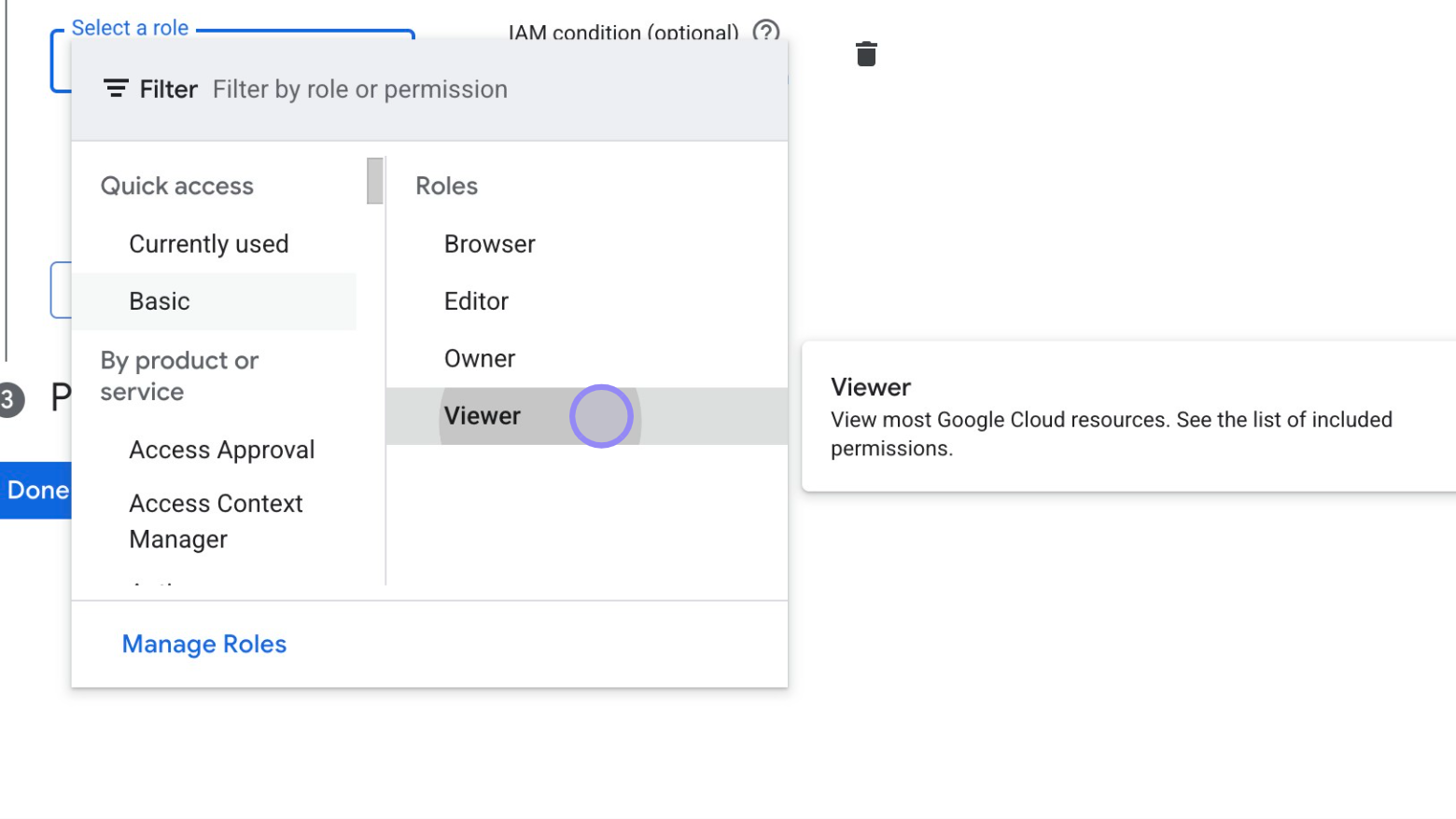 Google Cloud Console 'Select role' Menu
Finish Creating Service account, clicking on 'Done' button.
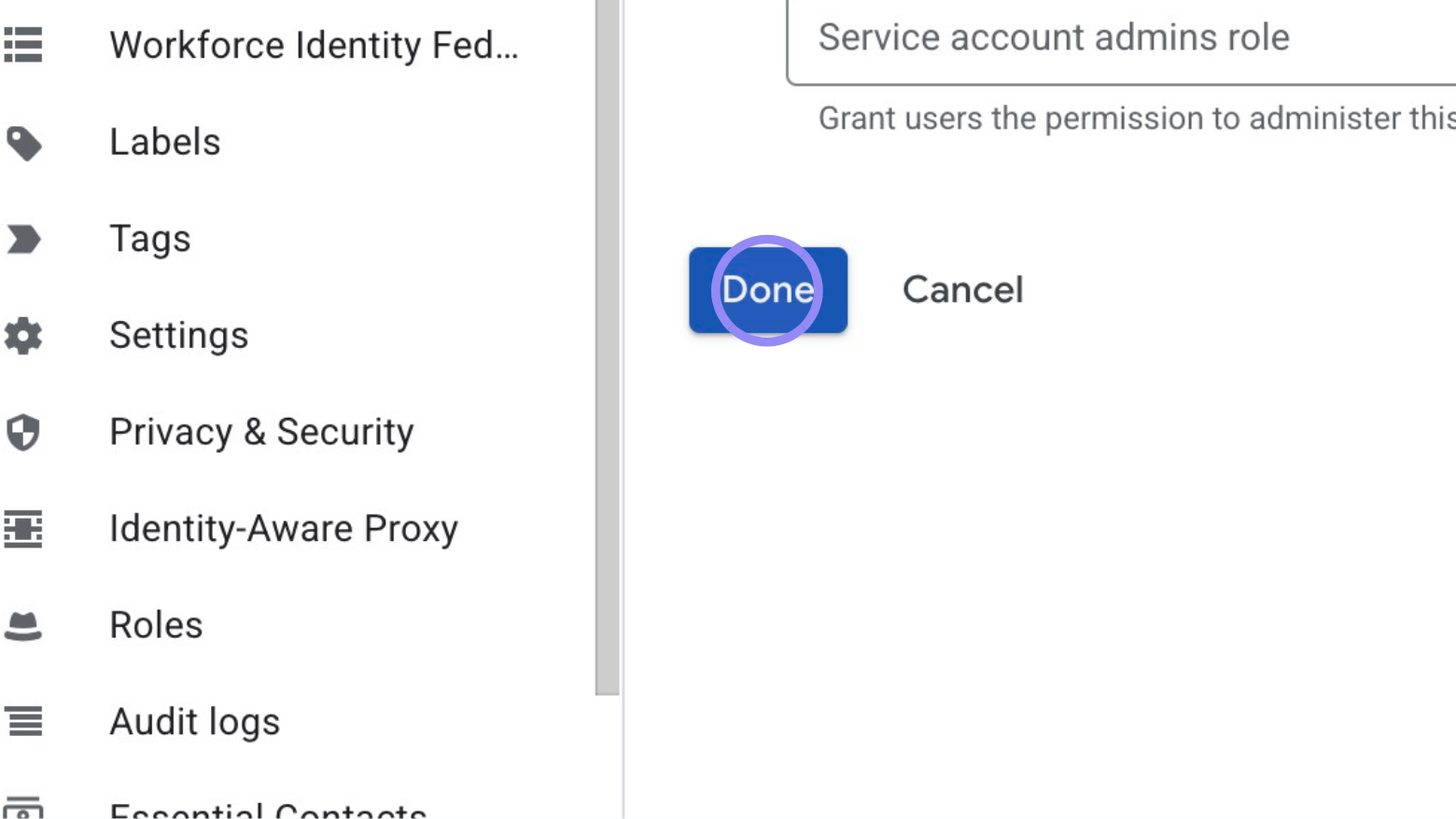 Google Cloud Console 'Finish Creating Service account' Button
3. Create keys for the Service account
Select your Service account
Go to the ‘Credentials’ section within the ‘APIs & Services’ menu, and click on the Service account created previously.
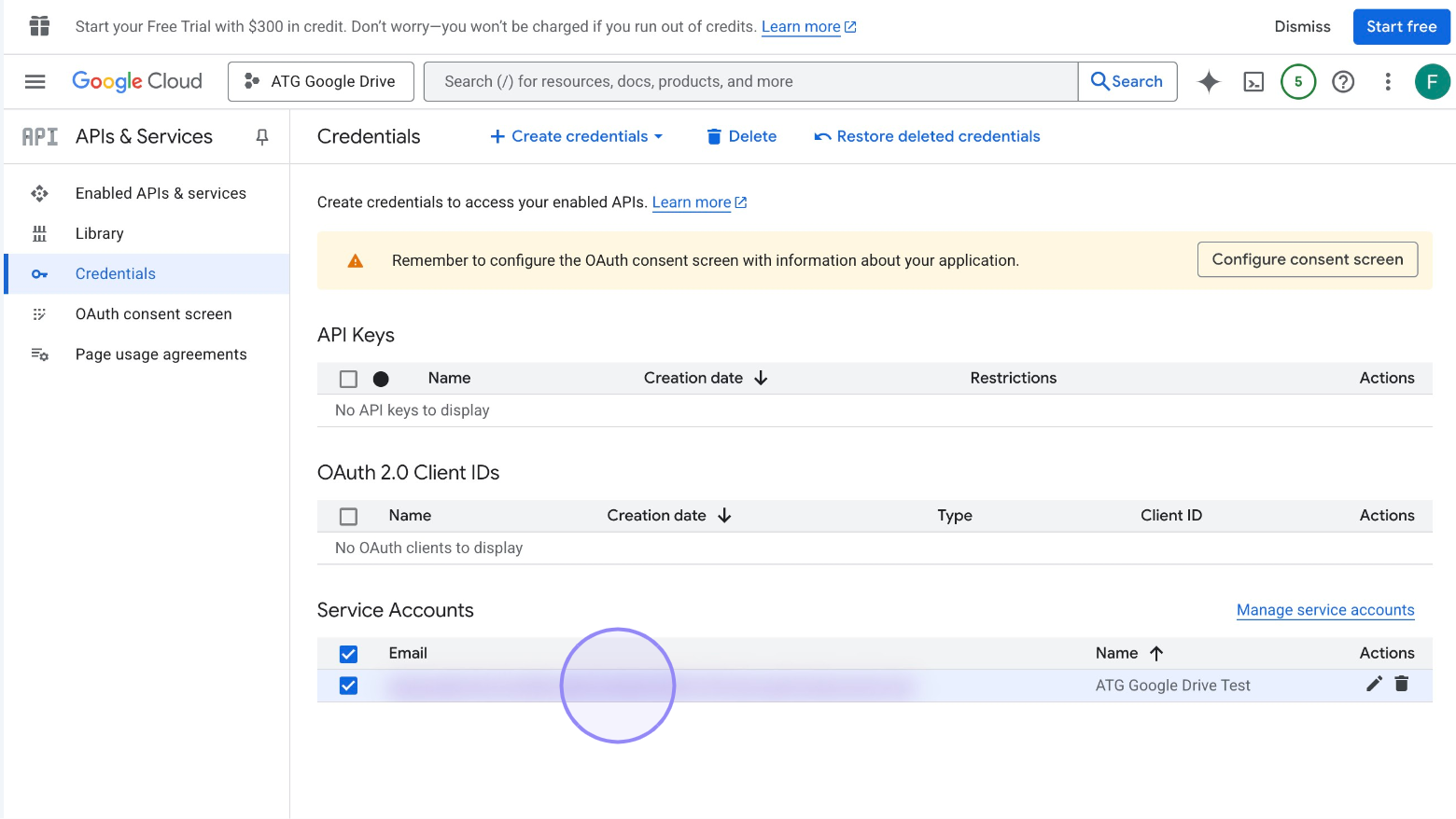 Google Cloud Console 'Select your Service account' Menu
Go to Keys
Click on ‘Keys’ menu:
 Google Cloud Console 'Keys' Menu
Create new key
The Key section appears empty because no keys have been created yet. Click on ‘Add key’ and choose ‘Create new key’.
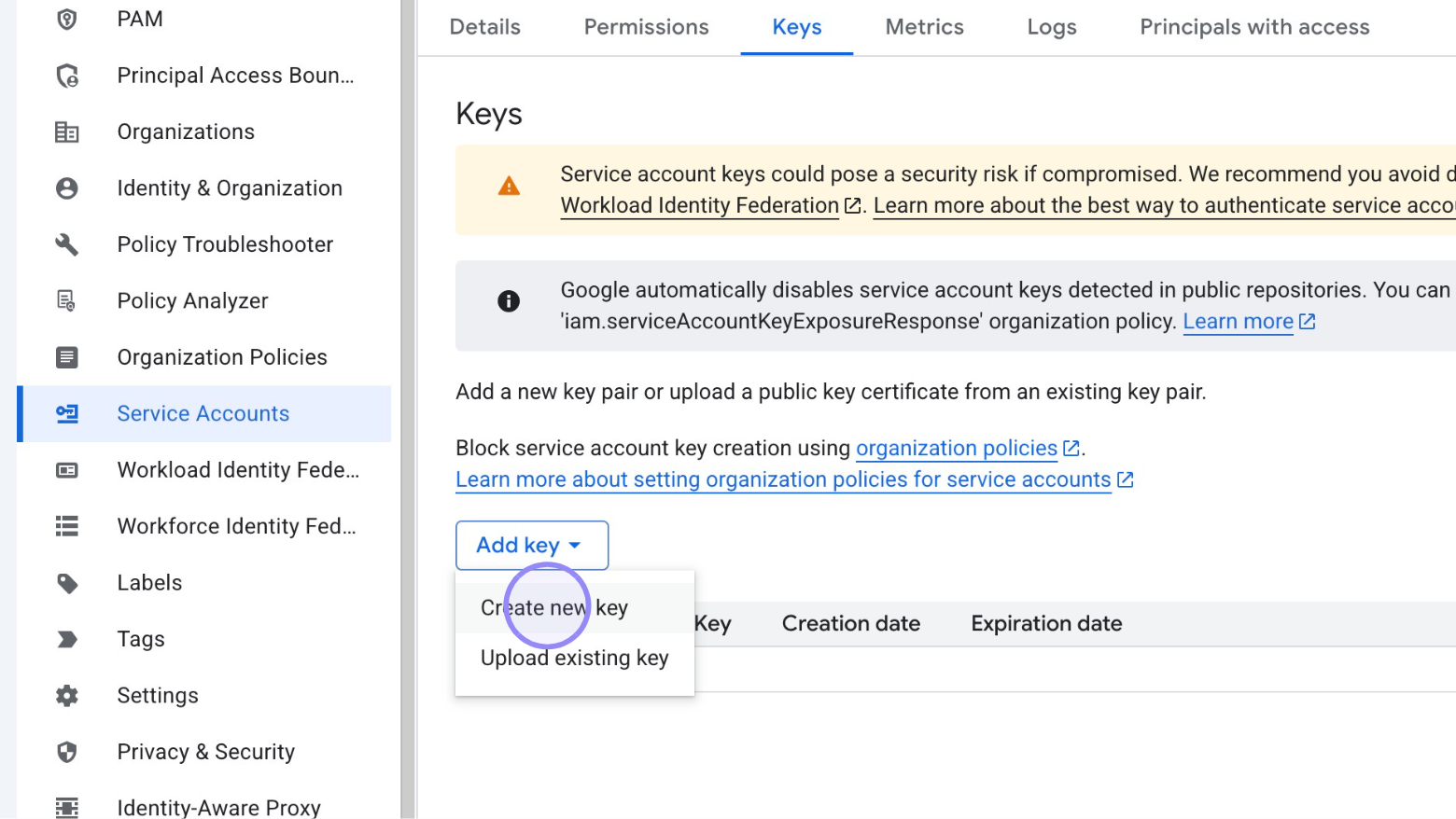 Google Cloud Console 'Create new key' Button
Choose JSON and Create
Select the key type JSON and then click on ‘Create’.
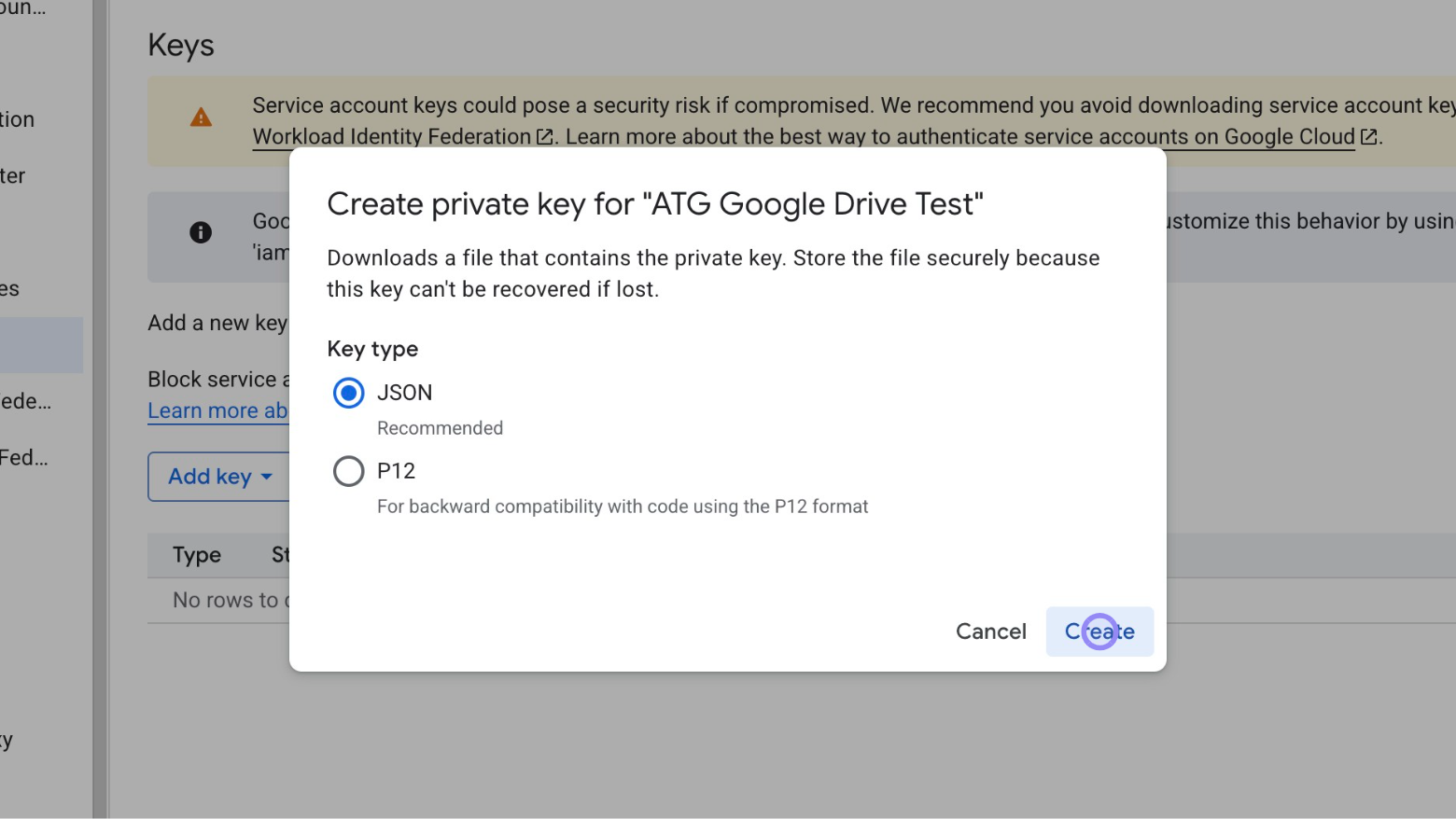 Google Cloud Console 'Choose JSON and Create' Menu
Then save the JSON key:
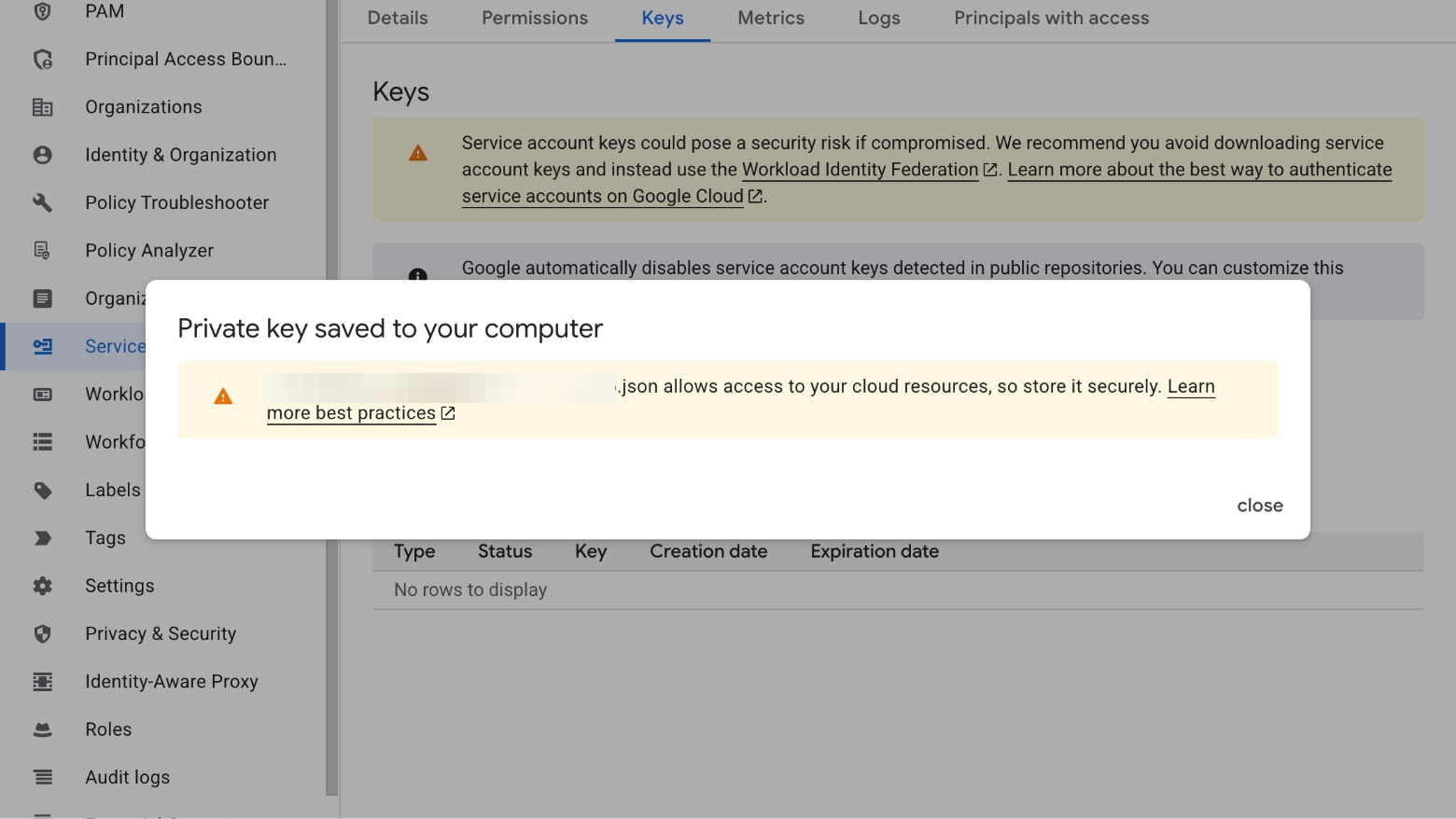 Google Cloud Console 'Save the JSON key' Button
In case you encounter an error message during the key creation
If you get the following error message:
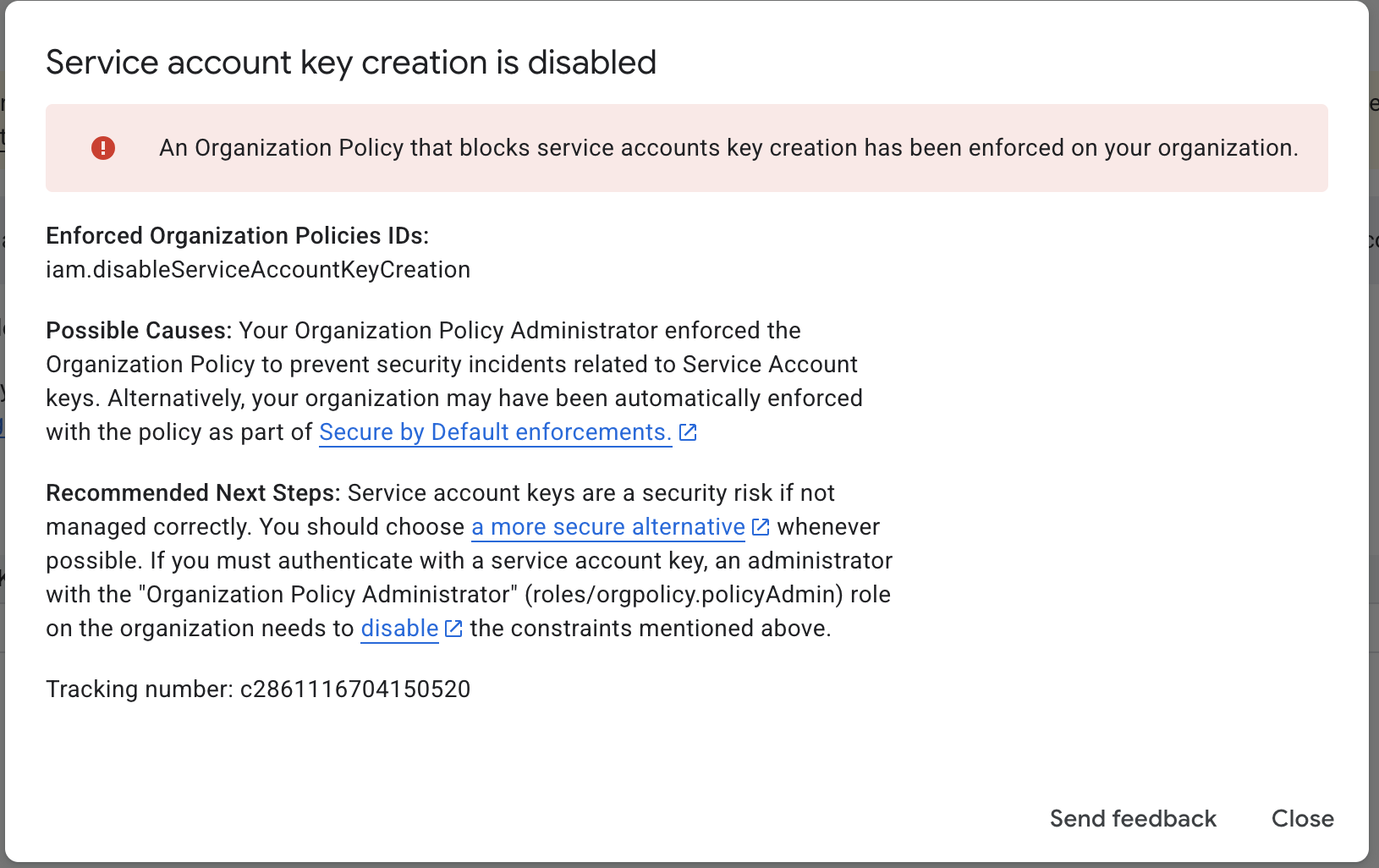 Google Cloud Console Error message'
You will need to update the Organization policies.
For this, your account should have the Administrator rights.
Go to Organization Policies and search for iam.disableServiceAccountKeyCreation and disable it at the project level (or at the organization level if the project inherits the rules from the organizations)
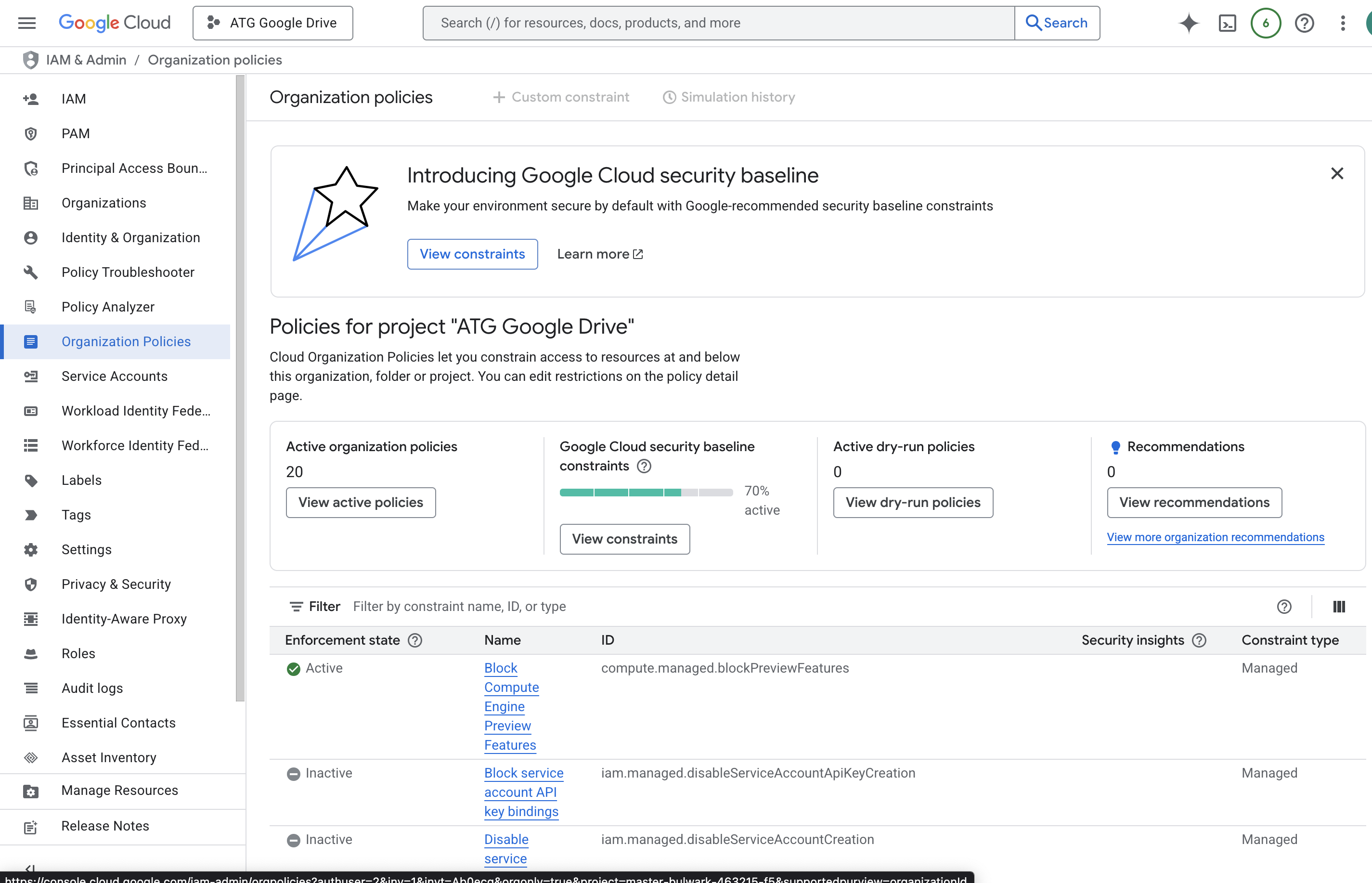 Google Cloud Console Organization policies
4. Share content to ATG
By default, ATG will not have any access to your Google Drive. You will need first to share the content you want to import to ATG.
You can now share any Google Drive content you want to ATG: Drives, folders, files, etc. just like you usually do. Generally speaking, as a good security practice, do not share more than what is needed to any external system.
Do not worry: the fact that content to ATG does not mean it will give it access to any organization’s user. You can configure the access in ATG directly (see later in the document).
First, you have to find the email address associated to your service account, you can find it in the Service account details or in the JSON file you saved earlier.
It should look like this: atg@master-puppets-493931-f4.iam.gserviceaccount.com for example.
Then you can share any content to this email address (Reader access is enough):
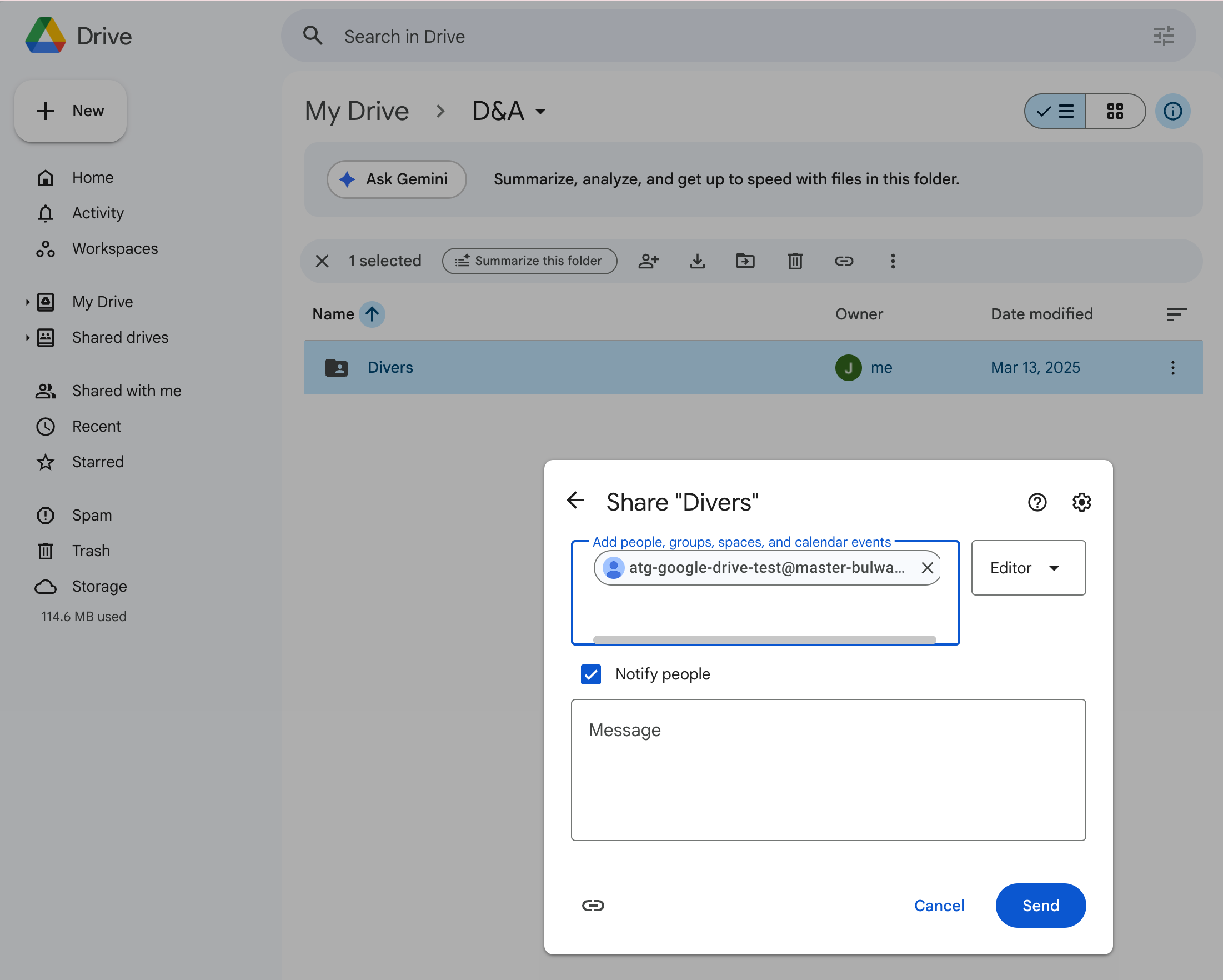 Share content with the service account in Google Drive — step 2
5. Connect Google Drive in ATG
Go the the Connectors Menu in ATG Administrator Console
Go to the Connectors menu:
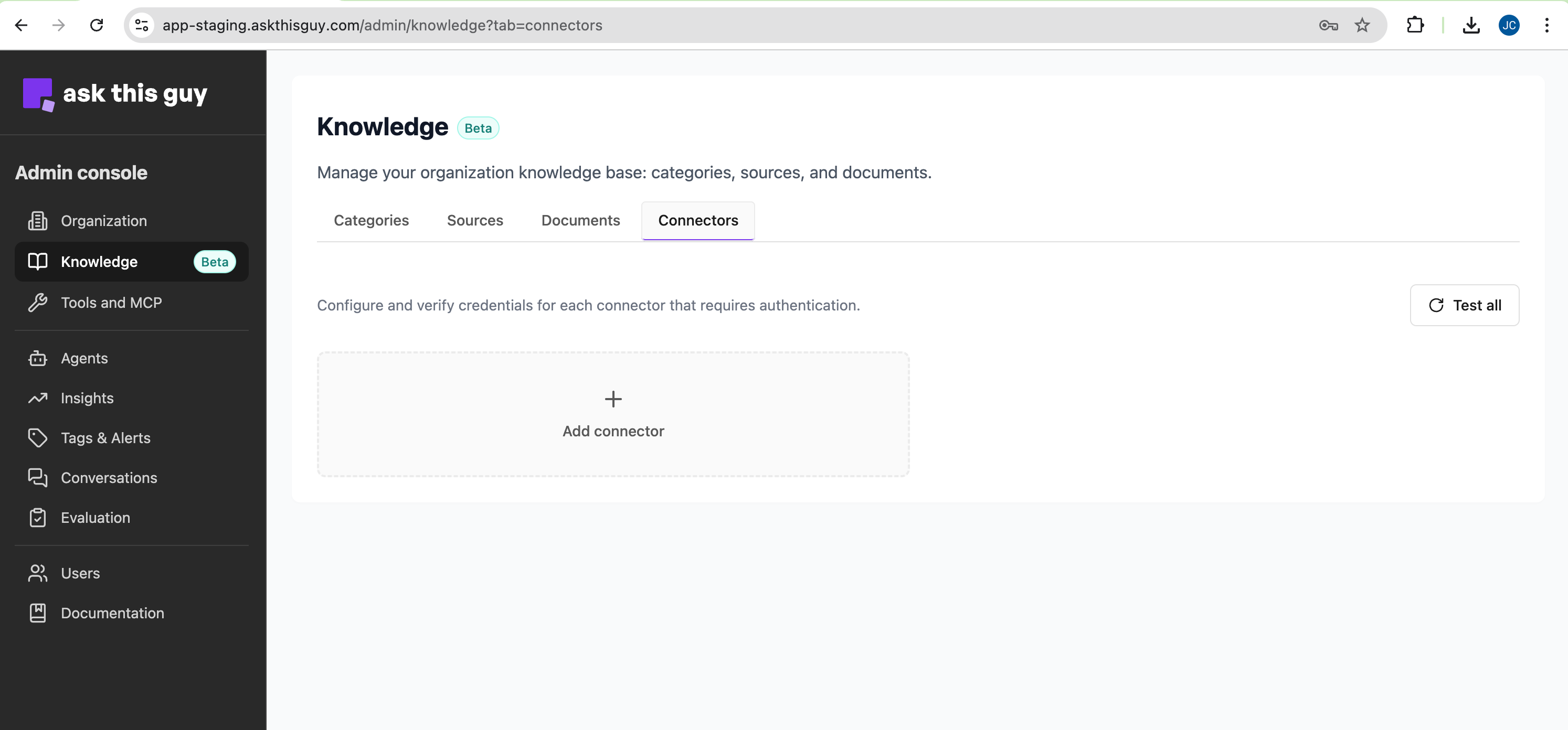 Connectors menu in Admin Console
Click on 'Add connector', select 'Google Drive':
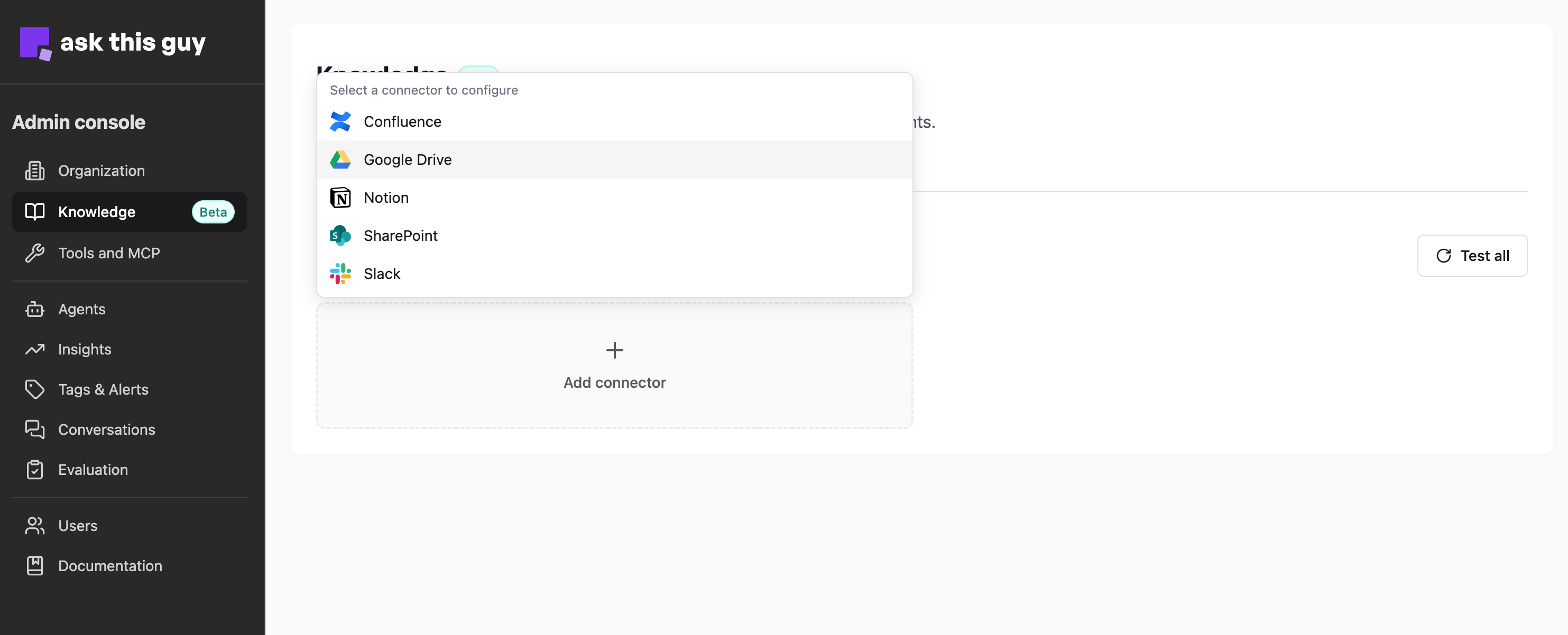 Add a connector, select Google Drive
Upload the JSON file with the credentials, that was previously generated:
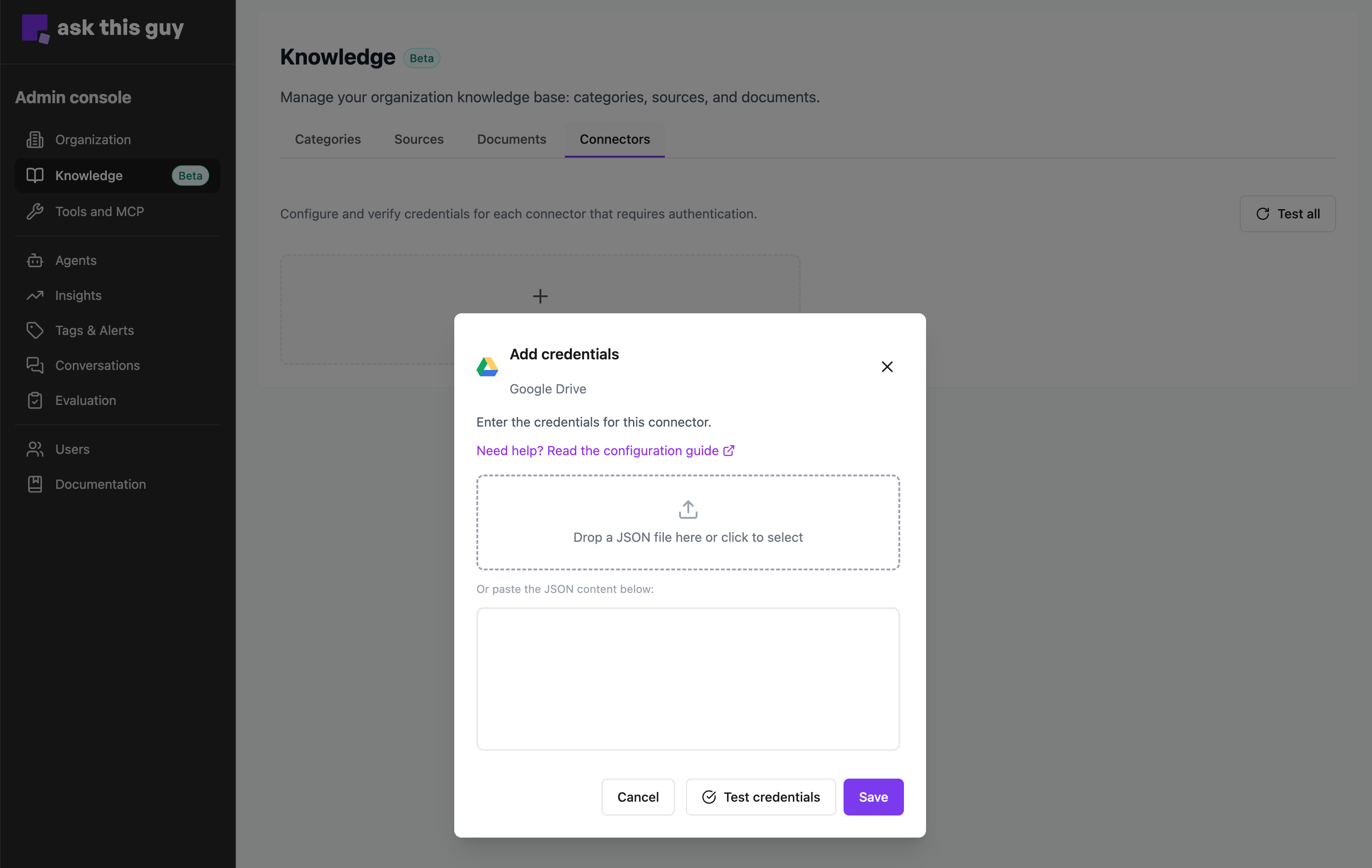 Credentials file upload
Google Drive connector is now added to ATG:
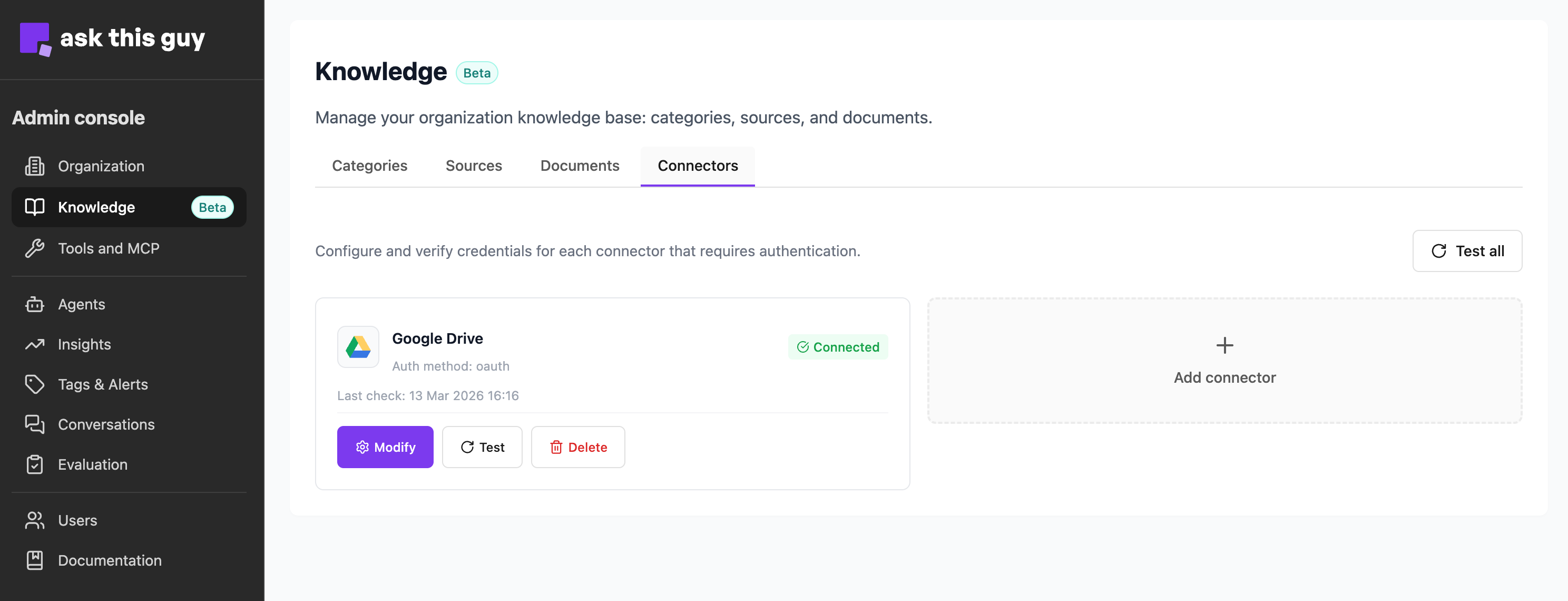 Connectors status view in Admin Console
To add a source, go to the Sources menu, and add a source (Google Drive Connector is now available in the list):
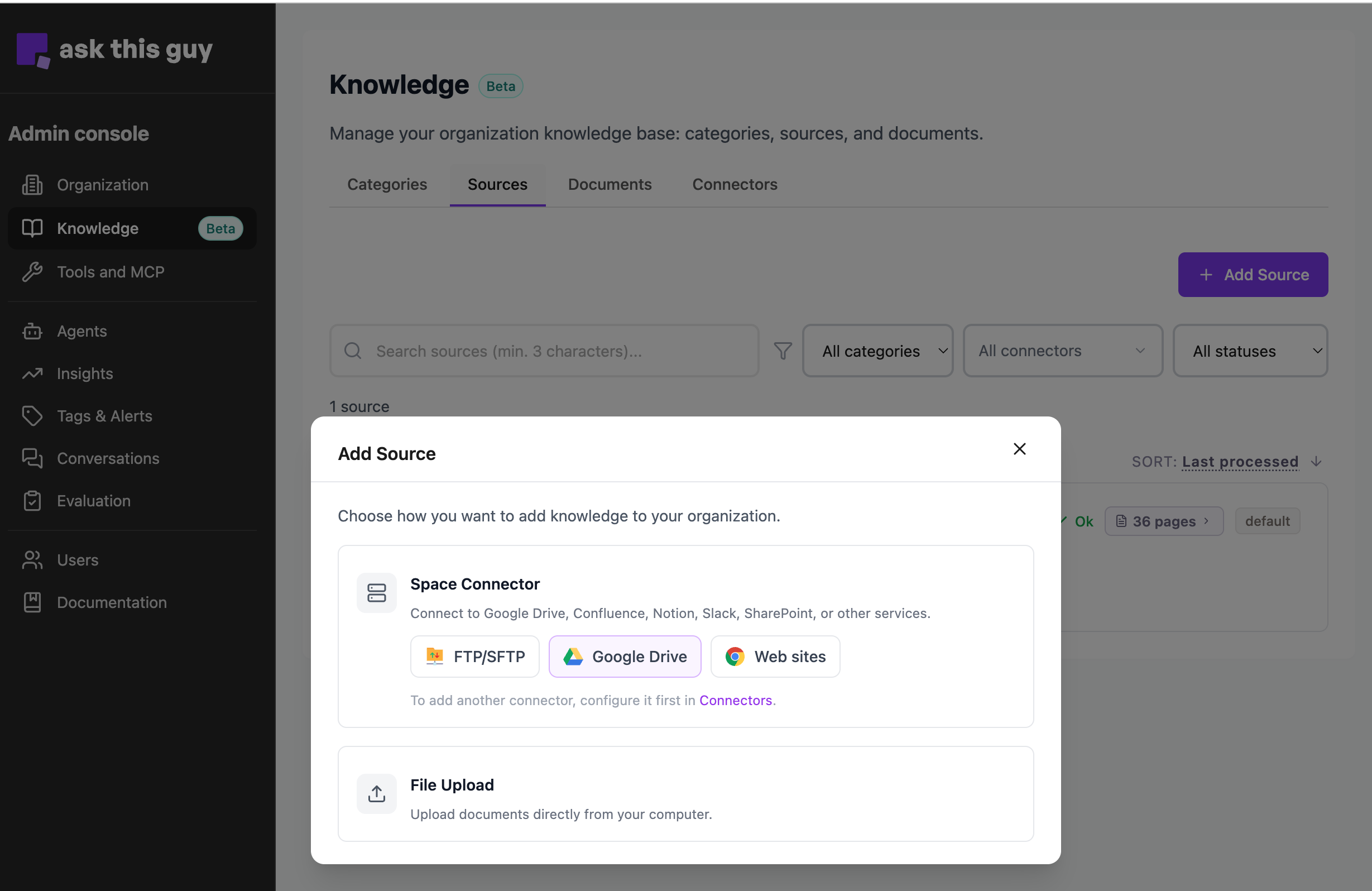 Source add menu in Admin Console